How to Self-Host Postal SMTP Server: Easy Mode (2026)
 Hasan Aboul Hasan
Published 2026-05-13
Updated 2026-06-26
Hasan Aboul Hasan
Published 2026-05-13
Updated 2026-06-26
Postal is a free, MIT-licensed mail server you self-host on your own VPS. This guide takes you from a blank Ubuntu server to a production-ready Postal install (SMTP relay, HTTP API, SPF + DKIM signing, HTTPS dashboard, daily backups) in about 30 minutes for ~$5/month.
- Postal v3.3.6 running on your own VPS at a custom HTTPS domain
- SMTP relay + HTTP API ready for transactional email from your apps
- DNS-verified sending domain with SPF, DKIM, return path, and PTR all green
- Locked-down firewall (only ports 22, 25, 80, 443, 587 open)
- Daily database backups on cron with 7-day retention
- A playbook for the four problems that go wrong most often
If you send emails from your apps, you know the pain of SaaS pricing. Mailgun, SendGrid, Postmark all charge per email, and the costs add up fast.
Postal is the open-source way out. It's a self-hosted mail delivery platform you run on your own VPS. Same features as the big SaaS providers (SMTP relay, HTTP API, click tracking, bounce handling, webhooks), but you own it.
This guide is the easy mode. It uses Postal's official one-liner installer and the simplest path I've found that still ends with a real, production-ready setup. Strong database password, firewall enabled, automated backups, the works. Good enough to put in front of your real customers for signup emails, receipts, and password resets.
When you're ready to scale (IP pools, marketing volume, multi-tenant, reseller setups), that's a separate advanced guide I'll publish later.
By the end of this one, you'll have a working Postal install sending real emails from your own server, ready for your website.
📦 What you're getting: A working production-ready mail server with web UI, SMTP relay, HTTP API, DNS-verified domains (SPF/DKIM), HTTPS, a firewall, and daily backups. Safe to use for transactional email from your apps and sites.
What is Postal SMTP?
Postal is a free, open-source mail delivery platform built for sending transactional and bulk email from your own infrastructure. Think SendGrid or Mailgun, but you run it yourself.
What it does:
- Sends outbound email via SMTP relay or HTTP API
- Tracks opens, clicks, bounces, and complaints
- Manages multiple organizations, mail servers, and sending domains
- Signs emails with DKIM and handles SPF
- Provides webhooks for delivery events
- Logs every message for debugging
What it doesn't do:
- It's not a mailbox server (no IMAP, no inbox). If you want to receive and read email like Gmail, Postal isn't it.
- It's not a mailing list manager (no marketing unsubscribe links built in).
Postal shines when you want to send email from your apps, SaaS, or transactional systems.
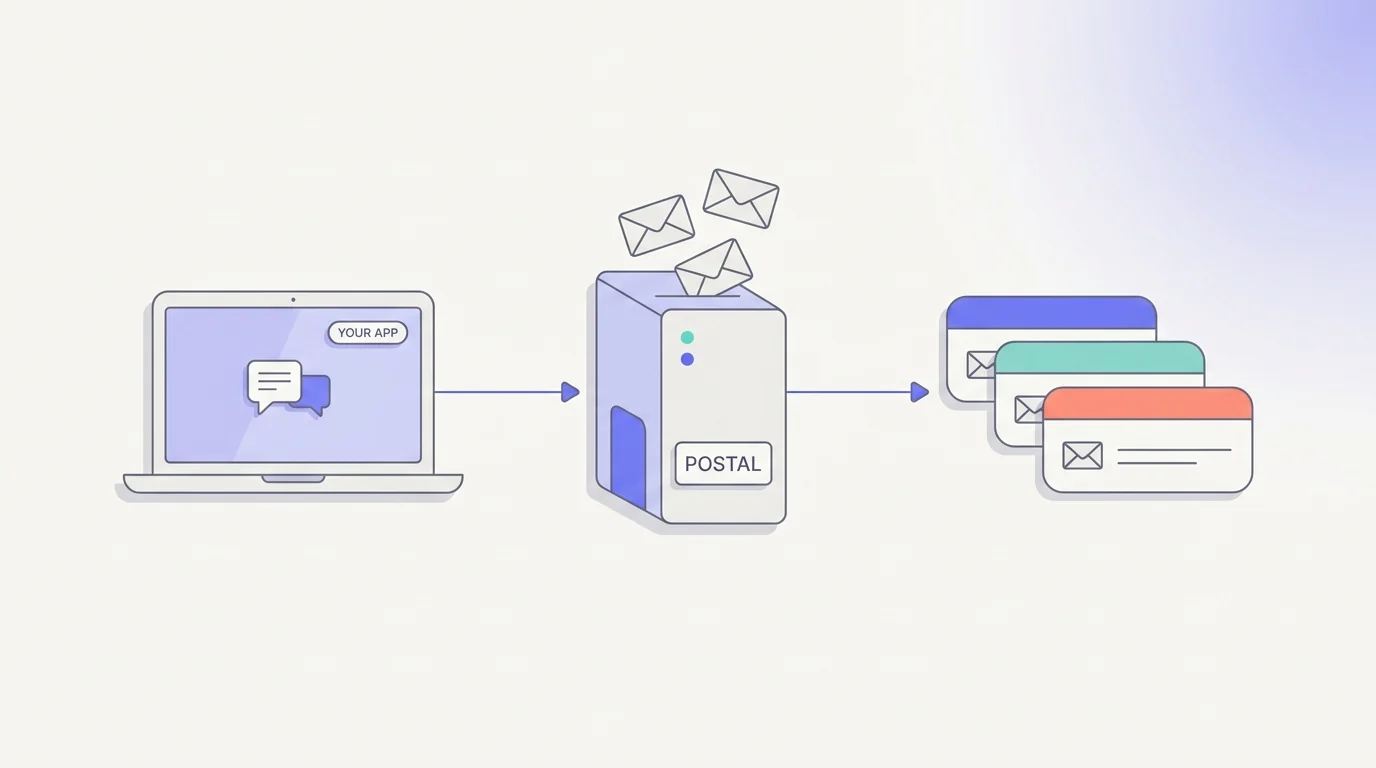
Why Self-Host Postal Instead of Using SendGrid or Mailgun?
Three reasons:
1. Cost. SaaS providers charge per email. At scale, $50–500/month is normal. A $5/month VPS running Postal can send 100k+ emails with no per-email cost.
2. Control. You own the data. You decide the retention. You set the limits. No surprise account suspensions.
3. Deliverability is on you. With self-hosting, your IP reputation is your responsibility. If you do it right, deliverability is excellent. If you don't, your emails go to spam.
Self-hosting Postal makes sense if you send 10k+ emails/month, need full control over headers and routing, or want to learn how email infrastructure actually works.
If you only send a few hundred emails a month, just use Resend or Postmark. The math doesn't work yet.
💡 Curious how much you'd save self-hosting your whole stack?
The Self-Hosting Course walks through replacing your SaaS bills (email, hosting, databases, automation, the works) with self-hosted equivalents, with the exact setup for each.
What You Need
Here's the checklist:
| Requirement | Detail |
|---|---|
| VPS | 4GB RAM, 2 CPU cores, 25GB disk minimum |
| Port 25 | Outbound must be open (most providers block it) |
| Operating System | Ubuntu 24.04 LTS (what the installer is tested on) |
| Domain name | One you control, with DNS access |
| Root access | On the VPS |
The biggest blocker for most people is port 25. AWS, Google Cloud, DigitalOcean, and Vultr block it by default. That's why VPS choice matters more than anything else for self-hosting Postal.
Pick Your VPS (Port 25 Friendly)
You need a provider that allows outbound SMTP on port 25. A few that work well for Postal on a cheap plan with at least 4 GB of RAM: Contabo and Hetzner (port 25 open by default), plus Kamatera and Hostinger. Always confirm the current Port 25 policy with the provider before you commit. It can change.
I use Contabo for most of my Postal installs. Port 25 is open out of the box, the price-to-RAM ratio is unbeatable, and the sending limit of about 25 emails per minute is fine for transactional and small-to-medium volume.
I run the same Contabo + Coolify stack for PyRunner (my Python automation platform) and a handful of other self-hosted services. Same philosophy: own the stack, skip the SaaS bill.
For the rest of this guide, I'll use Contabo. The steps are the same on any Ubuntu 24.04 VPS with port 25 open.
🔗 Looking for more options? The two providers I trust for Postal are Contabo and Hostinger, both with port 25 open. For more self-hosting picks, see the Self Hosting Hub.
Step 1: Create Your Contabo VPS
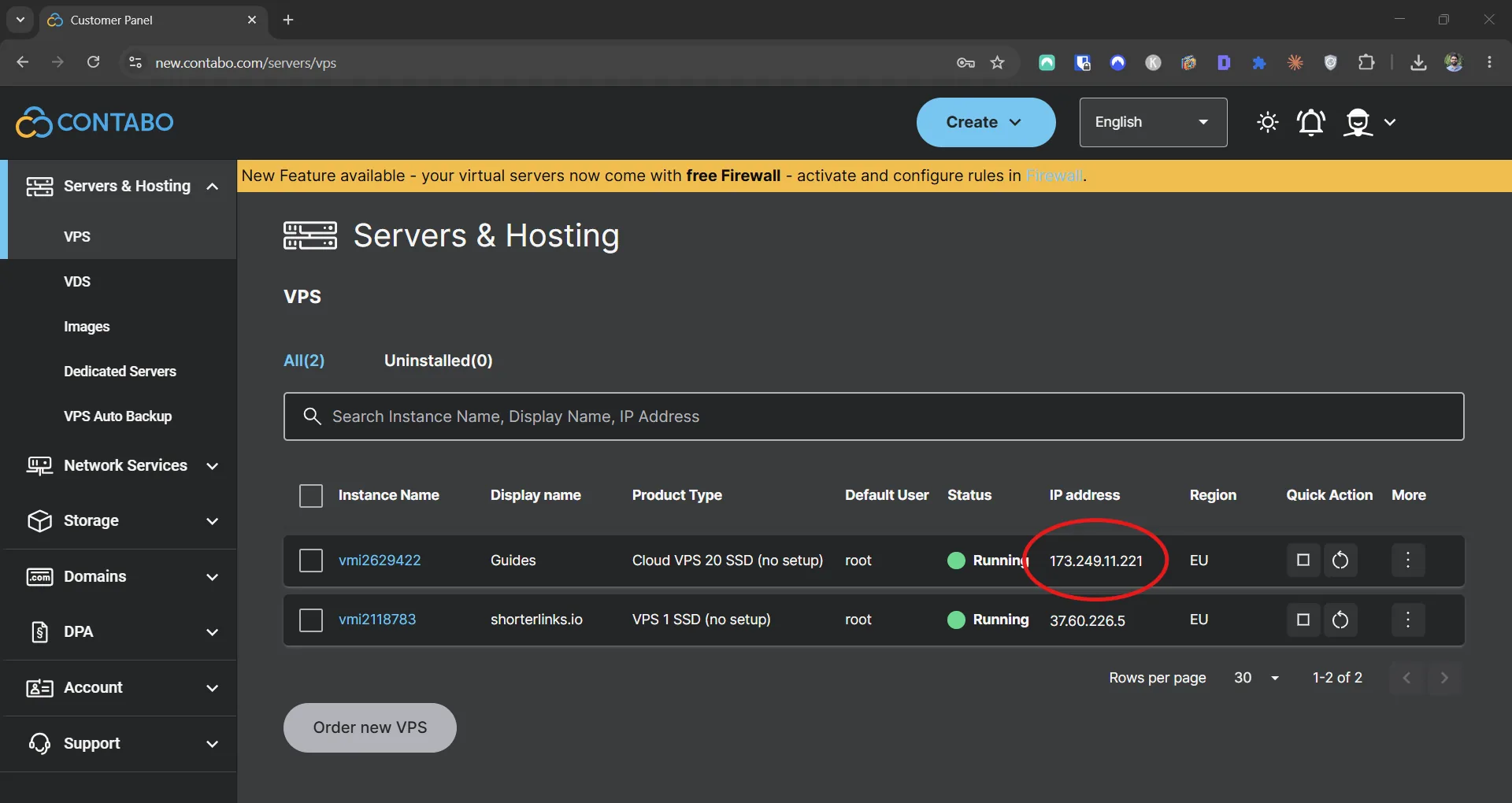
- Sign up at contabo.com.
- Pick VPS S or higher (4GB RAM, 4 vCPU, 100GB SSD is plenty for getting started).
- Choose Ubuntu 24.04 LTS as the image.
- Pick a region close to your audience.
- Order it. Wait 5–10 minutes for provisioning.
- You'll get an email with the root password and IP address.
Your Postal hostname & server IP (optional)
Drop your real values in here and every command, code block, and reference below auto-fills. Copy-paste, no find-and-replace. Values stay in your browser only. Nothing leaves this page.
Values stay in your browser only. Nothing leaves this page.
Once provisioned, SSH into your server:
ssh root@YOUR_SERVER_IP
Test that port 25 is actually open
This is the first thing I do on any new mail server. If port 25 is blocked, nothing else matters.
apt update && apt install -y telnet
telnet smtp.gmail.com 25
You should see something like:
Trying 142.250.x.x...
Connected to smtp.gmail.com.
220 mx.google.com ESMTP ...
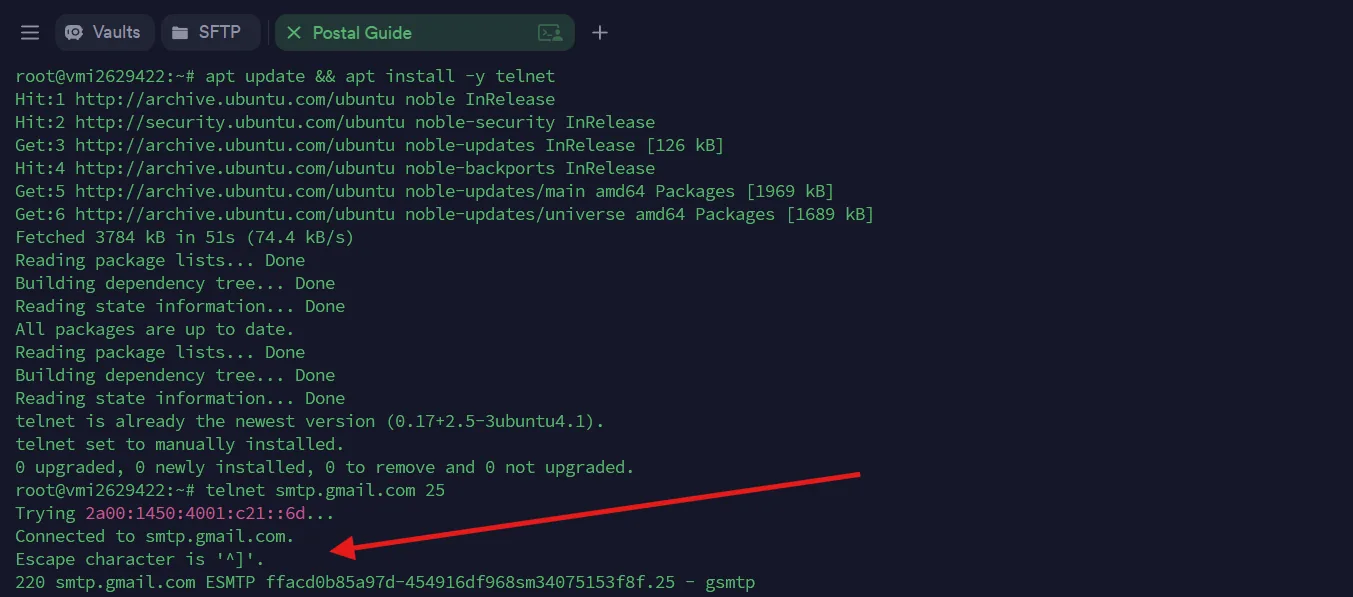
220 smtp.gmail.com ESMTP banner is what you want to see.If it hangs or says "connection refused," port 25 is blocked. Contact support before continuing.
Type quit to close the connection.
Step 2: Set the Server Hostname
Your VPS needs a proper hostname that matches the domain you'll use for Postal. I'll use postal.example.com throughout this guide. Replace it with your actual domain.
hostnamectl set-hostname postal.example.com
Confirm it:
hostname
Should return: postal.example.com
Step 3: Enable the Firewall
Before exposing anything publicly, lock down the server. We'll allow only the ports Postal actually needs and block everything else.
Without this step, Postal's admin UI (port 5000) is reachable from the open internet over unencrypted HTTP. Don't skip it.
# Default policy: block all incoming, allow all outgoing
ufw default deny incoming
ufw default allow outgoing

# Open only the ports we need
ufw allow 22/tcp     # SSH (so we don't lock ourselves out)
ufw allow 25/tcp     # SMTP
ufw allow 80/tcp     # HTTP (for Let's Encrypt cert verification)
ufw allow 443/tcp    # HTTPS (Postal web UI via Caddy)
ufw allow 587/tcp    # SMTP submission

# Turn it on
ufw --force enable

# Verify
ufw status verbose
You should see all five ports listed as ALLOW:
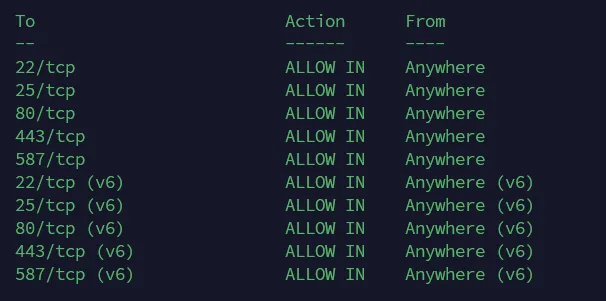
ufw status verbose after enabling the firewall. Only the five ports Postal needs are accepting inbound traffic.Step 4: Set Reverse DNS (PTR Record)
This is the step most guides skip. It's a deliverability killer.
Reverse DNS (PTR) maps your server's IP back to a hostname. Gmail, Outlook, and most major providers check this. If YOUR_SERVER_IP doesn't resolve back to postal.example.com, your emails go to spam regardless of how clean everything else is.
On Contabo:
- Log into the Contabo Customer Control Panel.
- Go to Your services → click your VPS.
- Find the Networking section → click Manage IP.
- Set the PTR record to
postal.example.com. - Save.
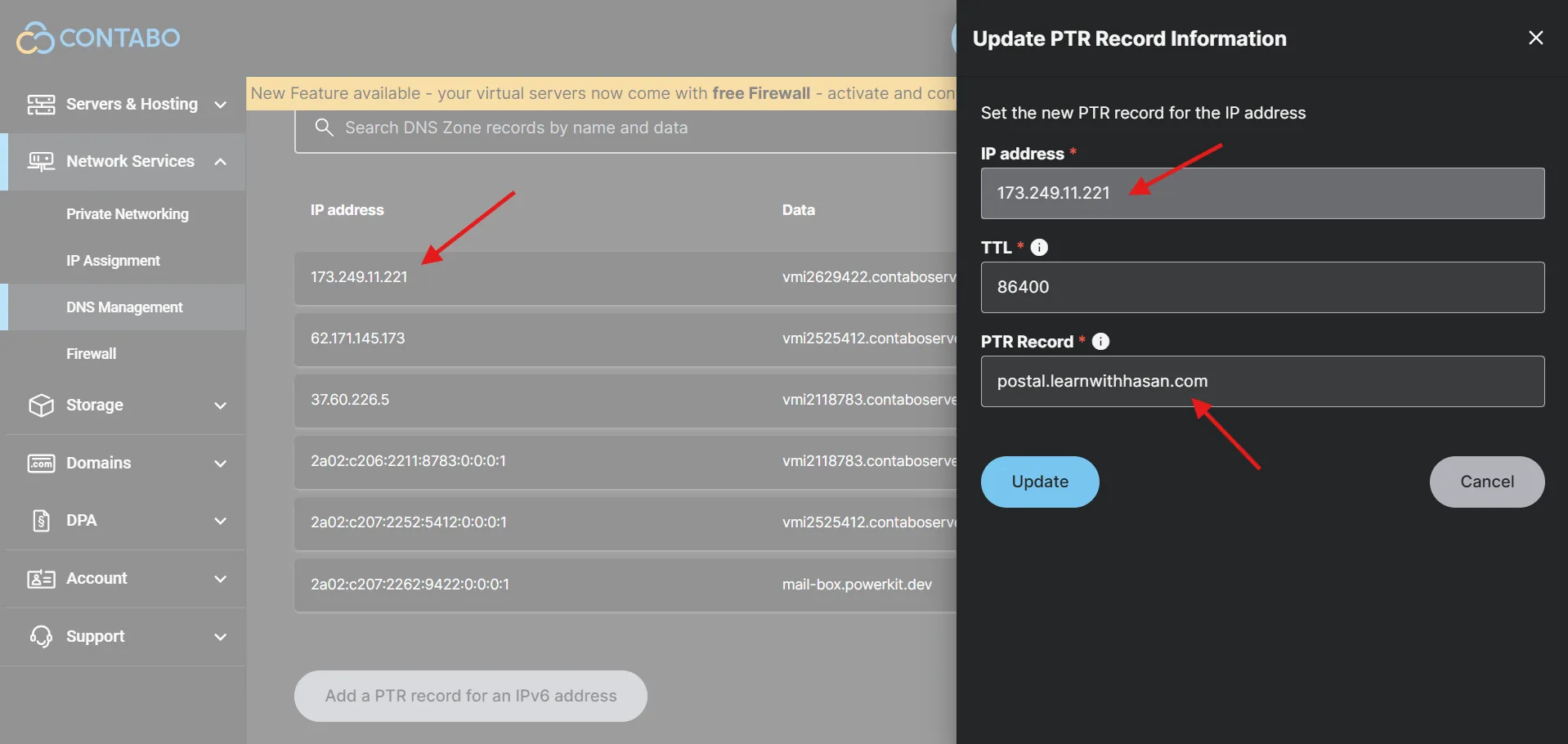
Verify it from your SSH session (give it a few minutes to propagate):
dig -x YOUR_SERVER_IP +short
Should return: postal.example.com.
Don't skip this step. If you do, expect everything you send to land in spam.
Step 5: Point Your Domain to the Server
Add an A record for your Postal hostname at your DNS provider (Cloudflare, Namecheap, GoDaddy, whatever you use):
| Type | Name | Value | TTL |
|---|---|---|---|
| A | postal | YOUR_SERVER_IP | Auto |
If you use Cloudflare, turn off the orange cloud (proxy) for this record. Postal handles its own SSL.
Wait a few minutes, then test:
dig postal.example.com +short
Should return your server IP.
You'll add more DNS records (SPF, return path, etc.) in Step 8. The interactive generator below will spit out everything you need.
Step 6: Install Docker and the Postal Helper
Postal's official install script runs into a known git redirect issue on modern Ubuntu (the script clones from a vanity URL that redirects to GitHub, and modern git blocks cross-host redirects for security). We'll do the same thing the script does, but cleanly.
Install Docker
curl -fsSL https://get.docker.com | sh
This takes 1–2 minutes. Verify:
docker --version
docker compose version
Clone the Postal helper and create the postal command
git clone https://github.com/postalserver/install /opt/postal/install
ln -s /opt/postal/install/bin/postal /usr/bin/postal
Verify the postal command works:
postal
You should see a list of commands (start, stop, bootstrap, initialize, etc.).
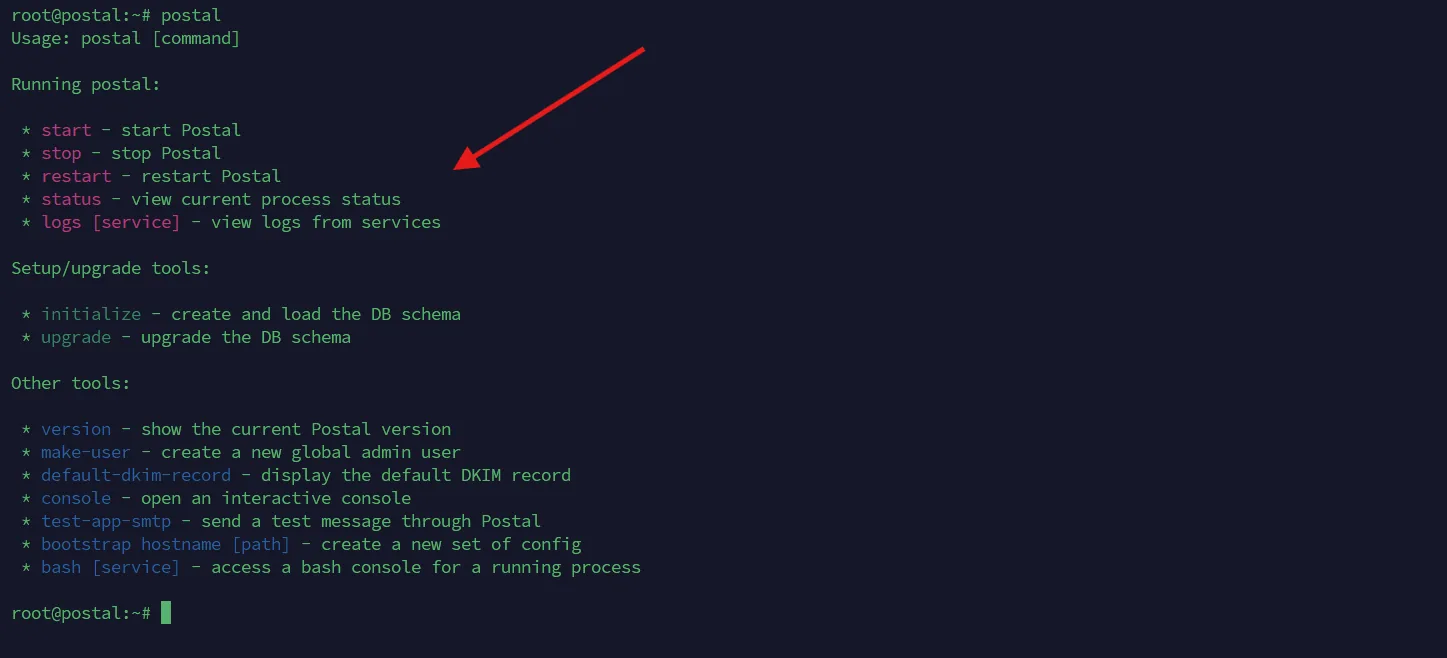
postal CLI is now on your PATH. Everything you'll run from here flows through these subcommands.Why not use the official one-liner? The upstream install script tries to clone from https://postalserver.io/start/install, which 301-redirects to GitHub. Modern git refuses cross-host redirects by default (a security setting in place since 2020). Cloning the GitHub URL directly avoids the problem entirely.
Step 7: Install MariaDB with a Strong Password
Now start MariaDB in Docker with a strong password, a pinned version, and a persistent volume.
Generate a strong password
openssl rand -base64 24
It'll output something like aB3xK9pL2mNqR7vW5tY8jZ4hC6sE1dF. Copy this somewhere safe right now. You'll paste it into the next command and into postal.yml in Step 8.
Start MariaDB
Run this, replacing YOUR_STRONG_PASSWORD with the password you just generated:
docker run -d \
  --name postal-mariadb \
  -p 127.0.0.1:3306:3306 \
  --restart always \
  -v postal-mariadb-data:/var/lib/mysql \
  -e MARIADB_DATABASE=postal \
  -e MARIADB_ROOT_PASSWORD=YOUR_STRONG_PASSWORD \
  mariadb:11.4
This pins MariaDB to version 11.4 (so future MariaDB updates don't break things), creates a Docker volume named postal-mariadb-data (so the database survives container restarts and rebuilds), and binds the port to 127.0.0.1 (so it's only accessible from the server itself).
Verify it started:
docker ps
docker logs postal-mariadb --tail 20
You should see [Note] mariadbd: ready for connections near the end of the logs.
⚠ The MariaDB port is bound to 127.0.0.1:3306, so it's only accessible from the server itself. Combined with the firewall, the database is never exposed to the internet.
Step 8: Bootstrap Postal Configuration
Now generate the Postal config files:
postal bootstrap postal.example.com
This creates three files in /opt/postal/config/:
postal.yml: main configuration file (auto-generated with all the right defaults for v3)signing.key: private key Postal uses for DKIM and other signingCaddyfile: config for the Caddy web proxy (HTTPS)
The bootstrap command pre-fills most of postal.yml correctly. You only need to update the database credentials with the strong password you just set.
Open the file:
nano /opt/postal/config/postal.yml
Find the main_db and message_db sections. Update both to use root as the username and your strong password:
main_db:
  host: 127.0.0.1
  username: root
  password: YOUR_STRONG_PASSWORD
  database: postal

message_db:
  host: 127.0.0.1
  username: root
  password: YOUR_STRONG_PASSWORD
  prefix: postal
Save the file (Ctrl+O, Enter, Ctrl+X).
That's the only edit you need to make. Everything else in postal.yml was auto-generated correctly.
Step 9: Add Your DNS Records (Use the Generator Below)
This is the part most people get wrong. Postal needs several DNS records to work. Get one wrong and your emails go to spam.
I built an interactive DNS records generator. Enter your hostname and server IP, and it gives you every record you need to copy-paste into your DNS provider:
DNS records generator
Enter your Postal hostname and server IP. Copy the records straight into your DNS provider. No more typos breaking your mail server.
Here's what you'll be adding:
| Record | Purpose |
|---|---|
| A / AAAA | Points postal.example.com to your server (you already added the A in Step 5) |
| SPF | Tells receivers your server is authorized to send |
| Return Path | The MAIL FROM domain for bounce handling |
| Route Domain | For receiving inbound mail (optional) |
| Track Domain | For click and open tracking (optional) |
Add all of them now. DKIM and per-domain SPF come later (Postal generates those for each sending domain you add).
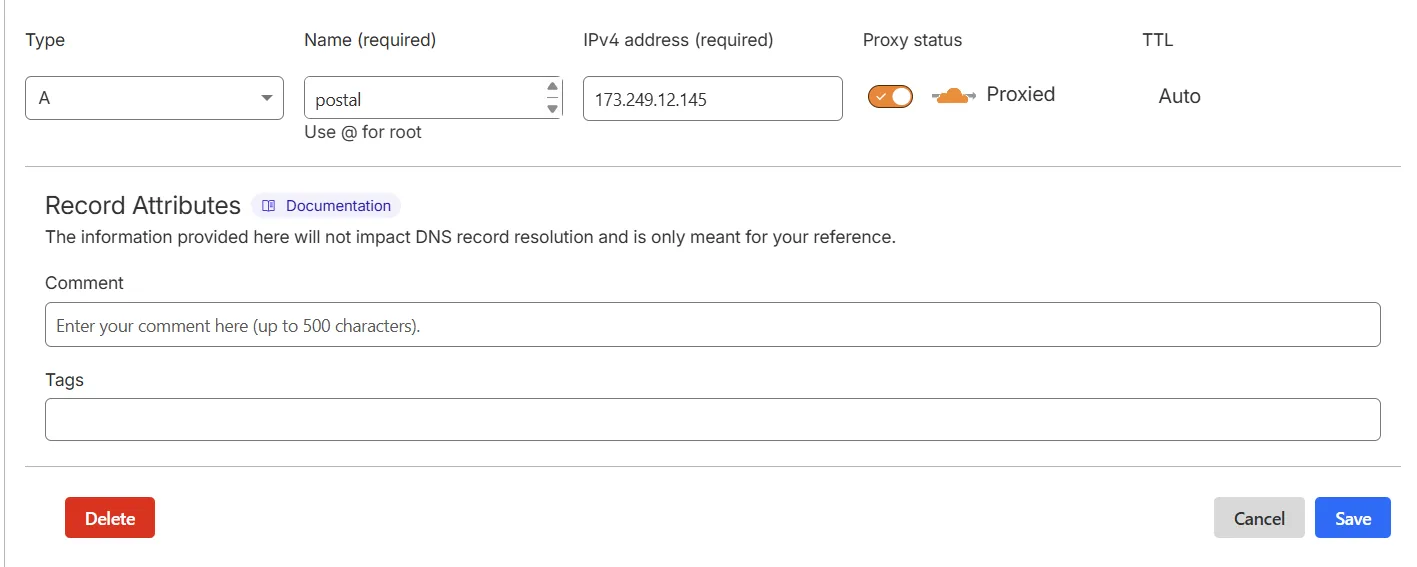
Wait 5–10 minutes for DNS to propagate. You can check with:
dig postal.example.com +short
dig TXT spf.postal.example.com +short
Step 10: Initialize the Database and Create Your Admin User
This creates all the database tables Postal needs:
postal initialize
You should see a bunch of "creating table..." messages and finish with no errors. If you see a database connection error, double-check the password in postal.yml matches what you set in Step 7.
Then create your first admin user:
postal make-user
It'll prompt you for:
- Email address
- First name
- Last name
- Password
Save these credentials. This is how you'll log into the Postal web UI.
Step 11: Start Postal
postal start
This boots up the web server, SMTP server, worker processes, and the cron container. Check they're all running:
postal status
You should see green status for each component.

ghcr.io/postalserver/postal:3.3.6.Step 12: Set Up Caddy for HTTPS
Postal listens on port 5000 by default, but the firewall is blocking 5000 from outside. We need Caddy to terminate HTTPS on port 443 and proxy to Postal internally.
Caddy handles SSL termination automatically with Let's Encrypt. The bootstrap command already created a Caddyfile for you. Just run it:
docker run -d \
  --name postal-caddy \
  --restart always \
  --network host \
  -v /opt/postal/config/Caddyfile:/etc/caddy/Caddyfile \
  -v /opt/postal/caddy-data:/data \
  caddy
Caddy will read the Caddyfile, request a free SSL certificate from Let's Encrypt (using port 80, which we opened in the firewall), and start serving HTTPS on port 443, proxying requests to Postal on port 5000.
Give it 30–60 seconds. Then visit:
https://postal.example.com
You should see the Postal login page with a valid SSL certificate.
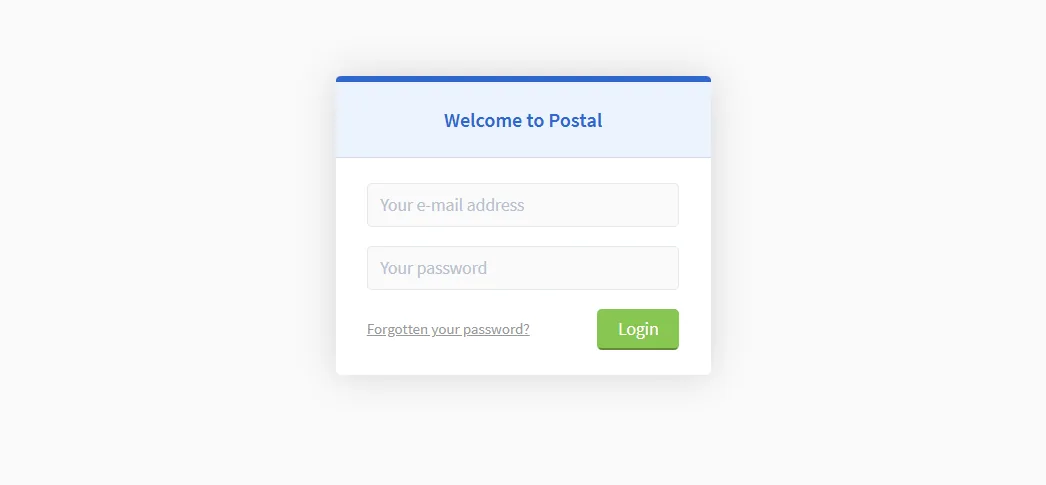
Log in with the admin credentials you created in Step 10.
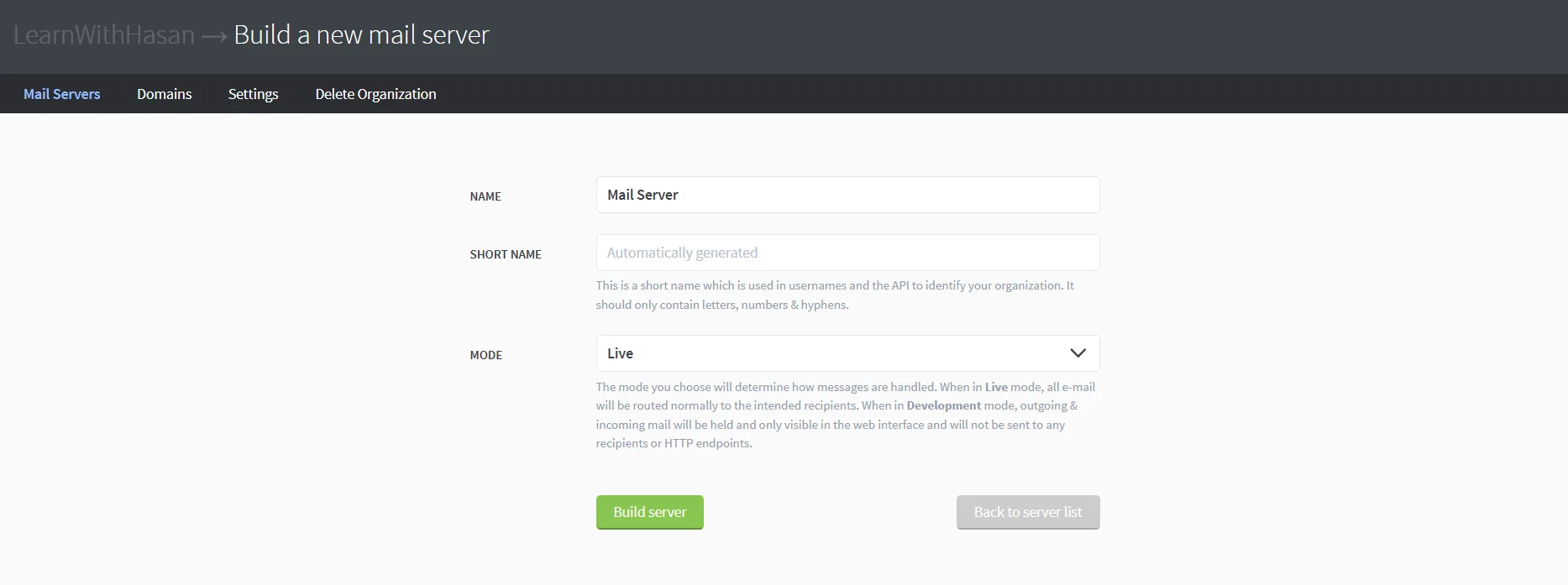
Step 13: Create Your First Organization and Mail Server
Postal organizes things hierarchically: Organization → Mail Server → Domain → Credentials.
- After logging in, click Create the first organization.
- Name it whatever fits. Your company name works.
- Inside the org, click Build a mail server.
- Give it a name (e.g., "Production") and a short code (e.g., "prod").
- Set the mode to Live (use Development if you want to test without sending real emails).
Step 14: Add a Sending Domain (with SPF and DKIM)
Now add the domain you'll send emails from. This is different from your Postal hostname.
For example, your Postal hostname might be postal.example.com, but you'll send emails from [email protected]. You add mycompany.com here.
- Inside the mail server, go to Domains → Add Domain.
- Enter your sending domain (e.g.,
mycompany.com). - Postal will show you two DNS records to add:
- SPF TXT record (typically
v=spf1 a mx include:spf.postal.example.com ~all) - DKIM TXT record (a long public key, copy it exactly)
- SPF TXT record (typically
Add both records to your DNS provider for mycompany.com, then click Check DNS Records. Postal will verify both are correct.
Once both are green, your domain is ready to send.
Step 15: Generate SMTP Credentials and Send a Test Email
- Inside your mail server, go to Credentials → Add Credential.
- Pick SMTP as the type.
- Name it (e.g., "API credential").
- Save it. Postal generates a username and password.
![Postal 'Sending using SMTP' panel showing SMTP server address postal.[blurred].com, ports 25 or 2525, username and password fields (both redacted), and supported authentication methods PLAIN, LOGIN, CRAM-MD5.](/static/images/guides/self-host-postal-smtp/step15-smtp-credentials.7f563ae91948.webp)
Now test sending an email. From your local machine (not the server, since you want to verify the SMTP listener is reachable from outside):
swaks --to [email protected] \
      --from [email protected] \
      --server postal.example.com \
      --port 25 \
      --auth LOGIN \
      --auth-user YOUR_POSTAL_USERNAME \
      --auth-password YOUR_POSTAL_PASSWORD \
      --tls
Install swaks with brew install swaks (Mac) or apt install swaks (Linux).
Check your inbox. The email should arrive in seconds.
Then check the message in the Postal UI under Messages. You'll see the full delivery log, headers, and status.
If it landed in your inbox (not spam), Postal is working. One more step to make it production-ready: backups.
Step 16: Set Up Daily Database Backups
Your Postal database holds every message log, suppression list, domain config, and credential. If the server dies or the database gets corrupted, you lose all of it. Daily backups are a five-minute setup that saves you from real pain.
Create a backup script:
mkdir -p /opt/postal/backups

cat > /opt/postal/backup.sh << 'EOF'
#!/bin/bash
TIMESTAMP=$(date +%Y%m%d_%H%M%S)
docker exec postal-mariadb mariadb-dump -uroot -pYOUR_STRONG_PASSWORD --all-databases 2>/dev/null | gzip > /opt/postal/backups/postal_$TIMESTAMP.sql.gz
# Keep last 7 days, delete older
find /opt/postal/backups -name "postal_*.sql.gz" -mtime +7 -delete
EOF
Replace YOUR_STRONG_PASSWORD in the script with your actual MariaDB password:
nano /opt/postal/backup.sh
Lock down permissions (only root can read or run it):
chmod 700 /opt/postal/backup.sh
Test it works:
/opt/postal/backup.sh
ls -lh /opt/postal/backups/
You should see a postal_YYYYMMDD_HHMMSS.sql.gz file.
Add it to cron to run daily at 3am:
(crontab -l 2>/dev/null; echo "0 3 * * * /opt/postal/backup.sh") | crontab -
Verify the cron job:
crontab -l
⚠ For real safety, copy backups off the server. A backup on the same server doesn't help if the server itself dies. Use rclone to sync /opt/postal/backups/ to S3, Backblaze B2, or your own machine. That's covered in the advanced guide.
Common Issues and How to Fix Them
Why are my Postal emails going to spam?
This is the most common issue. Causes, in order of likelihood:
- PTR (reverse DNS) not set. Step 4. If you skipped it, fix it now.
- DKIM not configured for your sending domain. Step 14. Postal verifies this in the domain settings.
- SPF record wrong. Make sure the SPF record at your sending domain includes
include:spf.postal.example.com. - IP has a bad reputation. Check the IP at mxtoolbox.com/blacklists. If it's listed, request delisting or get a new IP.
- No DMARC record. Add one for your sending domain:
v=DMARC1; p=none; rua=mailto:[email protected]to start.
Test your full setup at mail-tester.com and aim for 9/10 or 10/10.
Why do I get "Connection refused" when testing SMTP?
Either the SMTP container isn't running (postal status to check), or your firewall is blocking port 25. Verify:
ufw status | grep 25
Should show 25/tcp ALLOW. If not, add it: ufw allow 25/tcp.
Why won't Postal start (containers keep crashing)?
Check logs:
docker logs postal-web
docker logs postal-smtp
docker logs postal-mariadb
Most common cause: the password in postal.yml doesn't match the MariaDB password you set in Step 7. Check both match exactly.
Why won't Caddy get my SSL certificate?
Make sure:
- Your domain's A record points to the server (Step 5)
- Port 80 is allowed by the firewall (
ufw status | grep 80) - The hostname in
Caddyfilematches your actual domain - DNS has actually propagated (
dig postal.example.com +shortreturns your IP)
I locked myself out via SSH after enabling the firewall. How do I get back in?
If you forgot to allow port 22 before enabling ufw and lost SSH access, use your VPS provider's console access (Contabo has a web-based VNC console) to log in and run ufw allow 22/tcp.
What's Next
You have a working, secured Postal install with daily backups. Here's what to do next:
- Test deliverability properly. Send a test email to mail-tester.com and aim for 9/10. Below that, fix the issues it flags.
- Set up DMARC. Start with
p=noneto monitor, then move top=quarantineonce your reports look clean. - Configure rate limits. In your mail server settings, set per-hour and per-day sending limits to protect your reputation.
- Wire up webhooks. Postal's API gives you webhooks for delivery events, bounces, and complaints. Hook these into your app so you stop sending to dead addresses.
- Warm up your IP. New IPs need slow ramp-up. Start with low volume (a few hundred/day) and scale up over 2–4 weeks.
- Copy backups off the server. Use
rcloneto sync/opt/postal/backups/to S3 or Backblaze B2.
Now Host the Rest of Your Stack
You just self-hosted your email. The same approach (Docker, a VPS you own, no SaaS rent) works for your entire stack.
That's what Self Hosting 2.0 covers. 34 lessons walking through everything I run on the same Coolify stack as Postal: web apps, databases, automation tools (n8n), password managers (Vaultwarden), analytics (Plausible), object storage, monitoring, backups. Same builder-to-builder approach, same anti-SaaS bill philosophy.
If this guide saved you the cost of one month of SendGrid, the course pays for itself the first week.
Course
Self Hosting 2.0
$69, lifetime access
More Postal Guides Coming
This guide is the starting point. I'm writing focused follow-ups for specific scenarios:
- Deliverability Mastery for Postal: getting to 10/10 on mail-tester, dealing with blacklists, DMARC progression
- Migrating from SendGrid/Mailgun to Postal: the full cutover playbook, IP warmup overlap, traffic splitting
- Scaling Postal for High-Volume Sending: IP pools, multi-IP rotation, dedicated IPs, sender warmup
- Self-Hosted Email Marketing: Mautic + Postal + Coolify: replace ActiveCampaign/ConvertKit on your own stack
- Build Your Own Resend on Postal: open-source developer UI for the Postal API
- Postal API for Developers: Python/Node code examples, webhook handling, rate limit strategies
- Inbound Email with Postal: receiving emails, routing to webhooks, building email-driven products
- Postal as a Service for Clients: multi-org setups for agencies and resellers
- Postal on Coolify (and when not to): honest trade-offs of co-locating mail with your other sites
- Self-Hosting Mailcow for Business Email: the inbox companion to Postal's outbound
I'll link each one here as they publish.
Self-Hosting Postal: Final Thoughts
This setup gets you about 30 minutes from a fresh VPS to a real, secured, backed-up mail server ready for your customers.
It's not a toy install. The database has a strong password, the firewall blocks everything you don't need, the data persists across reboots, and backups run daily. You can put it in front of real users today.
When you outgrow it (marketing volume, multiple sending domains for clients, high-volume bulk sending), the advanced guide will be there. For now, this is enough.
If you run into something I didn't cover, let me know. I keep this guide updated.
FAQ
What's the latest version of Postal?
Postal v3.3.6 is the latest stable release (released April 28, 2026). The installer pulls the latest version automatically.
Can I run Postal on a cheaper VPS than 4GB RAM?
Technically yes, but I don't recommend it. Postal runs MariaDB, RabbitMQ, multiple Ruby processes, and Caddy. With less than 4GB you'll hit out-of-memory issues under load.
Is this setup safe to use for real customer emails?
Yes. After completing all 16 steps, you have a strong database password, a firewall that blocks everything except the ports you need, persistent data across container restarts, daily backups, HTTPS, and proper DNS authentication (SPF, DKIM, PTR). That's enough for transactional email from a real product.
The advanced guide covers things you'd add when scaling up (IP pools, marketing volume, multi-tenant), not things you'd need for a normal SaaS sending its own emails.
Does Postal handle inbound email (receiving)?
Yes, but in a specific way. It can receive emails and forward them to HTTP webhooks or other addresses via "routes." It doesn't store emails for you to read like Gmail. For that, use Mailcow or iRedMail.
How many emails can I send with Postal?
It depends on your VPS and your IP reputation, not Postal itself. On Contabo, the provider limits you to ~25 emails/minute (1,500/hour). On a dedicated server with no provider limits, Postal can push tens of thousands per hour.
Is Postal SMTP free?
Postal is free and open source (MIT license). You only pay for the VPS hosting it runs on. Around $4–10/month gets you a fully working setup.
Can I migrate from SendGrid/Mailgun to Postal?
Yes. Both services use standard SMTP. Just swap the SMTP host, port, username, and password in your app's config. The hardest part is warming up your new IP. Don't switch 100% of traffic on day 1.
What ports does Postal use?
- Port 25: incoming/outgoing SMTP (the important one)
- Port 587: SMTP submission (alternative for client apps)
- Port 443: HTTPS for the web UI (handled by Caddy)
- Port 80: HTTP, used by Caddy for Let's Encrypt verification
Should I disable IPv6 on the server, and how?
Often yes, for one reason: deliverability.
If your server has an IPv6 address, Linux will prefer IPv6 over IPv4 when sending email. The problem is that most VPS providers (including Contabo) don't automatically configure reverse DNS (PTR) for the IPv6 address, only for IPv4. Gmail and Outlook both check IPv6 PTR strictly. If they can't match the connecting IPv6 to a hostname, your mail goes to spam or gets rejected outright.
The cleanest fix is to disable IPv6 at the kernel level so Postal only sends over IPv4 (where your PTR is already set up correctly from Step 4).
Create a sysctl config file:
cat > /etc/sysctl.d/99-disable-ipv6.conf << 'EOF'
net.ipv6.conf.all.disable_ipv6 = 1
net.ipv6.conf.default.disable_ipv6 = 1
net.ipv6.conf.lo.disable_ipv6 = 1
EOF
Apply it immediately:
sysctl --system
Verify IPv6 is gone:
ip -6 addr
The output should be empty (or just the loopback if it's stubborn, which is fine).
After disabling, restart the Postal containers so they pick up the IPv4-only config:
postal stop && postal start
To re-enable later (if you set up IPv6 PTR properly with your provider), delete the file and apply:
rm /etc/sysctl.d/99-disable-ipv6.conf
sysctl --system
Where are my backups stored, and how do I restore from one?
Backups are gzipped SQL dumps in /opt/postal/backups/. The script keeps the last 7 days and deletes older files. To restore:
gunzip < /opt/postal/backups/postal_YYYYMMDD_HHMMSS.sql.gz | docker exec -i postal-mariadb mariadb -uroot -pYOUR_STRONG_PASSWORD
Test your restore on a non-production server before you actually need it.
What Linux distros does the installer support?
The one-liner script is for Ubuntu (tested on 22.04 and 24.04). For other distros, you'd install the prerequisites manually.
Can I run Postal on Kubernetes?
The Postal team published a k8s-hippo repo with Kubernetes configs, but it was archived in March 2024 and is no longer maintained. For a Kubernetes deployment today you'll likely need to build your own Helm chart from the official Docker images. For a single-server setup, the Docker path in this guide is much simpler.
Related Postal & self-hosting guides
🧰 What's next? Browse more guides at the Self Hosting Hub, or check out the Self-Hosting Course to replace your SaaS stack step by step.
📬 If you build something with this, send me a note. I love seeing what people ship.

Get the free Vibe Engineering Blocks guide
The exact building blocks I use to ship real products with AI — yours as a free PDF.
Questions & Discussion
Ask a question about this guide →Have a question? Ask it in the community — it's tagged #guide and linked back here. Reading is open to everyone; posting needs a free account.
Loading questions…