Install Mautic 7 on Coolify in 5 Minutes (2026 Setup)
 Hasan Aboul Hasan
Published 2026-05-16
Updated 2026-06-26
Hasan Aboul Hasan
Published 2026-05-16
Updated 2026-06-26
Yes, you can install Mautic 7 on Coolify, but only with a custom docker-compose.yml. Coolify disabled its one-click Mautic service in early 2026 because Mautic 7 dropped the bundled AMQP/RabbitMQ queue transport, breaking the Coolify template. The setup below uses three Mautic containers plus MariaDB and the Doctrine database queue instead. Real setup time: about 5 minutes, plus 2–3 minutes for the first boot.
The 5-minute path:
- Mautic version: 7 (stable,
mautic/mautic:7-apache) - Database: MariaDB 11.4 LTS (Mautic 7 requires MariaDB 10.11+ or MySQL 8.4+)
- Container count: 4, the
mautic_web,mautic_cron,mautic_worker, anddbservices - Async queue: Doctrine (no RabbitMQ needed)
- Minimum VPS: 2 GB RAM, ~5 GB disk
- HTTPS: automatic via Coolify Traefik + Let's Encrypt
- Setup time: ~5 minutes to paste, ~3 minutes to boot
Why this guide exists
Most "install Mautic on Coolify" tutorials online are outdated. They reference Mautic 4 or 5, point to a one-click button that doesn't exist anymore, or skip the parts that actually break.
Here's what happened. Coolify used to ship Mautic as a one-click service. Then Mautic 7 stopped bundling the AMQP queue transport by default (the symfony/amqp-messenger package was dropped from the image), and the Coolify template, which leaned on RabbitMQ for the async queue, broke. So Coolify disabled the service in early 2026 (see coollabsio/coolify#8088).
This is actually good news. The working path is a custom Docker Compose deploy that uses Doctrine (your MariaDB database) as the async queue instead of RabbitMQ. No extra services. Three Mautic containers, one MariaDB database, done.
I run this exact setup on my own server. Here's how to do the same.
Before you start
You need:
- A VPS with Coolify already installed and running
- A domain (or subdomain) with a DNS A record pointing to your VPS IP
- At least 2 GB of RAM free on the server (Mautic + MariaDB + 3 worker containers need breathing room)
If you don't have Coolify set up yet, start with my Coolify install guide first, then come back here. The rest of this post assumes Coolify is up.
Your Mautic domain (optional)
Drop in the domain or subdomain you'll use for Mautic. We'll plug it into every copyable block on this page so you can paste with no edits. Values stay in your browser only.
Values stay in your browser only. Nothing leaves this page.
The architecture (why there are 3 Mautic containers)
This is the part every other tutorial skips. If you don't understand the architecture, the cron problems and worker problems people complain about will hit you next.
Mautic 5, 6, and 7 all run as three separate roles, all using the same Docker image, but each started with a different DOCKER_MAUTIC_ROLE environment variable:
mautic_webis the UI. It's the only container you interact with through the browser. It also handles API requests.mautic_cronruns all the scheduled jobs. Campaign triggers, segment rebuilds, email scheduling. This is the container that makes Mautic actually do things on a timer.mautic_workerprocesses the async queue. When the web container needs to send 10,000 emails, it doesn't send them itself, it pushes them to the queue. The worker drains the queue.
Add MariaDB for storage, put it all behind Coolify's built-in Traefik proxy, and you have a working production setup.

The reason most "my crons aren't working" forum threads exist is that people try to bolt host-level crontab onto a single Mautic container instead of running the dedicated cron container. We're not doing that.
Step 1: Create a new resource in Coolify
In Coolify, open your project and click + New. That takes you to the resources page. Pick Docker Compose Empty.
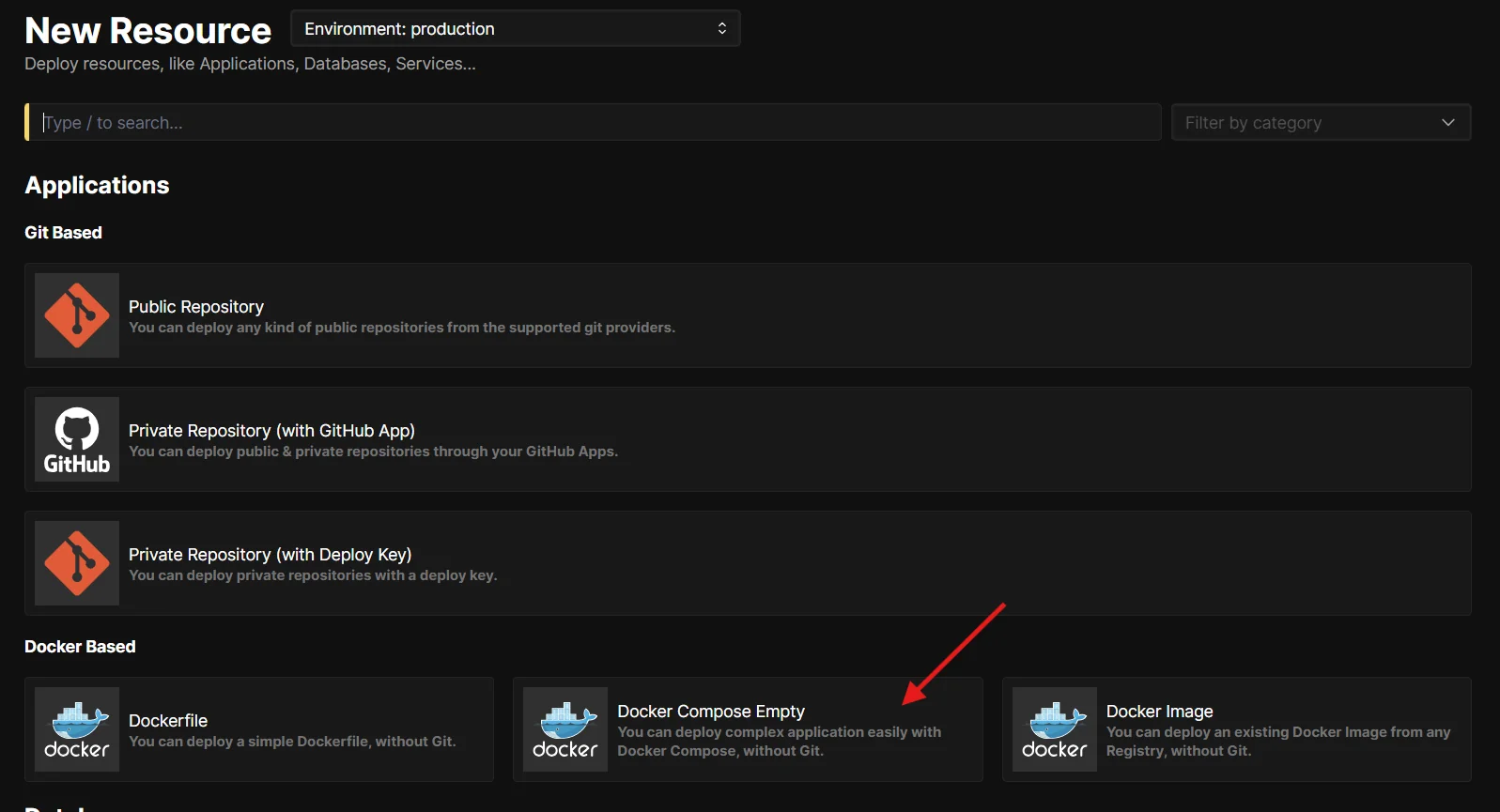
Give it a name like mautic and pick the server you want to deploy on. You'll land on the resource page with an empty Docker Compose editor.
Step 2: Paste the working docker-compose.yml
Here's the full file. Paste this directly into Coolify's Docker Compose editor:
x-mautic-volumes: &mautic-volumes
  - mautic-config:/var/www/html/config
  - mautic-logs:/var/www/html/var/logs
  - mautic-media-files:/var/www/html/docroot/media/files
  - mautic-media-images:/var/www/html/docroot/media/images

services:
  db:
    image: mariadb:11.4
    environment:
      MYSQL_ROOT_PASSWORD: ${MYSQL_ROOT_PASSWORD}
      MYSQL_DATABASE: ${MYSQL_DATABASE}
      MYSQL_USER: ${MYSQL_USER}
      MYSQL_PASSWORD: ${MYSQL_PASSWORD}
    volumes:
      - mariadb-data:/var/lib/mysql
    healthcheck:
      test: ["CMD", "healthcheck.sh", "--connect", "--innodb_initialized"]
      start_period: 10s
      interval: 5s
      timeout: 5s
      retries: 10
    restart: unless-stopped

  mautic_web:
    image: mautic/mautic:7-apache
    expose:
      - "80"
    volumes: *mautic-volumes
    environment:
      DOCKER_MAUTIC_ROLE: mautic_web
      DOCKER_MAUTIC_RUN_MIGRATIONS: "true"
      MAUTIC_DB_HOST: db
      MAUTIC_DB_PORT: 3306
      MAUTIC_DB_DATABASE: ${MYSQL_DATABASE}
      MAUTIC_DB_USER: ${MYSQL_USER}
      MAUTIC_DB_PASSWORD: ${MYSQL_PASSWORD}
      PHP_INI_VALUE_MEMORY_LIMIT: 512M
      PHP_INI_VALUE_UPLOAD_MAX_FILESIZE: 128M
      PHP_INI_VALUE_POST_MAX_FILESIZE: 128M
    depends_on:
      db:
        condition: service_healthy
    healthcheck:
      test: curl --fail http://localhost || exit 1
      interval: 30s
      timeout: 10s
      retries: 10
      start_period: 60s
    restart: unless-stopped

  mautic_cron:
    image: mautic/mautic:7-apache
    volumes: *mautic-volumes
    environment:
      DOCKER_MAUTIC_ROLE: mautic_cron
      MAUTIC_DB_HOST: db
      MAUTIC_DB_PORT: 3306
      MAUTIC_DB_DATABASE: ${MYSQL_DATABASE}
      MAUTIC_DB_USER: ${MYSQL_USER}
      MAUTIC_DB_PASSWORD: ${MYSQL_PASSWORD}
    depends_on:
      mautic_web:
        condition: service_healthy
    restart: unless-stopped

  mautic_worker:
    image: mautic/mautic:7-apache
    volumes: *mautic-volumes
    environment:
      DOCKER_MAUTIC_ROLE: mautic_worker
      MAUTIC_DB_HOST: db
      MAUTIC_DB_PORT: 3306
      MAUTIC_DB_DATABASE: ${MYSQL_DATABASE}
      MAUTIC_DB_USER: ${MYSQL_USER}
      MAUTIC_DB_PASSWORD: ${MYSQL_PASSWORD}
    depends_on:
      mautic_web:
        condition: service_healthy
    restart: unless-stopped

volumes:
  mariadb-data:
  mautic-config:
  mautic-logs:
  mautic-media-files:
  mautic-media-images:
A few notes on what's happening here:
mautic/mautic:7-apacheis the latest stable Mautic 7 image, Apache variant. Don't use the FPM variant. The official maintainers flag known security issues with the bundled nginx config.mariadb:11.4is a current MariaDB LTS release, supported through May 2029. Mautic 7 requires MariaDB 10.11+ or MySQL 8.4+. If you use the oldermysql:8.0image (which a lot of tutorials still default to), Mautic's installer rejects it with "database version too old". MariaDB also uses less RAM than MySQL 8.4 on the same workload. (If you want a fresher base,mariadb:11.8is the newer LTS option, supported through June 2028.)- No
portssection. Coolify handles port routing through Traefik. We justexpose: 80to tell Coolify which port to route to. x-mautic-volumesis a YAML anchor. All three Mautic containers share the same volumes so config and uploads stay in sync. Current Coolify versions handle anchors fine. If you're on an older version and see "reference not found", upgrade Coolify first.- Doctrine async queue. No RabbitMQ. This is the change that makes this work where the old Coolify template didn't.
Doctrine vs RabbitMQ: which queue should you pick?
The short version: for a self-hosted Mautic on a single VPS, Doctrine wins. It only matters if you're sending hundreds of thousands of emails per day, on infrastructure with a dedicated message-broker server.
| Doctrine (database queue) | RabbitMQ (AMQP) | |
|---|---|---|
| Setup | Zero, works out of the box with Mautic 7 | Requires a separate RabbitMQ container + custom Mautic image with symfony/amqp-messenger installed |
| Throughput | Comfortable up to ~50k emails/day on a 2–4 GB VPS | Scales much higher, designed for high-volume async workloads |
| Failure mode | If MariaDB is down, the whole app is down anyway, nothing extra to fail | If RabbitMQ is down, jobs stop draining even though the UI works |
| When to switch | Default for self-hosted Mautic in 2026+ | Only if you've measured Doctrine as the bottleneck |
Step 3: Set the environment variables
In Coolify's Environment Variables tab for this resource, you'll add four values. The database name and user can stay as mautic, but the two passwords need to be strong and unique. Generate them inline right here, both run entirely in your browser:
Click "Generate" to create a new password…
32 random bytes from the Web Crypto API, hex-encoded. Nothing is sent to any server.
Click "Generate" to create a new password…
A separate secret for the Mautic application user. Don't reuse the root password.
⚠ Save these in your password manager now. If you lose MYSQL_ROOT_PASSWORD, you'll need it for backups and restores. If you lose MYSQL_PASSWORD, Mautic stops being able to talk to its database. Treat both like production secrets.
Now paste all four variables into Coolify. If your env vars panel is switched to Developer view (the toggle at the top of the Environment Variables section, which lets you paste a raw .env), copy this block straight in. It stays in sync with the passwords you generated above:
MYSQL_DATABASE=mautic
MYSQL_USER=mautic
MYSQL_ROOT_PASSWORD=your-strong-root-password-here
MYSQL_PASSWORD=your-strong-mautic-password-here
Otherwise, add them one at a time using Coolify's UI. Toggle the Secret flag on both MYSQL_ROOT_PASSWORD and MYSQL_PASSWORD so they stay masked in the logs and the env-vars panel.
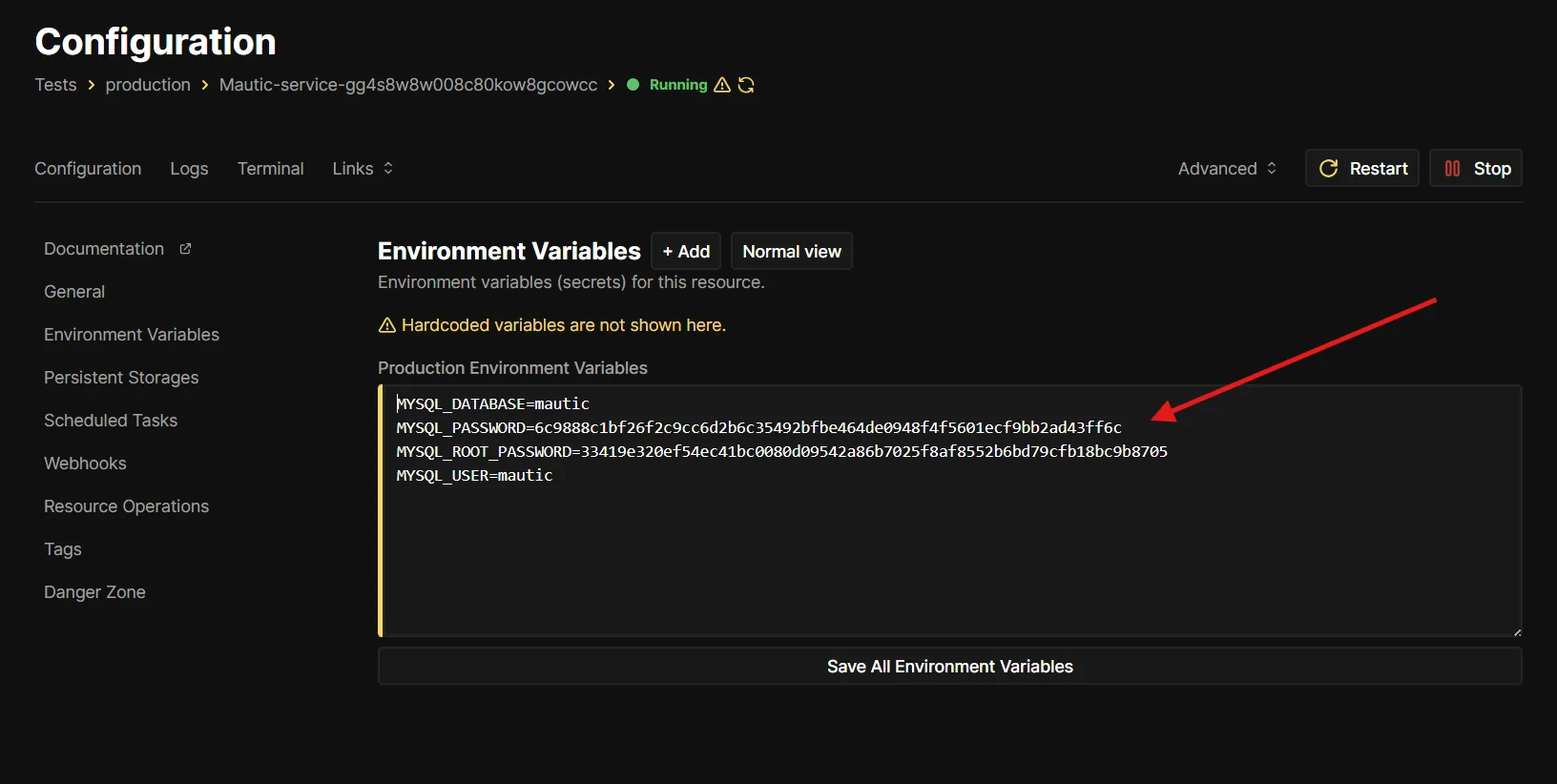
MYSQL_ values in place.Step 4: Set your domain
Open your Mautic resource's Configuration page, click Mautic Web in the Services list, and on the General tab fill the Domains field with your URL (for example https://mautic.yourdomain.com). Hit Save.
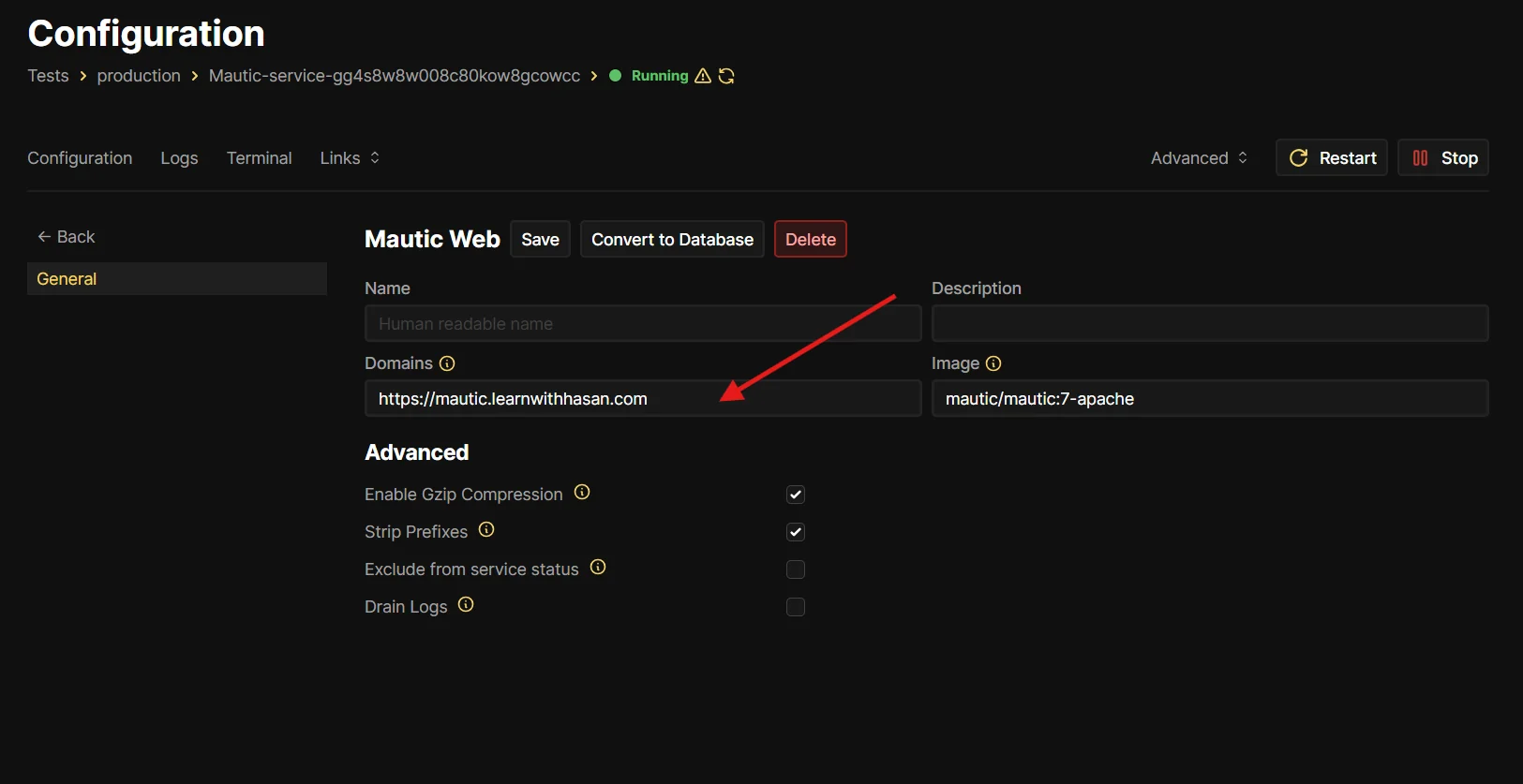
Mautic Web service's General tab.Coolify will auto-provision an SSL certificate from Let's Encrypt the first time the service starts. You don't need to touch anything else for HTTPS. Just make sure your DNS A record is already pointing to your server IP before you hit deploy, otherwise Let's Encrypt validation fails and you'll have to retry.
Step 5: Deploy
Click Deploy in the top right of the Coolify resource page.
The first deploy takes 2 to 3 minutes because:
- Coolify pulls the Mautic and MariaDB images
- MariaDB starts and runs its
start_periodhealthcheck - The
mautic_webcontainer boots and runsDOCKER_MAUTIC_RUN_MIGRATIONS=true, which creates all the Mautic tables - The cron and worker containers wait for
mautic_webto be healthy, then start
Watch the logs from inside Coolify. When the mautic_web healthcheck flips from yellow to green, you're ready.
💡 Want my complete self-hosting playbook? Browse every guide I've written on running your own stack: VPS picks, Coolify setup, email infrastructure, security hardening, the works.
Step 6: Finish the Mautic web installer
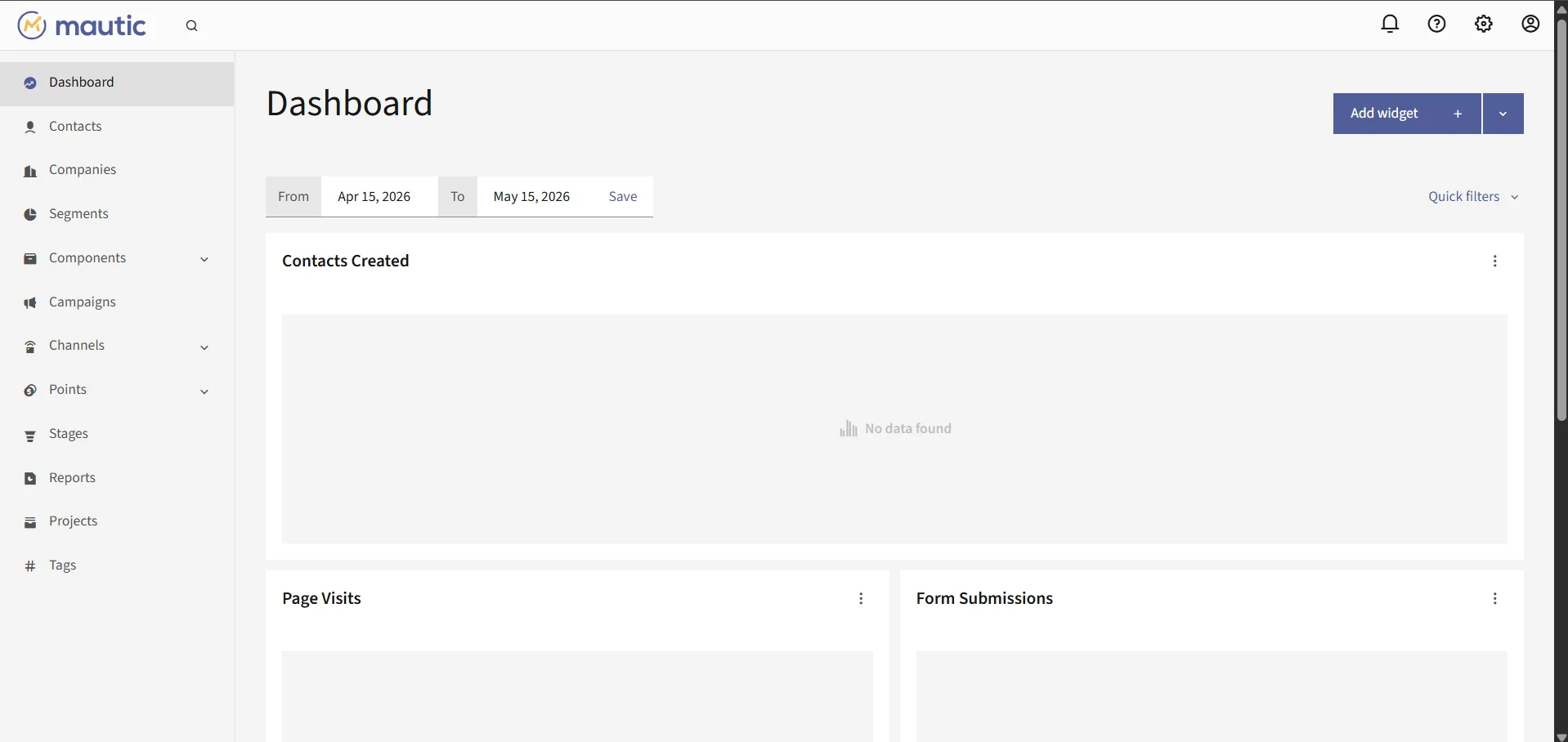
Visit https://mautic.yourdomain.com. You'll land on Mautic's setup wizard.
The database fields will already be pre-filled from the environment variables. Just click through:
- Database check → Next
- Admin user → enter your email, username, and a strong password
- Email config → leave it for now, we'll wire SMTP in the next section
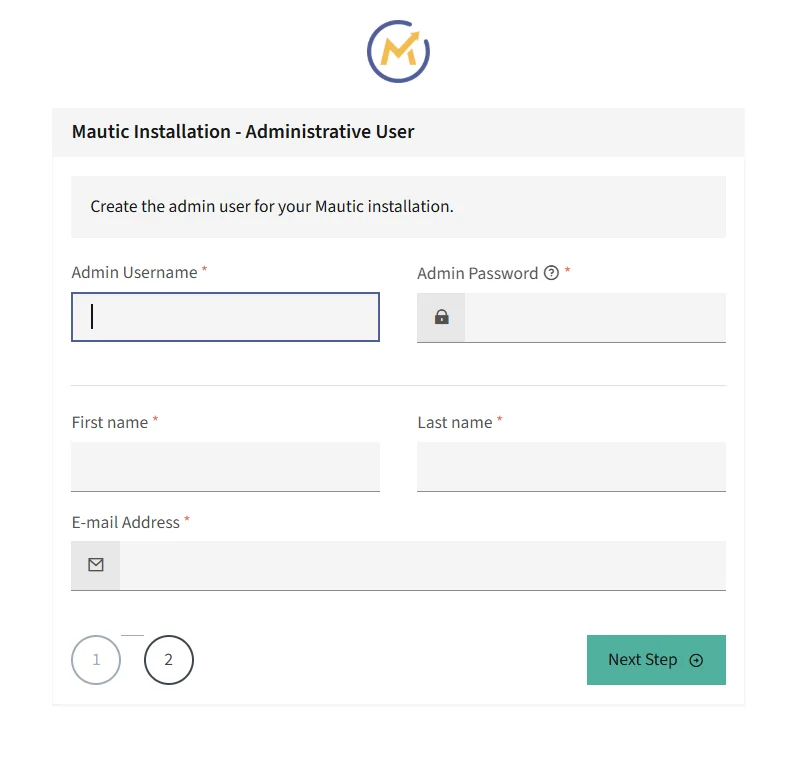
You'll land on the Mautic dashboard. That's your install done.
Configure SMTP in Mautic 7 (send your first test email)
Mautic doesn't send emails by itself. It needs an SMTP server to actually deliver mail. You have a few options:
- Resend, Postmark, Amazon SES, Mailgun if you want managed and ready in 5 minutes
- Self-hosted Postal if you want full ownership of your sending infrastructure and don't want to pay per email
If you go the Postal route, I have a full setup guide for it here: How to Self-Host Postal SMTP Server.
For the test email, regardless of which provider you pick, go to Settings → Configuration → Email Settings in Mautic and fill in:
- Mailer is owned by: your sending domain or address
- Mailer DSN: the SMTP DSN from your provider (looks like
smtp://user:pass@host:port)
Then click Test Connection. If you get a green check, send yourself a test email from Contacts → Send Email to confirm delivery.
If emails land in spam, that's a deliverability problem, not a Mautic problem. SPF, DKIM, and DMARC records on your sending domain fix that. I cover SPF and DKIM in detail in the Postal guide, plus a starter DMARC record to get you going.
Back up Mautic on Coolify
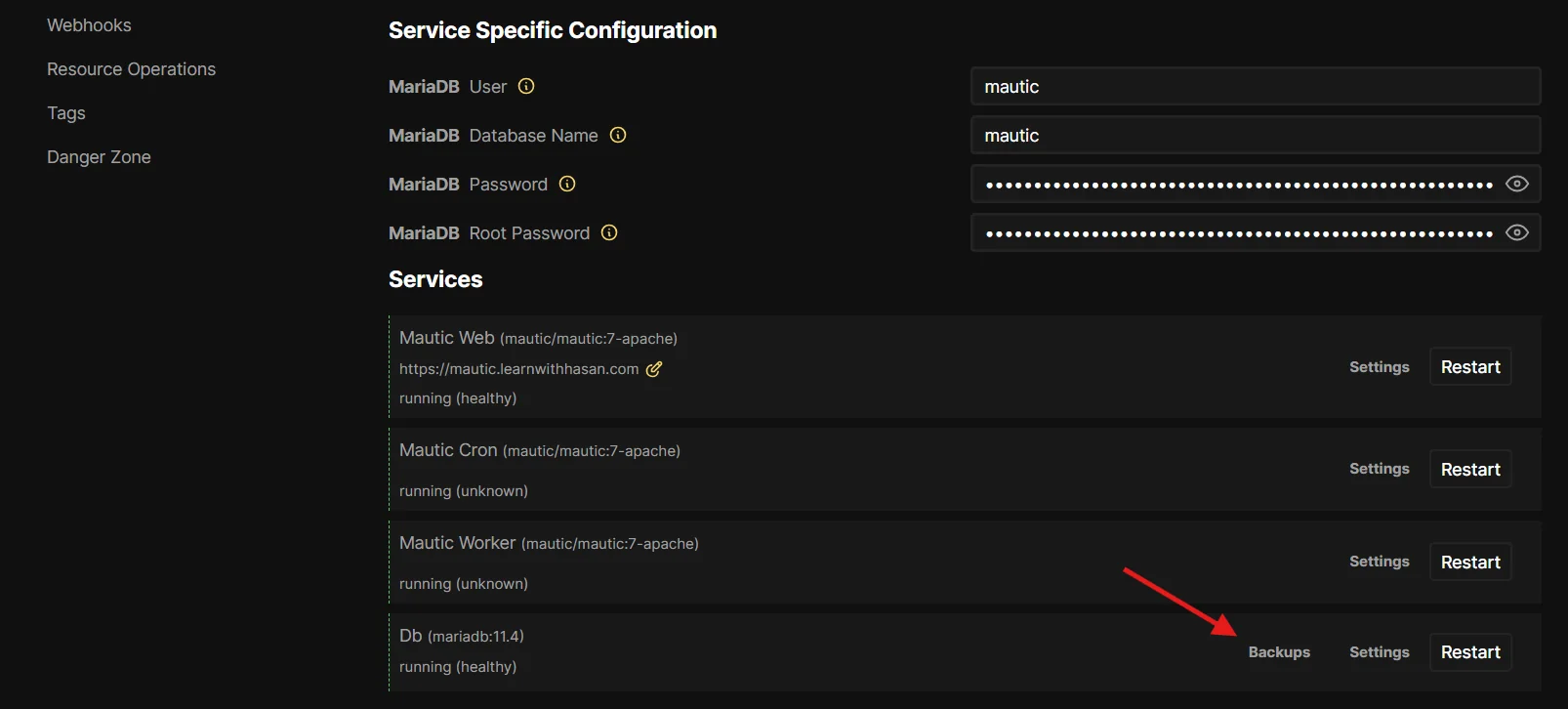
Coolify ships a built-in scheduled database backup for any database resource, including the MariaDB container in this stack. You don't need a separate cron job on the host.
Inside Coolify, open your Mautic stack and click Backups next to the Db (mariadb:11.4) service in the Services list:
From the Backups page, configure:
- Schedule: a cron expression (e.g.
0 3 * * *for nightly at 3 AM) - Destination: a local path on the server, or an S3-compatible bucket (recommended: off-server backups survive a VPS wipe)
- Retention: how many backups to keep before rotating
Frequently asked questions
Why did Coolify remove the one-click Mautic service?
Mautic 7 dropped the bundled AMQP/RabbitMQ queue transport (the symfony/amqp-messenger package is no longer shipped by default). Coolify's one-click template relied on RabbitMQ to drain the queue, so it broke and Coolify disabled the service in early 2026. The workaround is a custom Docker Compose deploy that uses the Doctrine database queue instead, exactly what this guide sets up.
Do I need RabbitMQ to run Mautic on Coolify?
No. Mautic ships a Doctrine transport that uses your MariaDB/MySQL database as the async queue. You only need RabbitMQ if you're running very high-volume sending and have specifically tuned for it. For the vast majority of self-hosted installs, Doctrine is more than enough and removes an entire service from the stack.
What's the minimum VPS size for Mautic on Coolify?
Plan for at least 2 GB of RAM free. Mautic runs as three Apache containers (web, cron, worker), and MariaDB needs another chunk on top. A 1 GB VPS will technically boot the stack but starts swapping under any real load. 2 GB is the comfortable floor, 4 GB is comfortable for production.
Can I run Mautic 7 with MySQL 8.0?
No. Mautic 7 raised the minimum database version: you need MariaDB 10.11+ or MySQL 8.4+. The installer explicitly rejects older versions with a "database version too old" error. If you're upgrading from Mautic 6 on MySQL 8.0, plan a database upgrade before bumping Mautic.
Why are there three Mautic containers?
Mautic splits its workload into three roles, all using the same Docker image but launched with different DOCKER_MAUTIC_ROLE values. mautic_web serves the UI and API. mautic_cron runs scheduled jobs like campaign triggers and segment rebuilds. mautic_worker drains the async queue (mostly outbound email). Running them as separate containers is the architecture Mautic itself recommends for production.
How do I back up Mautic running on Coolify?
Coolify has a built-in scheduled database backup for any database service. Open the MariaDB resource in Coolify, go to Backups, set a cron schedule, and point it at S3, local disk, or Coolify's storage. Full details in the Back up Mautic on Coolify section above.
Common gotchas (troubleshooting)
Why does Mautic show "Database connection failed" on the first boot?
The mautic_web container can start before MariaDB is fully ready, even with healthchecks. If you see this, just restart mautic_web from Coolify. It'll connect on the second try.
How do I fix permission errors after editing Mautic files in the container?
If you ever shell into a Mautic container and edit a file, always do it as the www-data user, otherwise Mautic can't write to the cache and you'll get permission errors on the next request.
docker compose exec --user www-data --workdir /var/www/html mautic_web /bin/bash
Why aren't my Mautic workers consuming emails?
Check the mautic_worker container logs. 95% of the time it's a database connection issue, which means your env vars are wrong on the worker. Compare them line by line to mautic_web. The easiest mistake is a typo in MAUTIC_DB_PASSWORD.
Why does Coolify say "Reference 'mautic-volumes' not found"?
Coolify has had an open parser bug since mid-2024 that occasionally breaks YAML anchors in some compose files (see coollabsio/coolify#2705). If you hit this, the safest fix is to inline the volume list under each Mautic service instead of using the &mautic-volumes anchor.
Can I stop Mautic migrations from running on every restart?
After your first successful boot, you can leave DOCKER_MAUTIC_RUN_MIGRATIONS=true. It's idempotent: if there's nothing to migrate, it exits cleanly. But if you want to be explicit, set it to false after the install completes and toggle it back to true only when you upgrade Mautic versions.
Where this fits in the self-hosting stack
This guide is one piece of a bigger system I teach in Self Hosting 2.0, where I walk through hosting your entire stack on a single VPS with Coolify. Mautic, n8n, Postal SMTP, Listmonk, your own apps, all of it. No managed cloud bills. Real ownership.
If you're building anything that talks to users, the email layer matters. Self-hosting Mautic lets you own your contacts, your automations, and your sending reputation. That's worth the 5 minutes.
Take a look at Self Hosting 2.0 →
Related guides

Get the free Vibe Engineering Blocks guide
The exact building blocks I use to ship real products with AI — yours as a free PDF.
Questions & Discussion
Ask a question about this guide →Have a question? Ask it in the community — it's tagged #guide and linked back here. Reading is open to everyone; posting needs a free account.
Loading questions…