Self-Host GitLab: What It Actually Needs (Real RAM Numbers)
 Hasan Aboul Hasan
Published 2026-08-12
Hasan Aboul Hasan
Published 2026-08-12
GitLab is the heaviest thing most people will ever self-host, and nobody publishes real numbers. So I deployed GitLab CE 19.2.1 on an 8 GB droplet and measured everything: 5.5 GB of RAM idle on the default config, about 3 GB after three tuning steps (each one measured separately), a 4 GB box that a default install made completely unreachable, and an upgrade that cost 6 minutes 43 seconds of downtime. This guide is the install, the lockdown, and the honest sizing table nobody else has.
- GitLab CE on your own server, real domain, automatic HTTPS
- Sign-ups closed, SSH locked, only three ports open
- A tuned config that runs in about 3 GB instead of 5.5 GB
- The honest numbers: what GitLab really needs, what upgrades really cost, and when you should pick something lighter instead
GitLab is the full DevOps platform you can run yourself: repositories, merge requests, CI/CD, a container registry, all on one box you own. The Community Edition is free, open source, and has no user limits.
It is also famously hungry. GitLab's own requirements page now says 8 vCPU and 16 GB as the single-node baseline, with 8 GB as the documented floor for "memory-constrained environments". Meanwhile half the tutorials on the internet still copy an old 4 GB number, and Reddit is full of people whose install died on a small VPS.
Somebody had to just deploy it and measure. So I did: a fresh 8 GB DigitalOcean droplet, a stopwatch, and a memory sampler running every 10 seconds through the install, an upgrade, a load test, and every tuning step in GitLab's own memory-constrained doc. I also deliberately installed it on a 4 GB box to watch what actually happens. It got ugly.
This guide installs GitLab the way GitLab recommends for a single server: the omnibus Linux package, which bundles everything (nginx, PostgreSQL, Redis, the lot) and needs no Docker. There is also an official Docker image, but it is the same all-in-one package running inside a container, so the memory numbers here are the honest baseline either way.
Your GitLab domain (optional)
Type the subdomain you'll put GitLab on. Every copyable block on this page updates to use it, so you can paste with no edits. The value stays in your browser only, nothing leaves this page.
Value stays in your browser only, nothing leaves this page.
What GitLab actually needs (measured)
The whole argument of this guide in one chart. Same box, same GitLab CE 19.2.1, five configurations, memory sampled every 10 seconds, idle and under a repeatable load test:
GitLab CE 19.2.1 measured memory, per tuning step
Whole-box used memory in MB, Ubuntu 24.04 on a 4 vCPU / 8 GB droplet. Whiskers show the min–max range; at least 98 idle and 36 under-load samples per step.
Steps are cumulative left to right. The last step (PostgreSQL shared_buffers down to 256 MB) reads higher than the one before it: the buffer change itself freed about 120 MB of database memory, but puma and sidekiq had grown by more than that in the 90 minutes between the two measurements. That slow creep is real GitLab behavior, so I left the honest number in instead of re-rolling it.
The same data as a table, with what each step means:
| Config (cumulative) | Idle | Under load | What the step saved |
|---|---|---|---|
| Default omnibus | 5,543 MB | 5,967 MB | — (the baseline) |
| Puma single-mode | 3,611 MB | 3,765 MB | −1,932 MB. The big one. |
| + Sidekiq at 10 threads | 3,526 MB | 3,657 MB | −85 MB |
| + Monitoring stack off | 2,874 MB | 3,196 MB | −652 MB |
| + PG shared_buffers 256 MB | 3,015 MB | 3,171 MB | −120 MB on postgres, hidden by drift (see chart note) |
Where the default 5.5 GB actually goes, from the per-service measurement (PSS, so shared memory is counted fairly): puma 2,973 MB (the Rails app, one worker forked per CPU), sidekiq 1,120 MB (background jobs), the bundled monitoring stack 462 MB (Prometheus plus five exporters), postgres 348 MB, gitaly 333 MB (the Git service). Everything else is change.
So the sizing answer, from measurement instead of folklore: default config needs an 8 GB box. A tuned config runs comfortably in about 3 GB, which makes a 4 GB box possible for a small, patient team. GitLab's official 16 GB baseline is what I'd call production-safe padding: real headroom for CI runners, big pushes, and growth, not a lie, but not the floor either.
What it costs vs GitLab's cloud
The 8 GB droplet this guide uses is $48 a month on DigitalOcean. That sounds like a lot next to a $6 WordPress box, until you look at what GitLab charges for seats.
What you pay per month
DigitalOcean 8 GB droplet list price vs GitLab Premium at $29 per user/month, billed annually. Checked August 2026.
GitLab.com's Free tier exists (5 users per private top-level group, 400 CI compute minutes a month) and is the right answer for many solo projects. The comparison here is against Premium because that is where you land once you need more than the free caps. Ultimate no longer lists a public price.
One honest caveat before the install: if you are truly solo and your projects fit GitLab.com's free tier, the free tier is cheaper than any droplet. Self-hosting GitLab wins on cost when seats multiply, and wins on ownership always. Your code, your CI minutes, your rules.
Step 1: Get an 8 GB VPS (yes, 8 GB)
This is the step where most GitLab installs go wrong, so let me be exact. I tested on DigitalOcean Basic droplets, Ubuntu 24.04:
- $48/mo, 4 vCPU / 8 GB: the honest recommendation, and the box every number in this guide comes from. The default install idles at 5.5 GB here, which leaves real headroom.
- $24/mo, 2 vCPU / 4 GB: only with the tuning applied, only for a small team, and know that the default install on this size took the whole box down in my test. I mean unreachable, power-cycle-from-the-API down.
- 16 GB: GitLab's official baseline. Get it if you will run CI jobs on the same box or your team is past a handful of people.
Any provider works; the VPS directory compares the ones I track. You also need 40 GB of disk minimum: my fresh install wrote 4.9 GB before the first repository existed, and repositories, CI artifacts, and backups all grow from there.
Step 2: Point a subdomain at the server
Go to your DNS provider and add one A record: gitlab.example.com → your droplet's IP address.
Do this before installing. The installer requests a free Let's Encrypt certificate during its first configuration run, and it can only do that if the domain already resolves to your server. A fresh record usually propagates in a minute or two.
Step 3: Install GitLab CE (timed)
SSH into the server as root. First the dependencies and GitLab's package repository:
apt-get update && apt-get install -y curl ca-certificates tzdata perl
curl -fsSL https://packages.gitlab.com/install/repositories/gitlab/gitlab-ce/script.deb.sh | bash
Now the install itself. Two environment variables do the heavy lifting: EXTERNAL_URL with https:// makes the installer configure nginx and fetch the Let's Encrypt certificate automatically, and GITLAB_ROOT_PASSWORD sets the admin password up front (generate one, don't invent one):
GITLAB_ROOT_PASSWORD="$(openssl rand -hex 12)" \
EXTERNAL_URL="https://gitlab.example.com" \
apt-get install -y gitlab-ce
The command above generates the root password inline, so echo it and store it in your password manager: echo "$GITLAB_ROOT_PASSWORD" right after the install, in the same shell. If you skip the variable entirely, GitLab writes a temporary password to /etc/gitlab/initial_root_password instead, and deletes that file after 24 hours.
Then wait. This is not a docker compose up kind of install: my run wrote 4.9 GB to disk, and the first configuration run assembles the whole stack (nginx, PostgreSQL, Redis, Gitaly, the works) before returning. Here is my timed run on the 8 GB droplet:
$ bash e1_install.sh   # every phase timestamped
box: 4 vCPU / 8 GB · Ubuntu 24.04.4 LTS (stock image)
add GitLab apt repository ..................  10s
apt-get install gitlab-ce ................. 583s
  (download + unpack + first gitlab-ctl reconfigure
   + Let's Encrypt certificate, all automatic)
first HTTPS 200 on /users/sign_in ......... +1s after apt returned
disk used: 2.5 GB -> 7.4 GB (GitLab itself: ~4.9 GB)
total: stock server -> live HTTPS sign-in page in 9m 43s · 17 services up
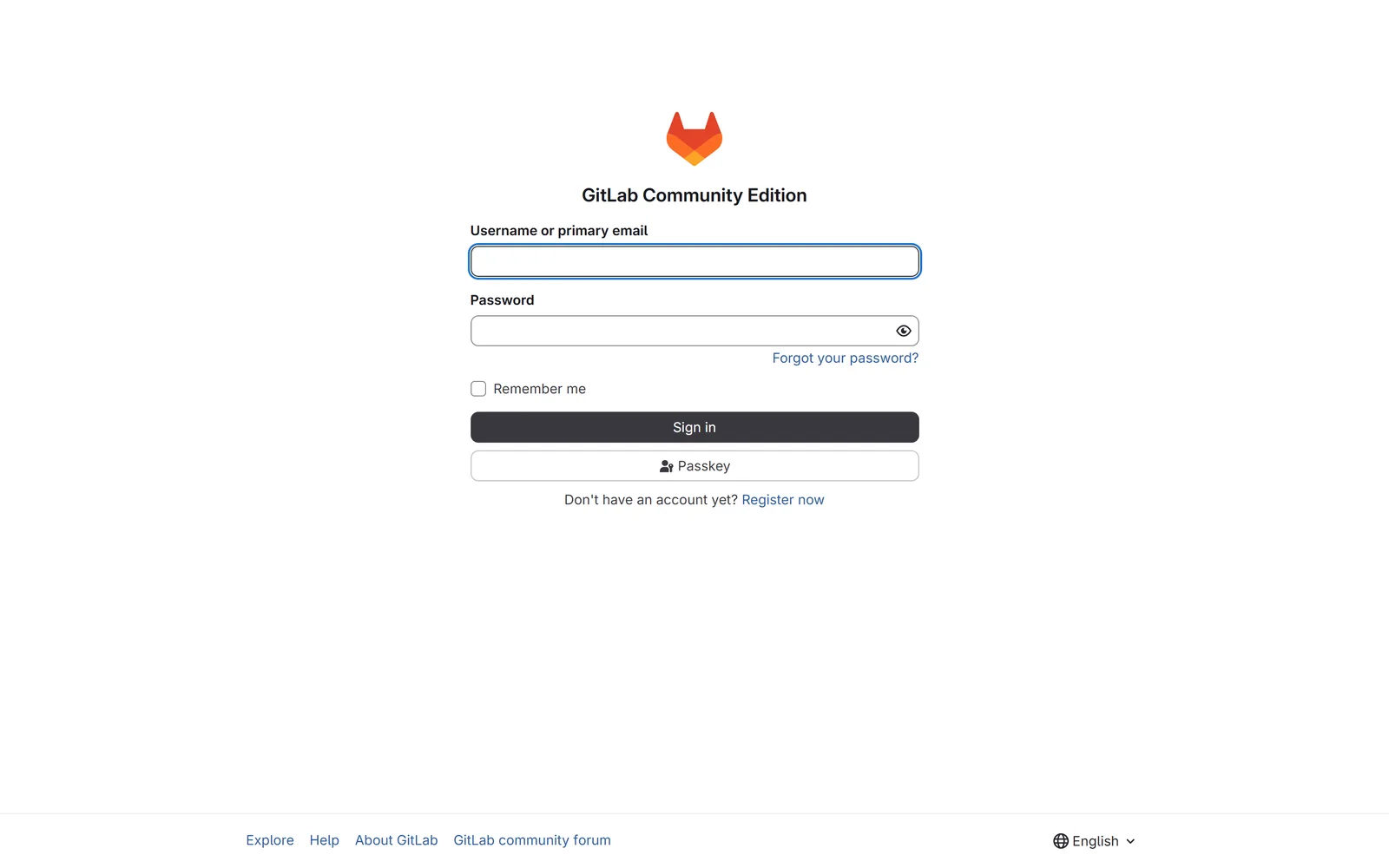
When it finishes, open https://gitlab.example.com:
Step 4: Sign in and lock it down
Sign in as root with the password you generated. Then go straight to the Admin area (the wrench icon), because GitLab itself will tell you the first problem:
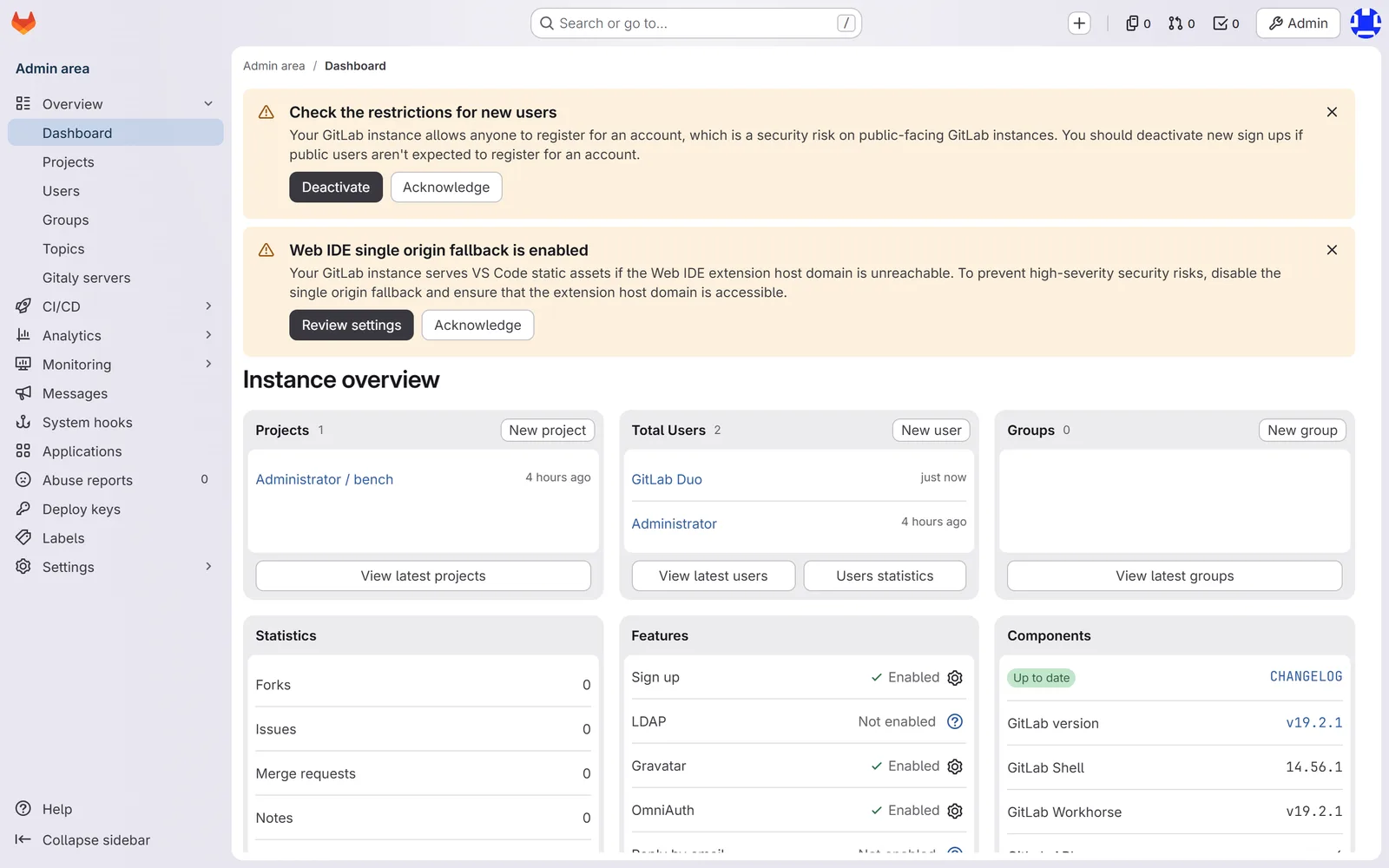
A fresh GitLab lets anyone on the internet register an account. That warning banner at the top is GitLab telling you so. Click Deactivate on it (or Admin → Settings → General → Sign-up restrictions, turn "Sign-up enabled" off). Do it in the first minutes, not tomorrow: when I measured a fresh droplet for an earlier guide, the first uninvited SSH attempt arrived 2 minutes 35 seconds after boot, and certificate transparency logs announce your new HTTPS domain to the world the moment the certificate is issued. Your server is never as unnoticed as it feels.
Two more locks while you're at it:
- SSH: keys only. In
/etc/ssh/sshd_configsetPasswordAuthentication no, thensystemctl restart ssh. Every bot attempt needs a password to guess; give them nothing to guess at. - Firewall: three ports.
ufw allow 22 && ufw allow 80 && ufw allow 443 && ufw enable. Port 80 stays open because Let's Encrypt renews over it. Everything else GitLab runs (postgres, redis, gitaly) listens only inside the box. The full hardening pass is its own guide: Secure Your VPS.
How I measured (so you can check me)
Numbers are only worth something if you can say how they were taken. The method, in plain words:
- The box: a fresh 4 vCPU / 8 GB DigitalOcean droplet, Ubuntu 24.04, running GitLab and nothing else. Automatic package updates disabled so nothing touched the box mid-measurement.
- The sampler: a small Python script reading
/procevery 10 seconds: whole-box used memory, CPU, and per-service memory as PSS (proportional set size, which splits shared memory fairly between processes instead of double-counting it the way naive per-process numbers do). - Idle numbers: at least 98 samples per configuration, taken over 20 minutes, after each configuration change had settled. The number in the table is the mean; the whiskers are the full min–max range.
- Load numbers: a second, smaller droplet in the same datacenter ran the load generator (never the measured box itself): 8 parallel workers doing full HTTPS clones of a seeded 248-commit repository, plus web and API requests, plus a worker committing and pushing, for 120 seconds, three separate runs per configuration. Client-side counts stayed within a few percent across runs.
And this is what one idle sample of the default config looks like, raw:
$ python3 sample_mem.py default-idle
{
  "mem_used_mb": 5578,  "swap_used_mb": 0,
  "load1": 0.18,  "cpu_busy_pct": 11.3,  "procs": 125,
  "pss_mb": {
    "puma": 3039, "sidekiq": 1128, "monitoring": 469,
    "gitaly": 333, "postgres": 311, "kas": 57,
    "nginx": 32, "redis": 9, "other": 329
  }
}
$ # 5.6 GB used. Nobody is even logged in yet.
Shrinking GitLab: every trim, measured
GitLab documents the knobs for small servers, but never says how many megabytes each one buys. Now the numbers exist. All edits go in /etc/gitlab/gitlab.rb, and every change needs a gitlab-ctl reconfigure afterwards (I timed those too).
Trim 1: Puma single-mode. Saved 1,932 MB.
By default GitLab's Rails app, served by puma, forks one worker process per CPU core. On my 4-core box that was a 2,973 MB puma family at idle. One line collapses it into a single multi-threaded process:
puma['worker_processes'] = 0
gitlab-ctl reconfigure
Idle memory dropped from 5,543 MB to 3,611 MB. The reconfigure took 30 seconds. This one setting is most of the difference between "needs 8 GB" and "fits in 4".
The honest trade: capacity. In my load test the same bench completed about 23% fewer clones per run against single-mode puma (146 versus 190 full clones per 120-second run, averaged over three runs each, everything still succeeding). For a small team you will not feel it. For a busy instance, this knob is why the default exists.
Trim 2: Sidekiq at 10 threads. Saved 85 MB.
Sidekiq runs GitLab's background jobs with 20 threads by default. GitLab's memory-constrained doc says halve it:
sidekiq['concurrency'] = 10
Measured saving: 85 MB. Honestly, the smallest lever of the three. It matters more for CPU pressure on tiny boxes than for memory. Reconfigure: 30 seconds.
Trim 3: Monitoring stack off. Saved 652 MB.
The omnibus package bundles a full Prometheus setup: the server itself plus node, postgres, redis, and GitLab exporters. On a box you also SSH into, htop and your uptime monitor cover most of what a solo builder actually looks at, and the whole stack measured 462 MB of PSS plus overhead:
prometheus_monitoring['enable'] = false
Idle dropped to 2,874 MB. This reconfigure is the long one: 2 minutes 12 seconds, because it tears the monitoring services out. The admin area's built-in metrics graphs stop working, which is the trade you are making.
Trim 4: PostgreSQL buffers. The tip that silently does nothing.
Every "make GitLab smaller" article ends with lowering PostgreSQL's shared_buffers to 256 MB. Here's what nobody mentions, and what cost me an extra measurement round to catch:
postgresql['shared_buffers'] = "256MB"
After gitlab-ctl reconfigure, the config file on disk said 256 MB but the running database still showed shared_buffers = 1985MB (omnibus defaults it to a quarter of your RAM). The setting only takes effect after gitlab-ctl restart postgresql. If you have ever applied this tip and wondered why nothing changed: it didn't. Restart the database and it does; postgres memory dropped by about 120 MB in my measurement once actually restarted.
After all four trims and the postgres restart, the instance ran at 3,015 MB idle, 3,171 MB under load. Call it 3 GB: that is what a trimmed GitLab actually needs, measured over hours, with the caveat from the chart that it slowly creeps upward between restarts.
Can you run GitLab on 4 GB?
The internet's favorite GitLab question, so I bought a 2 vCPU / 4 GB droplet and did it for real. Default omnibus install, same version, nothing else on the box.
The install itself worked: 593 seconds. Five minutes in, the sign-in page answered in a tenth of a second. It looked fine. Then memory kept climbing: at ten minutes the box had 76 MB available, requests started timing out at 30 seconds, and when the memory ran out completely the kernel's OOM killer shot a ruby process. GitLab's service supervisor restarted it. The killer shot it again. That loop ate the whole box:
$ free -m   # 10 minutes after install
               total   used   free   available
Mem:            3915   3839    107          76
$ curl -w "code=%{http_code} time=%{time_total}s" -m 30 http://127.0.0.1/users/sign_in
code=000 time=30.011571s   # timeout
$ journalctl -k | grep -i oom | tail -1
kernel: ruby invoked oom-killer: gfp_mask=0x140cca(GFP_HIGHUSER_MOVABLE...)
$ # after this the box stopped answering SSH entirely
Not slow. Gone. SSH accepted the TCP connection and then couldn't complete a handshake. HTTP never answered. The DigitalOcean panel said "active" while nothing on the box could allocate memory. I had to power-cycle it through the API and race the boot to stop GitLab's services before the loop started again. This is the failure everyone's dead 4 GB install is hitting, and no requirements table warns you that the failure mode is the whole server becomes unreachable, not "GitLab is slow".
Then the honest second half: I applied the full trim from the previous section to the same 4 GB box and started it again. It ran clean. 2.6 GB used, 1.3 GB free, sign-in answering in 0.1 seconds, zero OOM kills. So the real answer to "can you run GitLab on 4 GB" is: default config, absolutely not. Trimmed config, yes, for a small team, with the numbers above as your margin.
The upgrade burden, honestly
I keep telling people the self-hosting maintenance story is overblown: my Plausible upgrade measured 16 seconds of downtime, twice a year. GitLab is the counterexample, and you deserve the number before you install it.
I installed 19.1.3 on purpose so I could measure a real upgrade to 19.2.1 (one minor version, the kind GitLab ships roughly every month), with a probe hitting the sign-in page every second from a second machine:
$ apt-get install gitlab-ce=19.2.1-ce.0
download + unpack ................ site still serving (4m 49s)
reconfigure + migrations ......... outage begins
probe: 200 200 200 ... · then 502 ×146 · connection refused ×255 · 200 ...
one continuous outage: 403 seconds (6m 43s), no flapping
apt done in 9m 14s · fully healthy again 11m 36s after start
So the honest maintenance contract for self-hosted GitLab: about ten minutes of your attention and about seven minutes of downtime, roughly every month. GitLab supports skipping some versions but enforces a documented upgrade path, so you cannot just hibernate for a year and jump. If that contract sounds fine, you have nothing to fear. If it sounds like a part-time job, the next section is for you.
GitLab vs the lightweight alternatives
One paragraph of perspective, because it changes what some readers should install. After the GitLab measurements I wiped the 4 GB box and put Forgejo (the community fork of Gitea) on it, same hardware, and measured idle: the whole Forgejo stack used 85 MB. Not 8.5 GB, not 850 MB. 85. Against GitLab's 5,543 MB default idle, that is a 65× difference. What you give up is GitLab's integrated everything: built-in CI (Forgejo pairs with lightweight runners or external CI), the container registry, the merge-request depth, environments, the platform-in-a-box feel. If all you need is private repos, issues, and pull requests for a small team, a lightweight forge on a $6 droplet is the rational choice, and GitLab is the wrong tool. The full comparison deserves its own piece; the one-line version is: choose GitLab when you need the platform, not just the repos.
My take
I ran GitLab self-hosted years ago, back in my server-administrator days, and the memory reputation it earned then is still deserved now. It is the heaviest thing I have measured for this hub, by an order of magnitude.
And yet the numbers make a clear case once you frame them right. $48 a month replaces a per-seat bill that crosses $48 before your third teammate signs in. The tuning is three lines in one file, measured here so you know exactly what each line buys. The monthly upgrade is seven minutes of downtime you schedule yourself. In my experience the decision is not "can my server run GitLab", it is "do I need the whole platform". If yes, now you know exactly what it costs to own it. If no, run something lighter and keep the difference.
What this is part of
GitLab is the biggest single tenant you will ever put on a VPS, and this guide left deliberate room on the box: the trimmed config uses 3 GB of 8. Running it next to your analytics, your automations, and your backups without the tenants fighting is the actual skill of self-hosting.
That's what I teach in Self Hosting 2.0: 34 lessons from a blank server to a full stack you own, including the backup and hardening playbook this guide only points at.
Course
Want the full system?
FAQ
How much RAM does self-hosted GitLab actually need?
Measured on GitLab CE 19.2.1 (Ubuntu 24.04, 4 vCPU / 8 GB droplet): 5,543 MB idle and about 5,970 MB under load on the default config. After the three tuning steps in this guide, 2,900–3,000 MB idle. Plan an 8 GB box for the default config; a tuned instance fits a 4 GB box for a small team.
Can you run GitLab on a 4 GB server?
Not on the default config. My test install worked for a few minutes, then the box ran out of memory and entered an OOM-kill-and-restart loop that made it completely unreachable, SSH included; I had to power-cycle it from the provider API. With the full trim applied, the same box ran GitLab at 2.6 GB used with 1.3 GB free and zero OOM kills.
How do I reduce GitLab's memory usage?
Three measured knobs in /etc/gitlab/gitlab.rb: puma['worker_processes'] = 0 saved 1,932 MB, prometheus_monitoring['enable'] = false saved 652 MB, sidekiq['concurrency'] = 10 saved 85 MB. Run gitlab-ctl reconfigure after each. If you also lower postgresql['shared_buffers'], it does nothing until gitlab-ctl restart postgresql.
Is self-hosted GitLab free?
GitLab CE is free, open source, and has no user limits. You pay for the server: $48/month for the 8 GB droplet here. Premium ($29 per user/month, billed annually) and Ultimate (custom pricing) add enterprise features; CE covers repos, merge requests, CI/CD, and the container registry.
What is the difference between GitLab CE and EE?
CE is the fully open-source build. EE is the same download that unlocks paid features if you add a license; without one it behaves like CE. Self-hosting without a subscription, install CE: same features, only open-source code.
How painful are GitLab upgrades?
Measured: one minor upgrade (19.1.3 to 19.2.1) took 9 minutes 14 seconds of apt work with 6 minutes 43 seconds of real downtime, probed every second. GitLab ships a minor roughly monthly and enforces an upgrade path, so budget a short window every month. Not painful, but not the 16-second upgrades my analytics box gets.
Related

Get the free Vibe Engineering Blocks guide
The exact building blocks I use to ship real products with AI — yours as a free PDF.
Questions & Discussion
Ask a question about this guide →Have a question? Ask it in the community — it's tagged #guide and linked back here. Reading is open to everyone; posting needs a free account.
Loading questions…