Reverse Proxy Explained: One Domain, Many Containers
 Hasan Aboul Hasan
Published 2026-08-11
Hasan Aboul Hasan
Published 2026-08-11
A reverse proxy is one program that answers every request to your server and hands each one to the right app behind it. That single sentence is why one small VPS can run your analytics, your automations, and your whiteboard at once, each on its own domain, each with HTTPS. To prove it, I booted a fresh DigitalOcean droplet, started three containers, and put all three on the internet behind one nginx. Every config and every number on this page came off that server.
Your server has one IP address, and browsers only really use two ports: 80 and 443. Three apps cannot all own port 443. So none of them get it. A reverse proxy (I use nginx here) takes the port, reads which domain each visitor asked for, and forwards the request to the right container on an internal port. Below: the concept in plain words, then the real build. Three containers, three subdomains, one certbot command for HTTPS on all of them. About 30 minutes to copy.
I have run this pattern in production for years. It is also the first thing my Self Hosting 2.0 course quietly sets up for you when you install Coolify: its proxy does exactly what this page teaches, just automatically. Understanding the manual version is what makes the automatic one debuggable.
New to servers? The jargon on this page, translated
- Port
- A numbered door on your server. Every service answers behind one: SSH behind 22, HTTPS behind 443. Browsers knock on 80 and 443 and nothing else.
- Container
- An app packed with everything it needs, run by Docker. Each of the three demo apps is one container.
- Host header
- The domain name your browser writes into every request, like a visitor telling the front desk who they came to see. Routing runs on this.
- A record
- A DNS entry that says "this name lives at this IP address". All three demo subdomains point at the same IP.
- Loopback (127.0.0.1)
- The machine's private line to itself. An app listening only here is invisible to the internet.
- server block
- One routing rule in nginx: "requests for this domain go to this app". One small file per app.
- Let's Encrypt
- A free certificate authority. Its certbot tool gets you the HTTPS padlock and renews it forever, for $0.
- TLS handshake
- The one-time hello where browser and server agree on encryption. Costs some milliseconds once, then the connection is reused.
- A clear picture of what a reverse proxy does, with the request path drawn out
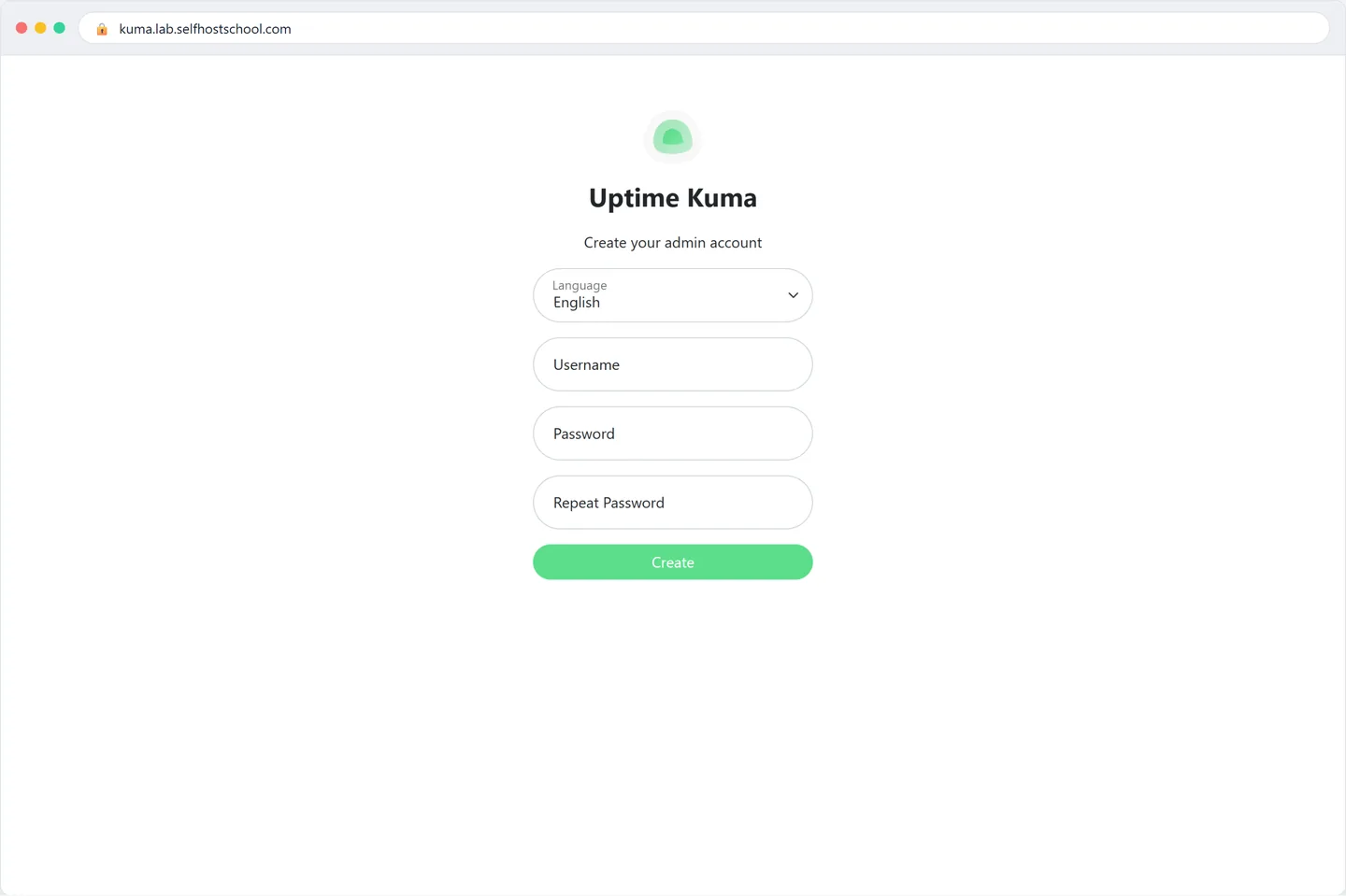
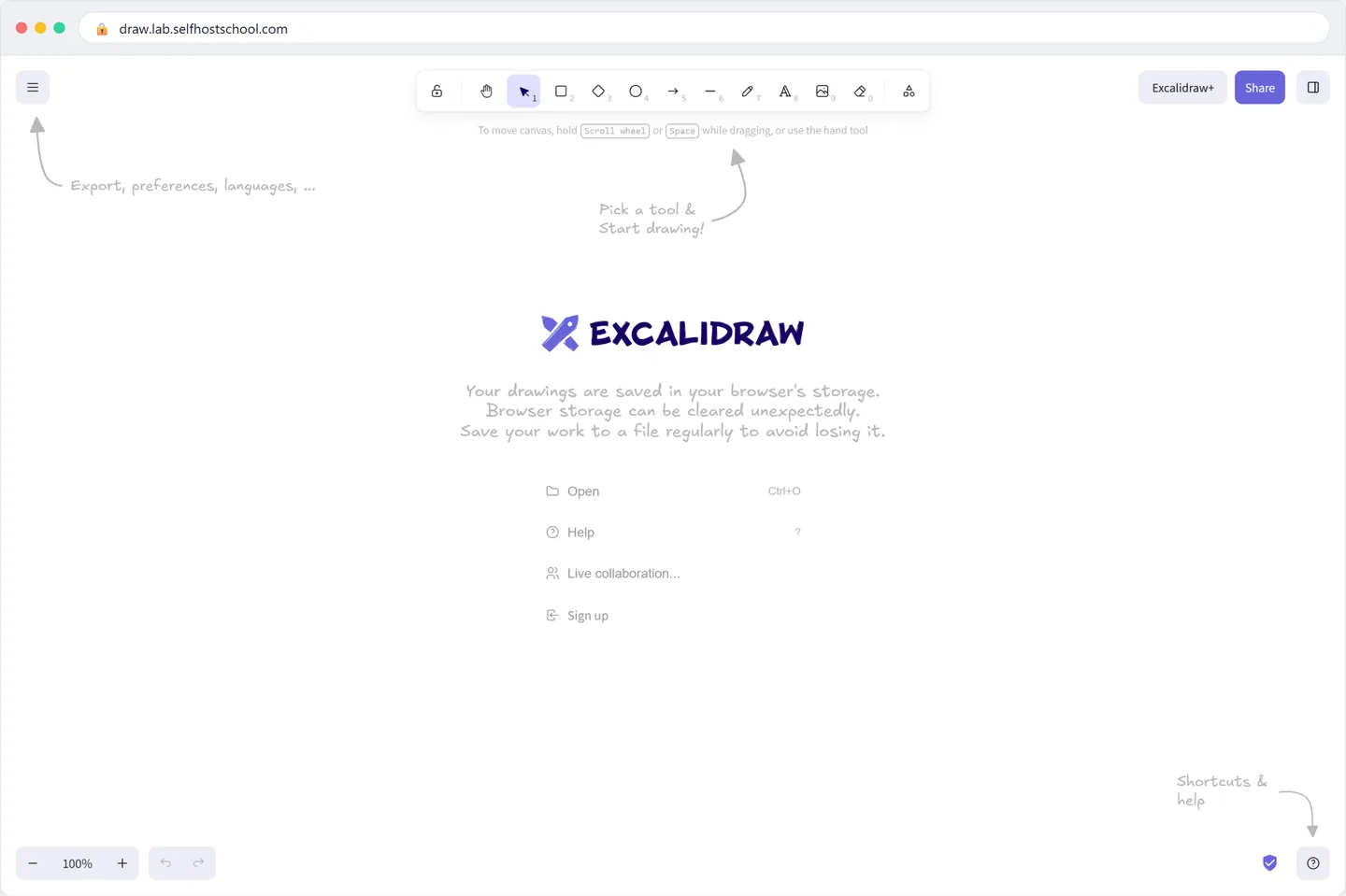
- Three real apps on one server: Uptime Kuma, Excalidraw, whoami, each on its own subdomain
- HTTPS on all three from one certbot command, with auto-renewal proven
- Proof from outside that the app ports themselves are unreachable
- A measured answer to "does the proxy slow things down" (spoiler: 0.1 ms)
- What you need: a small VPS running Ubuntu with root SSH, Docker installed, and a domain you control. Any provider works; I used a DigitalOcean droplet (2 vCPU / 4 GB, more than this demo needs). Still picking a box? My VPS directory compares the real prices.
- Docker not installed yet? The official Docker install docs for Ubuntu take about five minutes.
- Tested on: Ubuntu 24.04.4, nginx 1.24.0, Docker 29.6.2, certbot 2.9.0, on 11 August 2026.
Your domain & server IP (optional)
Type your base domain and your server's IP address. Every copyable command below updates to use them, so you can paste with no edits.
Values stay in your browser only. Nothing leaves this page.
What is a reverse proxy?
A reverse proxy is a server program that sits in front of your apps and answers every request on their behalf. It reads which domain the visitor asked for, forwards the request to the right app on an internal port, and carries the answer back. The visitor never talks to the app directly. They only ever talk to the proxy.
The analogy that made it click for me is a hotel front desk. Guests do not wander the corridors knocking on room doors. Everyone comes through one entrance, tells the desk who they are here for, and the desk routes them. The rooms do not need street addresses. The building needs one.
Here is that sentence as an actual request, using one of the demo apps you will build below:
One request, start to finish
What happens when a browser opens kuma.yourdomain.com, step by step.
"kuma.yourdomain.com"
The routing decision is made on the Host header, the domain name the browser writes into every request. Not the IP. Not the port. Three domains can share one IP and still land on three different apps. That is the whole trick.
"Reverse" only describes which side the proxy works for. A regular (forward) proxy works for clients going out. A reverse proxy works for servers receiving traffic in. More on that below.
The problem it solves: one IP, many apps
Say you self-host three apps on one VPS. Uptime monitoring, a whiteboard, whatever comes next month. Each runs in its own container, each listens on its own port. Without a proxy, your options look like this:
Without a reverse proxy vs with one
The same three containers, exposed two different ways.
Without · every app owns a public port
With · one entrance, names instead of numbers
The left side is what "just publish the ports" gets you: URLs with port numbers nobody remembers, no padlock, and three app ports open to every scanner on the internet. The right side is the same server after 30 minutes of this guide.
The deeper constraint: browsers assume port 80 for http:// and 443 for https://. A URL
without a port number only ever reaches those two. And a certificate for a bare IP with a port
is somewhere between painful and impossible to get. So the app that owns 443 gets a clean URL
and a padlock, and every other app gets :8082 stapled to its name. With three
apps, nobody wins that fight.
The reverse proxy dissolves it. nginx takes 80 and 443 once, and every app becomes a name. Adding a fourth app next month costs one DNS record and one small config file. No new open ports, no new certificates to think about, as you will see below.
Reverse proxy vs forward proxy
Both are middlemen. The difference is which side they work for, and which side they hide.
Forward proxy vs reverse proxy
Same trick, opposite direction.
Forward proxy · works for the clients, hides who is asking
Reverse proxy · works for the servers, hides what is serving
| Forward proxy | Reverse proxy | |
|---|---|---|
| Sits next to | the clients | the servers |
| Hides | who is asking | what is serving |
| Configured by | the user or their network | the server owner (you) |
| Typical use | corporate filtering, privacy, geo-unblocking | many apps on one server, HTTPS termination, caching, load balancing |
| Examples | Squid, a VPN's proxy mode | nginx, Caddy, Traefik, HAProxy, Cloudflare |
One name from that last row worth a sentence: when you put a site behind Cloudflare, you are using a reverse proxy you rent instead of run. Their edge answers for your domain and forwards to your server, the same mechanic as the nginx you are about to configure, at planetary scale.
Reverse proxy vs load balancer
These get mixed up because the same software does both. The difference is the shape of the routing:
- A reverse proxy sends different requests to different apps. kuma.* to the monitor, draw.* to the whiteboard.
- A load balancer spreads identical requests across copies of the same app, so no single copy drowns.
nginx does both, sometimes in the same config file. For self-hosting a handful of different apps on one box, the reverse proxy behavior is the one you need. Load balancing starts to matter when one app outgrows one machine. Different problem, different guide.
The tools people actually use
Every tool below does the job on this page. The differences are in how much they automate:
| Tool | What it is | Pick it when |
|---|---|---|
| nginx | The workhorse. Text configs, runs everywhere, decades of answers online. | You want to understand what is happening. This guide uses it for exactly that reason. |
| Caddy | Modern proxy with HTTPS built in. A two-line Caddyfile replaces a server block plus certbot. | You want the shortest possible config and accept more magic. |
| Traefik | Watches Docker and configures itself from container labels. This is what Coolify runs underneath. | Containers come and go often and you want zero manual config. |
| HAProxy | The heavy-traffic specialist, strongest at load balancing. | Raw throughput is the problem you actually have. |
| Nginx Proxy Manager | A web UI over nginx: add hosts and certificates by clicking. | You want this page's result without editing files. |
I am teaching nginx here because it hides nothing. After you have written one server block by hand, every other tool on this list becomes readable: you know what the label, the Caddyfile line, or the UI form is generating for you.
The proof: an nginx reverse proxy for three Docker apps
Enough concept. I booted a fresh Ubuntu 24.04 droplet and built the exact picture from the diagrams above. Three real apps:
| App | What it is | Container port | Subdomain |
|---|---|---|---|
| Uptime Kuma | self-hosted uptime monitor | 127.0.0.1:8081 | kuma.yourdomain.com |
| Excalidraw | the whiteboard app | 127.0.0.1:8082 | draw.yourdomain.com |
| whoami | tiny server that prints the request it receives, our teaching tool | 127.0.0.1:8083 | whoami.yourdomain.com |
My demo ran on the lab domain lab.selfhostschool.com, which is what you will
see in the screenshots and terminal output. Swap in your own domain (the personalize card above
does it for you in every command).
Step 1: point three subdomains at the server
In your DNS provider's panel, create one A record per app, all pointing at the same server IP:
kuma.yourdomain.com     A    203.0.113.42
draw.yourdomain.com     A    203.0.113.42
whoami.yourdomain.com   A    203.0.113.42
Three names, one IP. This looks wrong the first time you do it. It is the point: DNS gets every visitor to the building, and the Host header gets them to the right room.
Step 2: run the containers, invisible to the internet
SSH into the server and start the three apps. The part that matters is
127.0.0.1: in every -p flag:
docker run -d --name kuma --restart unless-stopped \
  -p 127.0.0.1:8081:3001 -v kuma-data:/app/data louislam/uptime-kuma:1

docker run -d --name draw --restart unless-stopped \
  -p 127.0.0.1:8082:80 excalidraw/excalidraw:latest

docker run -d --name whoami --restart unless-stopped \
  -p 127.0.0.1:8083:80 traefik/whoami
-p 127.0.0.1:8081:3001 means: publish the container's port 3001 on the
server's loopback address only. The app runs, the server can talk to it, and the internet
cannot see it at all. Here is the server's view after all three started:
Three apps up, zero public ports
Output from the demo droplet, 11 August 2026.
root@cf-reverse-proxy:~# docker ps --format 'table {{.Names}}\t{{.Ports}}\t{{.Status}}'
NAMES     PORTS                      STATUS
whoami    127.0.0.1:8083->80/tcp     Up About a minute
draw      127.0.0.1:8082->80/tcp     Up About a minute (healthy)
kuma      127.0.0.1:8081->3001/tcp   Up About a minute (healthy)
root@cf-reverse-proxy:~# ss -tlnp | grep -E ':(8081|8082|8083)'
LISTEN 0  4096  127.0.0.1:8081  0.0.0.0:*  users:(("docker-proxy",pid=2779,fd=8))
LISTEN 0  4096  127.0.0.1:8082  0.0.0.0:*  users:(("docker-proxy",pid=2952,fd=8))
LISTEN 0  4096  127.0.0.1:8083  0.0.0.0:*  users:(("docker-proxy",pid=3068,fd=8))
And here is the internet's view. I probed those ports from my laptop, with port 22 as the control that proves the probe works:
Probed from outside: the apps do not exist
A raw TCP connect from my laptop to the droplet's public IP.
you@laptop:~$ bash probe.sh 178.128.194.165
port 22:   OPEN  (the control: SSH answers, so the probe works)
port 8081: CLOSED/FILTERED  (no TCP connect within 5s)
port 8082: CLOSED/FILTERED
port 8083: CLOSED/FILTERED
This is the security half of the reverse proxy pattern: the apps themselves are unreachable. Not firewalled. Simply not listening on any address the internet can route to. There is nothing to attack yet.
The common shortcut is -p 8081:3001 without the 127.0.0.1:.
That publishes the port on every interface, straight past ufw, because Docker writes its
own firewall rules. I measured what happens to exposed ports on a fresh server in
the Coolify
VPS hardening guide: the first uninvited SSH attempt arrived 2 minutes 35 seconds after
boot. Bind to loopback and the question never comes up.
Step 3: install nginx and write one server block per app
Now the front desk. Install nginx:
apt update && apt install -y nginx
Then give each app one file in /etc/nginx/sites-available/. Here is
/etc/nginx/sites-available/kuma, the fullest of the three because Kuma's live
dashboard also needs websocket support (the two Upgrade lines at the end):
server {
    listen 80;
    server_name kuma.yourdomain.com;

    location / {
        proxy_pass http://127.0.0.1:8081;
        proxy_set_header Host $host;
        proxy_set_header X-Real-IP $remote_addr;
        proxy_set_header X-Forwarded-For $proxy_add_x_forwarded_for;
        proxy_set_header X-Forwarded-Proto $scheme;

        proxy_http_version 1.1;
        proxy_set_header Upgrade $http_upgrade;
        proxy_set_header Connection "upgrade";
    }
}
Read it top to bottom and it says exactly what the diagram said:
server_name is the Host header to match, proxy_pass is where to
forward. The proxy_set_header lines pass the visitor's real address through to
the app; without them every visitor would look like 127.0.0.1. That is
measurable, below.
The blocks for the other two apps are the same shape minus the websocket lines. Only the
name and port change. /etc/nginx/sites-available/draw:
server {
    listen 80;
    server_name draw.yourdomain.com;

    location / {
        proxy_pass http://127.0.0.1:8082;
        proxy_set_header Host $host;
        proxy_set_header X-Real-IP $remote_addr;
        proxy_set_header X-Forwarded-For $proxy_add_x_forwarded_for;
        proxy_set_header X-Forwarded-Proto $scheme;
    }
}
And /etc/nginx/sites-available/whoami:
server {
    listen 80;
    server_name whoami.yourdomain.com;

    location / {
        proxy_pass http://127.0.0.1:8083;
        proxy_set_header Host $host;
        proxy_set_header X-Real-IP $remote_addr;
        proxy_set_header X-Forwarded-For $proxy_add_x_forwarded_for;
        proxy_set_header X-Forwarded-Proto $scheme;
    }
}
One more file, and it is my favorite detail of the whole setup. Replace the contents of
/etc/nginx/sites-available/default with a catch-all that answers requests
matching no app, including anyone poking the bare IP:
server {
    listen 80 default_server;
    listen [::]:80 default_server;
    server_name _;
    return 444;
}
444 is an nginx special: close the connection without answering at all. A
scanner sweeping IP ranges gets silence. Only visitors who asked for one of your domains by
name get anything back.
Enable the three sites, test the config, reload:
ln -s /etc/nginx/sites-available/kuma   /etc/nginx/sites-enabled/kuma
ln -s /etc/nginx/sites-available/draw   /etc/nginx/sites-enabled/draw
ln -s /etc/nginx/sites-available/whoami /etc/nginx/sites-enabled/whoami
nginx -t && systemctl reload nginx
Does the Host header really decide everything? Easy to prove. Ask the same IP three ways:
Same IP, three different answers
The only thing changing between these requests is the Host header.
you@laptop:~$ curl http://178.128.194.165/
curl: (52) Empty reply from server          # bare IP, no Host match: 444, silence

you@laptop:~$ curl http://kuma.lab.selfhostschool.com/
Found. Redirecting to /dashboard            # same IP, Kuma answers

you@laptop:~$ curl -H "Host: whoami.lab.selfhostschool.com" http://178.128.194.165/
Hostname: 44232a95e32f
GET / HTTP/1.1
Host: whoami.lab.selfhostschool.com
X-Forwarded-For: 203.0.113.7              # bare IP + a Host header: routed anyway
The third request is the concept laid bare: I sent it to the raw IP but wrote the Host header by hand, and nginx routed it to whoami as if I had used the domain. Routing is the Host header. Everything else is delivery. (Client IP in the output replaced with a placeholder.)
Step 4: HTTPS on all three apps with one command
Here is where the pattern pays off hardest. Because nginx is the only thing facing the internet, HTTPS is the proxy's problem, once, not each app's problem three times. The apps keep speaking plain HTTP on loopback and never know encryption exists.
apt install -y certbot python3-certbot-nginx

certbot --nginx \
  -d kuma.yourdomain.com \
  -d draw.yourdomain.com \
  -d whoami.yourdomain.com --redirect
certbot proves to Let's Encrypt that you control the three names, gets one certificate covering all of them, rewrites the three server blocks to use it, and adds the HTTP to HTTPS redirect. On the demo box the whole thing took under a minute:
One certificate, three names, zero dollars
certbot 2.9.0 on the demo droplet.
Requesting a certificate for kuma.lab.selfhostschool.com and 2 more domains

Successfully received certificate.
Certificate is saved at: /etc/letsencrypt/live/kuma.lab.selfhostschool.com/fullchain.pem
This certificate expires on 2026-11-09.
Certbot has set up a scheduled task to automatically renew this certificate in the background.

Deploying certificate
Successfully deployed certificate for kuma.lab.selfhostschool.com to /etc/nginx/sites-enabled/kuma
Successfully deployed certificate for draw.lab.selfhostschool.com to /etc/nginx/sites-enabled/draw
Successfully deployed certificate for whoami.lab.selfhostschool.com to /etc/nginx/sites-enabled/whoami
Congratulations! You have successfully enabled HTTPS on https://kuma.lab.selfhostschool.com,
https://draw.lab.selfhostschool.com, and https://whoami.lab.selfhostschool.com
Renewal is not your job either. certbot installed a systemd timer that checks twice a day
and renews when under 30 days remain. I verified both halves on the box:
systemctl list-timers certbot.timer showed the next run scheduled the same
night, and certbot renew --dry-run came back
"all simulated renewals succeeded".
That is the build done. Three apps, live, each on its own padlocked subdomain:
What the proxy sees (and what it adds)
This is where the whoami container earns its place in the demo. Its whole job is to print the request it receives, so it shows you exactly what your app sees from behind the proxy. I asked it twice, once directly on loopback and once through nginx from the internet:
The same app, asked directly and through the proxy
whoami prints every request it receives. Spot the three new headers.
Direct · on the server, no proxy
root@cf-reverse-proxy:~# curl 127.0.0.1:8083
Hostname: 44232a95e32f
RemoteAddr: 172.17.0.1:38880
GET / HTTP/1.1
Host: 127.0.0.1:8083
User-Agent: curl/8.5.0
Accept: */*
Through nginx · via the public HTTPS domain
root@cf-reverse-proxy:~# curl https://whoami.lab.selfhostschool.com/
Hostname: 44232a95e32f
RemoteAddr: 172.17.0.1:38886
GET / HTTP/1.1
Host: whoami.lab.selfhostschool.com
User-Agent: curl/8.5.0
Accept: */*
Connection: close
X-Forwarded-For: 178.128.194.165
X-Forwarded-Proto: https
X-Real-Ip: 178.128.194.165
Those three green headers are the proxy_set_header lines
from Step 3 doing their job. To the app, every request now arrives from nginx, so
X-Forwarded-For and X-Real-Ip carry the visitor's actual
address, and X-Forwarded-Proto says HTTPS was used. Apps that show
visitor IPs or build absolute links read these. When an app's docs say "behind a reverse
proxy, enable trusted proxy mode", these headers are what that setting trusts.
The proxy also gives you something quieter: one access log for everything.
Every request to every app lands in /var/log/nginx/access.log, one file to watch,
one file to feed fail2ban.
And that log taught me something I did not plan to put in this guide. Requesting the certificate announced my subdomains. Let's Encrypt publishes every certificate it issues to public Certificate Transparency logs (an append-only public record designed to catch bad certificates), and scanners watch those logs. The first third-party request to the new subdomains, by name, arrived about three minutes after certbot finished. A crawler identifying itself as "RecordedFuture Global Inventory Crawler" showed up four minutes in. Nobody typed those names anywhere public. The certificate was the announcement.
The demo server lived 85 minutes. In that time its access log recorded 516 requests from 75 different IP addresses. One internet-scanning service, leakix.net, sent 186 of them by itself. My own tests and the Let's Encrypt validation checks account for under 200; most of the rest was the background noise every public HTTPS site gets. None of it reached an app port, because there was nothing else listening.
The moment an app has a certificate, assume the internet knows its address. Apps with a
setup screen (Uptime Kuma's "create admin account" page, for example) should get their
admin account created immediately after they go live, not tomorrow. On my box the
scanners arrived faster than a coffee break. The catch-all 444 block and
loopback-only ports mean they found nothing else to touch.
Does it slow things down? I measured it
Every request now takes an extra hop, so it must cost something. I measured how much on the demo box: 20 requests to whoami direct on loopback, then 20 through nginx with HTTPS, from the server itself so network jitter stays out of the numbers.
Read that middle row again. With the connection kept alive, which is what every browser does, going through nginx plus encryption cost the same 1.5 ms as skipping both. The proxy hop itself is a rounding error, around a tenth of a millisecond. The only real cost is the TLS handshake, and that is the price of HTTPS, not of the proxy. You would pay it with the app exposed directly too, if the app could even do TLS.
My first measurement said something different: 70 ms per request through the proxy. That number was real but it was measuring a fresh TLS handshake on every single request, which no browser does. If you benchmark your own proxy and get scary numbers, check whether your tool is reusing connections before you blame nginx.
Do you have to hand-write this?
No. And after this page, you can evaluate the automations honestly, because you know what they generate.
Caddy collapses Steps 3 and 4 into a two-line config with automatic HTTPS. Nginx Proxy Manager puts a web UI over exactly what you just wrote. Traefik watches Docker and builds the routes itself from container labels.
And if you want the whole pattern managed, this is literally what Coolify does: it runs Traefik as the front desk, and every time you deploy an app and type a domain, it writes the routing rule and gets the certificate. The reverse proxy from this page is running under every Coolify server, including mine. You now know exactly what it is doing and where to look when it misbehaves.
That trade is the honest pitch for my Self Hosting 2.0 course: we use Coolify so the proxy work is automatic, but you learn what is underneath, which is what makes a 2 AM debugging session short.
Questions people actually ask
What is a reverse proxy in simple terms?
One program that answers every web request to your server and passes each one to the right app behind it. It reads the domain the visitor asked for and forwards the request to the matching app on an internal port. One server, one IP, many apps.
What is the difference between a forward proxy and a reverse proxy?
A forward proxy works for clients and hides who is asking: many users share one outgoing middleman. A reverse proxy works for servers and hides what is serving: many apps share one entrance. Same trick, opposite direction.
What is the difference between a reverse proxy and a load balancer?
A reverse proxy routes different requests to different apps. A load balancer spreads identical requests across copies of one app. nginx does both. For a handful of different self-hosted apps on one box, you want the reverse proxy behavior.
Can I route by path instead of subdomain?
Yes, a location /kuma/ block per app works. In my experience it breaks more
often: many self-hosted apps generate links and redirects that assume they live at a
domain's root, so they escape their prefix. Subdomains give each app its own root and its
own cookies, and DNS records cost nothing. I default to subdomains.
Do I need a wildcard certificate for multiple subdomains?
No. One certbot command with three -d flags issued one certificate covering
all three demo apps. A wildcard only becomes worth it when subdomains come and go often,
and it requires the DNS challenge, which needs API access to your DNS provider. I walk
that whole issuance, plus how the challenges actually verify you and how to prove
auto-renewal fires, in
the free
SSL certificate guide.
Does a reverse proxy slow down my apps?
Measured on the demo server: 1.5 ms median direct, 1.5 ms mean through nginx plus HTTPS on a reused connection. The hop costs about a tenth of a millisecond. The TLS handshake costs 64 ms once per connection, and that is HTTPS's price, not the proxy's.
What is a reverse proxy vs an API gateway?
An API gateway is a reverse proxy with extra opinions: authentication, rate limits, request transformation, usage plans. Hosting apps? You want a reverse proxy. Selling an API and need keys and quotas? That is when gateway features earn their complexity.
What about apps that are not websites, like game servers or databases?
The setup on this page routes HTTP by Host header. Raw TCP services (Postgres, a Minecraft server) have no Host header to read, so they cannot share port 443 this way. nginx can still forward raw TCP with its stream module, but each service needs its own port. For databases my honest advice is: do not expose them at all, reach them over SSH or a VPN.
Do I still need nginx if I use Coolify or Nginx Proxy Manager?
Coolify runs Traefik as its reverse proxy and configures it for you. You do not need to write server blocks. You do want to understand this page anyway: when a deploy 404s or a certificate refuses to issue, the thing you are debugging is the reverse proxy layer.
Related
This page is one layer of it. In Self Hosting 2.0 I take an empty VPS to a full stack you own: Coolify with its managed reverse proxy, real apps, backups, email, and security in the order it should actually happen. 34 lessons, nothing skipped between them.

Get the free Vibe Engineering Blocks guide
The exact building blocks I use to ship real products with AI — yours as a free PDF.
Questions & Discussion
Ask a question about this guide →Have a question? Ask it in the community — it's tagged #guide and linked back here. Reading is open to everyone; posting needs a free account.
Loading questions…