Free SSL Certificates with Let's Encrypt: HTTPS on Everything, Auto-Renewed
 Hasan Aboul Hasan
Published 2026-08-11
Hasan Aboul Hasan
Published 2026-08-11
An SSL certificate is not something you buy anymore. Let's Encrypt gives every domain on earth a browser-trusted certificate for $0, and the tooling renews it forever without you. To prove the whole lifecycle, I took a fresh DigitalOcean droplet from red browser warning to valid HTTPS, issued a wildcard over DNS, then force-renewed the certificate and watched its serial number change. Every terminal on this page is real output from that server.
HTTPS needs a certificate signed by an authority browsers already trust. Let's Encrypt is that authority, free, and fully automated through a protocol called ACME: you prove you control the domain (a token over HTTP, or a DNS record), and a 90-day certificate is issued in seconds. One certbot command sets it up on nginx, a systemd timer renews it forever, and if you deploy through Coolify or Caddy you may never run certbot at all. The deadline that makes this matter: certificates shrink to 45-day lifetimes by 2028. Manual renewal is over. Automation is the skill.
I have been running Let's Encrypt certificates on everything I self-host for years, and my Self Hosting 2.0 course leans on the automated version of this page: every app you deploy on Coolify gets its certificate without you touching a terminal. This page is the layer underneath, the one that makes the automation debuggable when a certificate refuses to issue at 2 AM.
New to certificates? The jargon on this page, translated
- SSL / TLS certificate
- A small file that proves "this server really is yourdomain.com" and holds the public half of an encryption key. SSL is the old name, TLS the current one; everyone still says SSL.
- Certificate authority (CA)
- An organization browsers already trust. A certificate only removes the warning if a CA signed it. Let's Encrypt is a free CA.
- ACME
- The protocol that automates the whole conversation with the CA: prove the domain, get the certificate, renew it. Certbot speaks ACME. So do Traefik and Caddy.
- Challenge
- The proof-of-control test. HTTP-01: serve a token file. DNS-01: publish a token as a DNS record. Pass either, get the certificate.
- TXT record
- A DNS entry that holds arbitrary text. DNS-01 uses one as the parking spot for its proof token.
- Wildcard certificate
- One certificate for
*.yourdomain.com: every subdomain, including ones you invent next month. - PEM file
- The text format certificates and keys are stored in.
fullchain.pemis public,privkey.pemmust never leave the server. - Certificate Transparency (CT)
- Public logs where every issued certificate is recorded, by design. Anyone can watch them. Including scanners.
- A clear mental model of how Let's Encrypt verifies you, with both challenges caught in the act (the token requests in my access log, the TXT record mid-validation)
- A real certificate on a real domain with certbot + nginx, HTTP redirected to HTTPS
- A wildcard certificate over DNS-01 serving two subdomains from one file
- Proof your renewals will fire: dry-run, the systemd timer, and a forced renewal with the serial number visibly changing
- The 2026-2029 lifetime shrink schedule, so you know why none of this is optional
- What you need: a server with a public IP and root SSH (mine is a DigitalOcean droplet, $12/mo class, though the smallest works), nginx installed, and a domain you control. Still picking a box? My VPS directory compares real prices.
- Ports 80 and 443 must be reachable. The HTTP-01 challenge arrives on port 80. If you run a firewall, open both before starting.
- Tested on: Ubuntu 24.04, nginx 1.24.0, certbot 2.9.0, on 11 August 2026.
Your domain & email (optional)
Type the domain you want the certificate for and the email you want on the Let's Encrypt account. Every copyable command below updates to use them.
Values stay in your browser only. Nothing leaves this page.
Why your browser shows the red warning
Start from what the reader of your site actually sees. I put a page on a fresh server two ways that both feel reasonable and both fail.
Plain HTTP works, quietly. The page loads, and the browser writes "Not secure" next to your domain. Everything between your visitor and your server travels as readable text: passwords, cookies, form contents. Any network in between can read or rewrite it.
So you try HTTPS with a self-signed certificate, the one openssl will happily
generate in one command. Now it is worse. This is what every visitor gets:
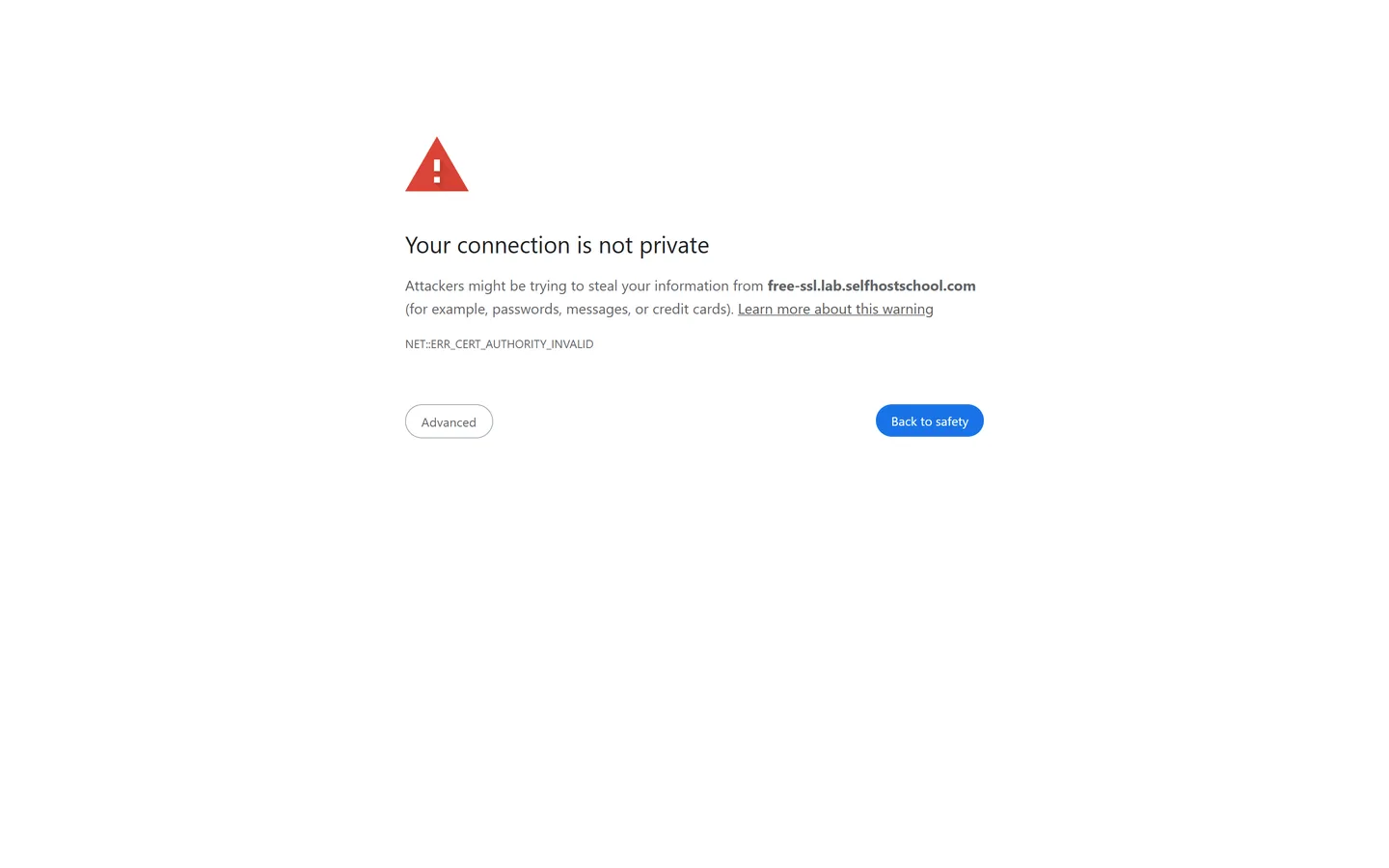
The detail worth understanding: a certificate does two jobs, not one. It carries the key material for encryption, and it carries a signature from a certificate authority saying "we checked, this key really belongs to this domain". A self-signed certificate does the first job fine. It cannot do the second, because the signer is you:
The self-signed problem, in two openssl lines
Read from my lab box right after creating the self-signed cert.
root@lab-server:~# openssl s_client -connect free-ssl.lab.selfhostschool.com:443 | openssl x509 -noout -subject -issuer
subject=CN = free-ssl.lab.selfhostschool.com
issuer=CN = free-ssl.lab.selfhostschool.com
# subject == issuer. The certificate vouches for itself. Browsers call that nothing.
The fix is not better encryption. It is a signature from an authority the browser already trusts. That used to cost $50 to $200 a year. Since 2015, it costs nothing.
What Let's Encrypt actually is
Let's Encrypt is a free, automated certificate authority run by the non-profit Internet Security Research Group. It issues certificates that every browser trusts, it charges nothing, and it is funded by sponsors like Google, Mozilla, Cisco, and the EFF. It launched in 2015 with the explicit goal of encrypting the whole web, and it worked: it serves hundreds of millions of sites today, and "buy an SSL certificate" quietly became a legacy phrase.
The important design decision is not the price. It is that certificates are issued by a protocol, not a purchase flow. The protocol is called ACME. Your server proves it controls the domain, the CA signs a certificate, and the same protocol runs again before the certificate expires. No forms, no emails, no human. The 90-day lifetime is deliberate pressure to automate: nobody wants to do a manual dance every three months, so the tooling does it, and a stolen key is only useful briefly.
Certbot, made by the EFF, is the standard ACME client you run yourself. But ACME is an open protocol, and that fact shapes this whole page: Traefik speaks it, Caddy speaks it, Coolify's proxy speaks it. Which is why the manual way below is worth learning once, and why you may rarely use it, as you'll see.
HTTP-01 vs DNS-01: how Let's Encrypt verifies you
Before signing anything, Let's Encrypt needs proof you control the domain you are asking about. Anyone can request a certificate for any domain. The challenge is what stops me from getting one for yours.
There are two challenges that matter. Both are "put this token where only the real owner could put it".
HTTP-01: prove it by serving a file
The default. Works when your server is reachable on port 80.
Only someone controlling the server that DNS points at could serve that token. That is the whole proof. It needs port 80 open and one server answering for the domain.
DNS-01: prove it by publishing a DNS record
Required for wildcards. Works with port 80 closed, or before the server exists.
Only someone controlling the DNS zone itself could publish that record. Stronger claim, so it unlocks more: wildcard certificates, and issuance for machines the internet cannot reach.
Which one do you need? This table is the honest version:
| HTTP-01 | DNS-01 | |
|---|---|---|
| Proves | You control the server DNS points at | You control the DNS zone |
| Needs | Port 80 reachable from the internet | API access to your DNS provider |
| Wildcard certs | No | Yes, this is the only way |
| Works behind closed ports / private servers | No | Yes |
| Secret to protect | None | A DNS API token sits on your server |
| Use it when | One public web server. The default. | Wildcards, many subdomains, internal boxes. |
There is a third challenge, TLS-ALPN-01, which does the HTTP-01 trick on port 443. Certbot does not use it by default and for self-hosting you can safely ignore it.
Both challenges above are on this page as captured evidence, not diagrams only: the HTTP-01 token requests appear in my access log in the next section, and the DNS-01 TXT record is caught mid-validation in the wildcard section.
The manual way: certbot + nginx
The setup: an Ubuntu droplet, nginx serving a plain-HTTP page on my lab domain, DNS already pointing at the box. Three steps to the padlock, and I will show you the actual challenge happening in the middle.
Step 1: point your domain at the server, open 80 and 443
One DNS A record: app.yourdomain.com
→ your server's public IP. Let's Encrypt resolves the name over the public internet, so
this must be live before anything else works. If ufw or a cloud firewall is in the way, open
both web ports:
ufw allow 80/tcp && ufw allow 443/tcp
Step 2: install certbot and the nginx plugin
apt update && apt install -y certbot python3-certbot-nginx
The Ubuntu package quietly installs the most important part: a systemd timer that will run
certbot renew twice a day from now on. You did not configure that. It is already
scheduled. We verify it below, because trusting it blind is how sites go
down.
Step 3: issue the certificate
certbot --nginx -d app.yourdomain.com -m [email protected] --agree-tos --redirect
The --nginx plugin does both halves: it answers the HTTP-01 challenge through
your running nginx, then rewrites your server block to use the new certificate.
--redirect adds the HTTP→HTTPS redirect. Here is the real run from my box:
The issuance, unedited
From request to deployed certificate: about ten seconds.
root@lab-server:~# certbot --nginx -d free-ssl.lab.selfhostschool.com --redirect
Saving debug log to /var/log/letsencrypt/letsencrypt.log
Account registered.
Requesting a certificate for free-ssl.lab.selfhostschool.com

Successfully received certificate.
Certificate is saved at: /etc/letsencrypt/live/free-ssl.lab.selfhostschool.com/fullchain.pem
Key is saved at:         /etc/letsencrypt/live/free-ssl.lab.selfhostschool.com/privkey.pem
This certificate expires on 2026-11-09.
These files will be updated when the certificate renews.
Certbot has set up a scheduled task to automatically renew this certificate in the background.

Deploying certificate
Successfully deployed certificate for free-ssl.lab.selfhostschool.com to /etc/nginx/sites-enabled/free-ssl
Congratulations! You have successfully enabled HTTPS on https://free-ssl.lab.selfhostschool.com
While that ran, something happened that most guides never show you. The challenge is not abstract. Let's Encrypt's validation servers actually connected to my nginx and fetched the token. My access log caught them doing it:
The HTTP-01 challenge, caught in the access log
grep acme-challenge /var/log/nginx/access.log, seconds after the issuance.
23.178.112.210  "GET /.well-known/acme-challenge/Q3AI4Zcc...4RI"  200  "Let's Encrypt validation server"
16.16.202.131   "GET /.well-known/acme-challenge/Q3AI4Zcc...4RI"  200  "Let's Encrypt validation server"
3.142.94.14     "GET /.well-known/acme-challenge/Q3AI4Zcc...4RI"  200  "Let's Encrypt validation server"
52.41.83.88     "GET /.well-known/acme-challenge/Q3AI4Zcc...4RI"  200  "Let's Encrypt validation server"
13.215.185.152  "GET /.well-known/acme-challenge/Q3AI4Zcc...4RI"  200  "Let's Encrypt validation server"
# five different IPs, one token, all inside the same second
Five requests from five different IPs within one second. Let's Encrypt validates from multiple vantage points around the world so nobody can trick it by hijacking traffic near one datacenter. This is also your debugging hint: if issuance fails, the first question is "can the whole internet reach my port 80", not just "can I".
And the after. Same URL that showed the red warning at the top of this page:
Verified from a strict client
curl verifies the chain against the system trust store, like a browser does.
root@lab-server:~# curl -sS -o /dev/null -w '%{http_code}\n' https://free-ssl.lab.selfhostschool.com/
200
root@lab-server:~# curl -s -o /dev/null -w '%{http_code} -> %{redirect_url}\n' http://free-ssl.lab.selfhostschool.com/
301 -> https://free-ssl.lab.selfhostschool.com/
root@lab-server:~# openssl s_client -connect free-ssl.lab.selfhostschool.com:443 | openssl x509 -noout -issuer
issuer=C = US, O = Let's Encrypt, CN = YE2
Let's Encrypt runs a full staging environment with loose rate limits, and I recommend
touching it once so you know it exists. But learn from my actual mistake: I issued a
staging certificate with certbot --nginx --staging, then deleted it with
certbot delete to switch to production. The delete removed the certificate
files but left nginx's config pointing at them, so nginx failed its config test and certbot
refused to run at all until I restored a plain HTTP config by hand. The clean pattern:
rehearse renewals with certbot renew --dry-run (it uses staging automatically),
and never install a staging certificate into a real config.
What you actually got
Certbot put the certificate under /etc/letsencrypt/live/<your-domain>/.
Four files, and knowing which is which saves you from the classic mistakes:
| File | What it is | Who gets it |
|---|---|---|
privkey.pem |
Your private key | Nobody. Never leaves the server, never goes in a repo, never in a support ticket. |
fullchain.pem |
Your certificate plus the CA chain, in one file | nginx / your web server. This is the one config lines point at. |
cert.pem |
Your certificate alone | Rarely needed. Some tools want it split. |
chain.pem |
The CA chain alone | Rarely needed. The other half of the split. |
Two details from reading my actual certificate that will make you faster at debugging:
The files in live/ are symlinks into an archive/
directory that keeps every generation. Renewal writes new files and repoints the links, which
is why nginx configs reference live/ and survive every renewal untouched.
The 90 days start an hour in the past. My certificate issued at 17:32 UTC
with notBefore 16:33 UTC, one hour earlier. That is deliberate clock-skew tolerance so a server
with a slightly wrong clock still accepts the fresh certificate. It is also why
openssl reports the lifetime as 89 days.
Certbot also wrote down how to renew this exact certificate, in
/etc/letsencrypt/renewal/<your-domain>.conf: which plugin authenticated,
which installed, and renew_before_expiry = 30 days. That file is why renewal needs
no thinking later: the answers are recorded at issuance time.
One cert for every subdomain: the wildcard
My lab zone hosts subdomains that come and go. Issuing a certificate per subdomain works, but a wildcard covers all of them at once, including ones that do not exist yet. Wildcards require DNS-01, and DNS-01 requires certbot to edit your DNS zone, which means a provider plugin and an API token. My zone is on Cloudflare:
apt install -y python3-certbot-dns-cloudflare
Create a Cloudflare API token (dashboard → My Profile → API Tokens) with Zone → DNS → Edit permission scoped to the one zone, nothing more. Put it in a root-only file:
mkdir -p /root/.secrets
printf 'dns_cloudflare_api_token = YOUR_TOKEN_HERE\n' > /root/.secrets/cloudflare.ini
chmod 600 /root/.secrets/cloudflare.ini
Whoever holds it can edit DNS for the zone, which is enough to issue certificates for
any name in it. Scope it to one zone, keep it in a chmod 600 root file, and
if the server is ever compromised, revoke the token along with everything else.
Then ask for the wildcard and the bare name in one certificate:
certbot certonly --dns-cloudflare \
  --dns-cloudflare-credentials /root/.secrets/cloudflare.ini \
  -d '*.yourdomain.com' -d yourdomain.com \
  -m [email protected] --agree-tos
While certbot waited for DNS to propagate, I ran dig in a loop from the same
box and caught the proof token live:
The DNS-01 challenge, caught mid-validation
The TXT record exists only for the seconds validation needs it.
root@lab-server:~# dig +short TXT _acme-challenge.free-ssl.lab.selfhostschool.com @1.1.1.1
"BsrkdGEgQ7EtGLxOGXAYqKjb95IWgRIHaZYnCUW6C7Q"
# certbot published this via the Cloudflare API, Let's Encrypt read it...
root@lab-server:~# dig +short TXT _acme-challenge.free-ssl.lab.selfhostschool.com @1.1.1.1
# ...and 60 seconds later it is already gone. Certbot cleans up after itself.
The resulting certificate carries both names. I then pointed two subdomains,
a. and b., at the same box, served both from the one wildcard file,
and checked the serial number each presents:
One file, every subdomain
Same serial from both hosts = the same certificate is doing both jobs.
root@lab-server:~# openssl x509 -in /etc/letsencrypt/live/wildcard-free-ssl/fullchain.pem -noout -ext subjectAltName
X509v3 Subject Alternative Name:
    DNS:*.free-ssl.lab.selfhostschool.com, DNS:free-ssl.lab.selfhostschool.com
root@lab-server:~# curl -sS https://a.free-ssl.lab.selfhostschool.com/
hello from a.free-ssl.lab.selfhostschool.com, secured by the wildcard cert
root@lab-server:~# curl -sS https://b.free-ssl.lab.selfhostschool.com/
hello from b.free-ssl.lab.selfhostschool.com, secured by the wildcard cert
# both serve serial 05E19BA74530...D602: one cert, and subdomain #37 next
# month will need zero certificate work
Do you need this? Honest answer: with a handful of known subdomains, multiple
-d flags on a normal certificate are simpler and skip the API token. In the
reverse proxy
guide I covered three apps with one three-name certificate and no DNS plugin at all. The
wildcard earns its place when subdomains appear faster than you want to re-run certbot.
Will it renew itself? Prove it
Here is the part that separates "I set up HTTPS once" from "my certificates renew for the rest of time". Every certbot install promises automatic renewal. The promise is worth exactly as much as your proof it fires. Three checks, all fast.
Check 1: who is scheduled to do the renewing?
root@lab-server:~# systemctl list-timers certbot.timer
NEXT                        LEFT  UNIT           ACTIVATES
Wed 2026-08-12 06:45:19 UTC  13h  certbot.timer  certbot.service
root@lab-server:~# systemctl cat certbot.timer
[Timer]
OnCalendar=*-*-* 00,12:00:00
RandomizedDelaySec=43200
Persistent=true
Translated: the timer fires twice a day at a randomized offset (so the whole internet does
not hit Let's Encrypt at midnight), and Persistent=true means a fire missed while
the box was off runs at next boot. Each run checks every certificate and only acts on ones
inside 30 days of expiry. On Ubuntu this is a systemd timer; some setups use a cron entry in
/etc/cron.d/certbot instead. Either way, this check tells you renewal is
scheduled at all.
Check 2: rehearse a real renewal, end to end
certbot renew --dry-run
This runs the complete renewal against the staging environment: same challenges, same plugins, same config, fake CA. It is the single most valuable command on this page, because it fails the same way a real 3 AM renewal would fail. Mine passed for both certificates, including the wildcard's DNS-01 dance through the Cloudflare API:
Simulating renewal of an existing certificate for free-ssl.lab.selfhostschool.com
Simulating renewal of an existing certificate for *.free-ssl.lab.selfhostschool.com and free-ssl.lab.selfhostschool.com
Congratulations, all simulated renewals succeeded
Check 3: force a real renewal once, and watch the certificate change
The dry run proves the machinery. One forced renewal proves the whole loop including deployment, and it is the check almost nobody does. The serial number is the certificate's fingerprint, so watch it change:
A renewal is just a re-issuance, proven by the serial
Before, force, after. About eight seconds of wall clock.
root@lab-server:~# openssl x509 -in live/free-ssl.lab.selfhostschool.com/fullchain.pem -noout -serial
serial=06C24E7C72F47394467526719F7C00E5065F
root@lab-server:~# certbot renew --cert-name free-ssl.lab.selfhostschool.com --force-renewal
Renewing an existing certificate for free-ssl.lab.selfhostschool.com
Reloading nginx server after certificate renewal
Congratulations, all renewals succeeded
root@lab-server:~# openssl x509 -in live/free-ssl.lab.selfhostschool.com/fullchain.pem -noout -serial
serial=0586CB3C46E161ED261D46A30C0B1FAD38E5
# new serial, new 90-day window, nginx reloaded and serving the new cert.
# the timer runs this exact process twice a day, forever.
Run the force-renewal once as a test, then never again. Let's Encrypt allows 5 duplicate certificates per week; a forced renewal in a loop is the classic way people hit that limit. The timer plus the 30-day window needs no help.
Let's Encrypt stopped sending expiration warning emails on June 4, 2025. If your renewal silently breaks, the first notice is the browser warning your visitors see. These three checks, plus re-running the dry-run after any nginx or DNS change, are the whole safety net now. If you want an external one, an uptime monitor that checks certificate expiry (Uptime Kuma does) closes the loop.
The part nobody tells you: you may never run certbot
Everything above is worth understanding once. Here is the 2026 reality for self-hosters: modern reverse proxies speak ACME natively, so on most stacks the certificate work already happened before you thought about it.
I proved it on my Coolify server, the same way I proved the manual path. I deployed a tiny
container (traefik/whoami), typed a domain into the one field, and pressed
Deploy. No certbot, no SSH, no /etc/letsencrypt:
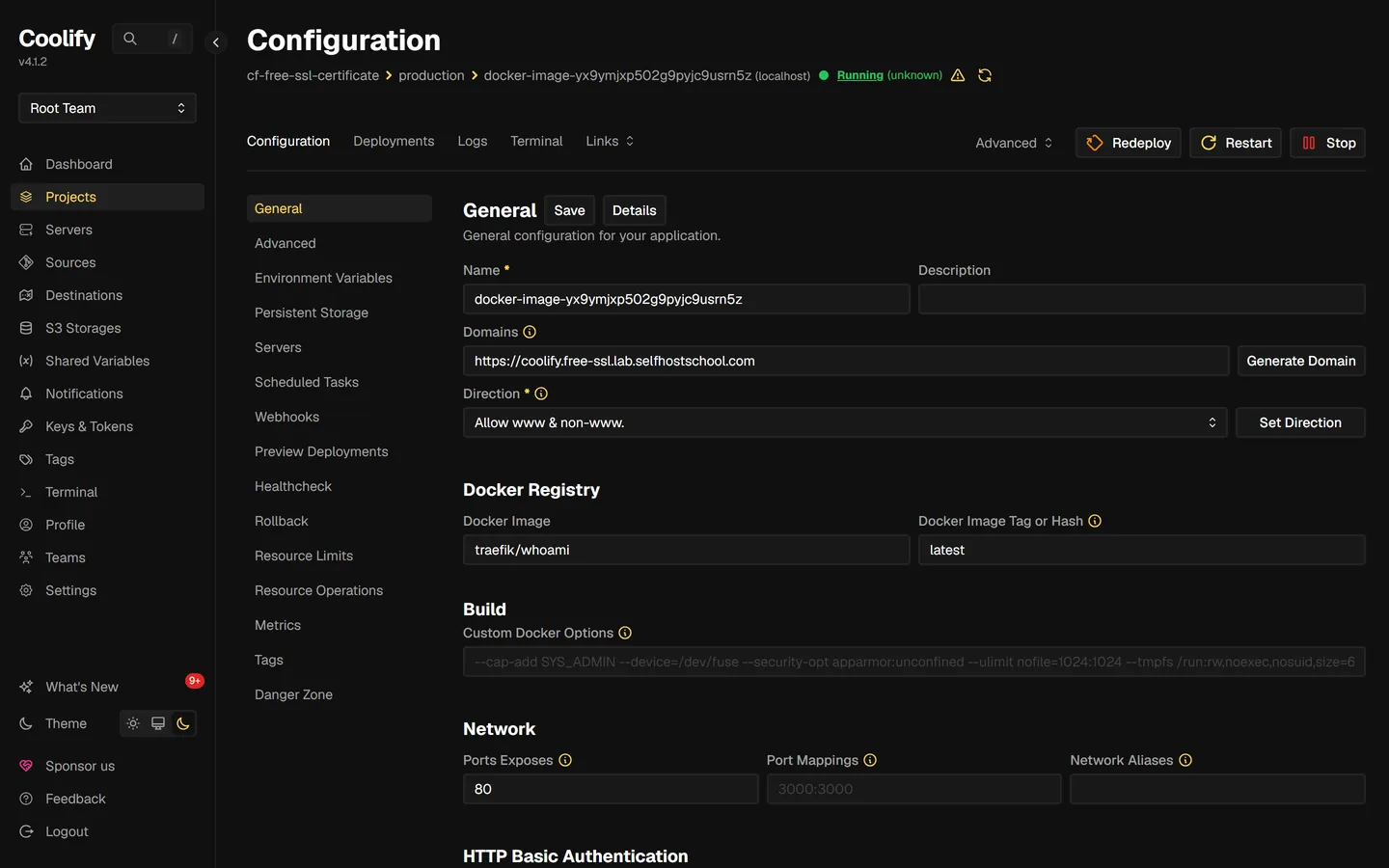
$ python -c "verify TLS chain strictly"  # ssl.create_default_context()
TLS handshake with full verification PASSED
issuer: Let's Encrypt / YR2
subject CN: coolify.free-ssl.lab.selfhostschool.com
notAfter: Nov  9 16:55:01 2026 GMT
# a browser-valid Let's Encrypt cert, and certbot was involved exactly zero times
The same is true across the stack you would actually pick: Traefik has a built-in ACME resolver, Caddy does HTTPS automatically for every site in its config, and Nginx Proxy Manager issues Let's Encrypt certificates from its web UI. If your apps sit behind a reverse proxy, the proxy is the right place for certificates to live: one program owns port 443, so one program owns the certs. How that routing works is its own guide, and I built it the same week as this one: the reverse proxy guide is the routing half of this story.
So when do you actually need this page's manual skills? Three honest cases: a plain nginx server with no proxy layer (this page's demo), a wildcard over DNS-01 (the proxies can do it too, but you still create and scope the DNS token), and debugging. When a Coolify deploy sits at "waiting for certificate", knowing that behind the spinner is an HTTP-01 challenge that needs port 80 and correct DNS turns a mystery into a checklist.
That is also the deal in my Self Hosting 2.0 course: we deploy everything on Coolify where HTTPS is automatic, and you learn what the automation is doing, so the day it misbehaves you fix it in minutes.
The 45-day future: why automation stopped being optional
If any part of you is still thinking "I could just renew manually four times a year", Let's Encrypt published the schedule that ends the argument on December 2, 2025. Certificate lifetimes are shrinking, for everyone, on dates that are already set:
Maximum certificate lifetime, 2026 → 2029
Let's Encrypt's default ("classic") profile, plus the industry ceiling every CA must obey.
Dates from Let's Encrypt's official announcement and their certificate lifetimes page. An opt-in 45-day profile arrives even earlier (May 13, 2026), and a 6-day "shortlived" profile already exists. The industry ceiling comes from the CA/Browser Forum, so it applies to paid CAs too. Nobody escapes this by paying.
Do the arithmetic on 45 days: renewal every month, per certificate, forever. At that frequency a human in the loop is not a plan, it is an outage schedule. The whole design of this page, the timer, the dry-run, the proxy that owns its own certificates, is the thing the industry is now making mandatory. If you set this up today the shrink will not change anything for you: the same timer just renews more often.
One more thing worth knowing about how public this all is. Every certificate on this page appeared in the public Certificate Transparency logs within the hour, searchable by anyone on crt.sh:
$ curl -s 'https://crt.sh/?q=free-ssl.lab.selfhostschool.com&output=json' | jq (formatted)
17:32:21  Let's Encrypt YE2  free-ssl.lab.selfhostschool.com        serial 06c24e7c...
17:34:21  Let's Encrypt YE2  *.free-ssl.lab.selfhostschool.com      serial 05e19ba7...
17:40:21  Let's Encrypt YE2  free-ssl.lab.selfhostschool.com        serial 0586cb3c...
# the original, the wildcard, and the forced renewal. all public, serials matching.
This is by design: public logs are how bad issuance gets caught. The practical consequence for you: scanners watch these logs live, and in the reverse proxy build I watched crawlers hit a brand-new subdomain by name within about a minute of its certificate issuing. A certificate announces your hostname to the world. Never put a secret in one, and have your server hardening done before the domain goes live, not after.
Questions people actually ask
Is Let's Encrypt really free? What is the catch?
Really free. It is run by a non-profit (ISRG) and funded by sponsors like Google, Mozilla, and Cisco. No certificate limit that a normal self-hoster would hit. The honest catch: certificates last 90 days and you are expected to automate. The short lifetime is deliberate pressure to set up the automation, which then means you do nothing forever.
Is Let's Encrypt good enough for production?
Yes. Same encryption, same padlock as a paid certificate. Most of the internet runs on it. Paid certificates differ in validation ceremony (a company name inside the certificate) and warranties, not security. Everything I self-host, including this site, uses it.
How does Let's Encrypt verify I own the domain?
A challenge: put a random token where only the domain's real controller could. HTTP-01 serves it as a file from the server DNS points at. DNS-01 publishes it as a TXT record in the zone. Both happened live on this page, one caught in my access log from five validation IPs, the other caught with dig before certbot cleaned it up.
Why are certificates only valid for 90 days?
Shorter life means a stolen key matters less, and it forces automation. And 90 is on the way out: 64 days in February 2027, 45 days in February 2028, and an industry-wide 47-day ceiling in March 2029. The lifetime shrink is the strongest argument for doing the renewal section of this page today.
Do I need a wildcard certificate?
Only if subdomains come and go often. Several named domains fit in one normal
certificate with multiple -d flags, no DNS token needed. The wildcard covers
names that do not exist yet, at the cost of the DNS-01 setup.
What are the rate limits?
The two that bite: 50 certificates per registered domain per week, and 5 duplicates
(identical name sets) per week. The duplicate limit is almost always hit by a broken
renewal loop or force-renewal in a script. Failed validations cap at 5 per hour per
hostname. The staging environment has loose limits, which is what
--dry-run uses.
What about ZeroSSL or Cloudflare free SSL?
ZeroSSL is another ACME CA; most clients can use it as a drop-in alternative and it makes a fine backup. Cloudflare free SSL is different: Cloudflare terminates HTTPS at their edge. Visitors get a padlock, but the Cloudflare-to-your-server hop still needs its own certificate unless you install their origin certificate, which only Cloudflare trusts. For a self-hosted box you control end to end, Let's Encrypt on the box is the clean answer.
Will Let's Encrypt email me before my certificate expires?
No. Expiration emails ended June 4, 2025. Your renewal automation plus
certbot renew --dry-run is the plan. An uptime monitor that watches
certificate expiry is a good external backstop.
Are my certificates private?
No. Every publicly-trusted certificate lands in public Certificate Transparency logs at issuance. All three of mine showed up on crt.sh within the hour, serials matching my server's files. Scanners watch the logs in real time. Never encode a secret in a hostname.
What happens when a certificate expires?
Every visitor gets the full-page warning from the top of this page, and API clients fail TLS verification. The server is up, the site is effectively down. That is why the proof-of-renewal section exists.
Related
HTTPS is one layer of it. In Self Hosting 2.0 I take an empty VPS to a full stack you own: Coolify with automatic certificates, real apps, backups, email, and security in the order it should actually happen. 34 lessons, nothing skipped between them.

Get the free Vibe Engineering Blocks guide
The exact building blocks I use to ship real products with AI — yours as a free PDF.
Questions & Discussion
Ask a question about this guide →Have a question? Ask it in the community — it's tagged #guide and linked back here. Reading is open to everyone; posting needs a free account.
Loading questions…