Run Claude Code 24/7 on a VPS: Close Your Laptop, Keep Working
 Hasan Aboul Hasan
Published 2026-10-26
Hasan Aboul Hasan
Published 2026-10-26
Long Claude Code tasks die when your laptop sleeps, and VS Code's remote tunnels don't save them. So I put the whole editor on a VPS: a light Linux desktop with VS Code, the Claude Code panel and Chrome. I look at it through Remote Desktop, over a private Tailscale network. Closing the window only closes my view. On my server, one Claude session kept running for 27 hours with nobody watching.
- A Linux desktop on a VPS with VS Code, the Claude Code panel and Chrome
- Remote Desktop that only works through your private Tailscale network
- SSH that only takes keys, with root login off
- Claude sessions that keep running when you close your laptop
- Remote Control, to check on a task from your phone
What you need first
- An x86 VPS with Ubuntu 24.04. x86 because Chrome's Linux package is x86 only. I used Contabo's Cloud VPS 6 (6 vCPU, 12 GB RAM), from €6.00 a month on a 24-month term.
- A free Tailscale account.
- A Claude Pro or Max plan. Remote Control doesn't work with an API key.
- A PC to look at it from. I used Windows 11. Mac and Linux work too, with a different Remote Desktop app.
It takes about 45 minutes the first time. If you've used Linux before, it goes much faster: mine took 32 minutes from first login to Claude running, with the commands pasted from a script.
Step 7 turns off password login for SSH. If you skip its key test, you can lock yourself out of SSH. Even then, Remote Desktop over Tailscale still gets you in, because it doesn't use SSH.
Your server IP, username and Tailscale IP (optional)
Type them once and every copyable command on this page fills them in, so you can paste with no edits. You get the Tailscale IP in Step 5.
Values stay in your browser only. Nothing leaves this page.
Why closing your laptop kills the task
With VS Code's Remote-SSH or Remote Tunnels, the Claude Code panel runs inside the extension host (the hidden process that runs VS Code extensions) on the server. That sounds like it should survive a disconnect. It doesn't.
When your laptop drops off, the extension host exits within seconds, and it takes the Claude process with it. Raising VS Code's reconnection grace time doesn't help. It keeps the connection slot open, not the extension host. It's an open issue on the Claude Code repo.
So I stopped fighting the connection and moved the whole editor onto the server. The VPS (a rented Linux computer that never sleeps) runs a full desktop with VS Code on it. Your laptop only shows you that desktop.
Think of Remote Desktop as a window into a room. Close the window, and the room keeps working.
Close the laptop and only the first box goes dark. Everything that does the work lives in the last one.
SSH into a server, start claude inside tmux, detach, and log out. It keeps running, and Anthropic's own Remote Control docs suggest exactly that. This guide is for the VS Code panel, plus a browser on the server to test what Claude builds.
Step 1: Log in and create your user
Your provider emails you a root password. On your PC, open PowerShell (Windows) or Terminal (Mac, Linux) and log in. The first time, it asks if you're sure you want to connect. Type yes, then the password.
ssh root@YOUR_VPS_IP
Now create the user you'll work as. This runs on the VPS, as root. It asks for a password twice, then some name fields. Press Enter to skip those.
adduser youruser
This password matters. It's your Remote Desktop login and your sudo password.
Still as root, give the user admin rights. No output means it worked.
usermod -aG sudo youruser
Step 2: Install the basics and a light desktop
Still on the VPS as root. Update everything first. It takes a few minutes.
apt update && apt upgrade -y
Then the building tools: git, Python, a compiler, the firewall and the GitHub CLI.
apt install -y git curl gpg build-essential python3-pip python3-venv ffmpeg ufw gh
Now the desktop. XFCE (a light Linux desktop) stays quick over Remote Desktop and leaves the RAM for your work.
apt install -y --no-install-recommends xfce4 xfce4-terminal thunar dbus-x11 x11-xserver-utils
Then fonts, so emoji and non-English text don't show as empty boxes. fonts-kacst adds Arabic. Skip it if you don't need it.
apt install -y fonts-noto-core fonts-noto-color-emoji fonts-kacst
Step 3: Install xrdp
xrdp (a Remote Desktop server for Linux) is what your PC's Remote Desktop app talks to. On the VPS as root, install it:
apt install -y xrdp
Let xrdp read its certificate:
adduser xrdp ssl-cert
Tell it to start XFCE when you log in:
echo "startxfce4" > /home/youruser/.xsession
Make that file belong to your user:
chown youruser: /home/youruser/.xsession
Now restart xrdp. Don't skip this one.
systemctl restart xrdp
Here's why. apt starts xrdp the moment it installs. The group change above doesn't reach a process that's already running. On my first try I used systemctl enable --now xrdp, which doesn't restart a running service. xrdp kept going without the group, and its log said this:
Remote Desktop still worked, because Tailscale encrypts the connection anyway. But the restart costs nothing, so do it. To check, run systemctl is-active xrdp. It should print active.
Step 4: Install Chrome, Node and VS Code
Chrome is for testing what Claude builds, right on the server. On the VPS as root, download it:
wget -qO /tmp/chrome.deb https://dl.google.com/linux/direct/google-chrome-stable_current_amd64.deb
Install it:
apt install -y /tmp/chrome.deb
Node runs most of the web projects you'll build. The Claude Code extension itself doesn't need it. Add NodeSource's long-term version:
curl -fsSL https://deb.nodesource.com/setup_lts.x | bash -
Install it. In October 2026 this gave me Node 24.22.1.
apt install -y nodejs
VS Code comes from Microsoft's own repo. Add their signing key:
wget -qO- https://packages.microsoft.com/keys/microsoft.asc | gpg --dearmor > /usr/share/keyrings/microsoft.gpg
Add the repo:
echo "deb [arch=amd64 signed-by=/usr/share/keyrings/microsoft.gpg] https://packages.microsoft.com/repos/code stable main" > /etc/apt/sources.list.d/vscode.list
Install VS Code:
apt update && apt install -y code
Step 5: Connect Tailscale
Tailscale (a private network between your own devices) gives the server a second IP that only your devices can reach. Remote Desktop will use that one.
On the VPS as root, install it:
curl -fsSL https://tailscale.com/install.sh | sh
Start it. It prints a login link. Open the link on your PC and sign in.
tailscale up
Print the server's private IP. It starts with 100. Type it into the box at the top of this page.
tailscale ip -4
On your PC, install Tailscale from tailscale.com/download and sign in with the same account. Windows, Mac and Linux all have an app.
Step 6: Lock the firewall
Only SSH stays open to the internet. Remote Desktop works through Tailscale only. On the VPS as root, set the rules. allow OpenSSH comes before enable, so you don't cut off your own session. The last line prints Firewall is active and enabled on system startup.
ufw default deny incoming
ufw default allow outgoing
ufw allow OpenSSH
ufw allow in on tailscale0
ufw --force enable
I tested mine from my PC, from outside:
public IP       port 3389 (Remote Desktop)   open=False   gave up after 24.1 s
100.75.191.125  port 3389 (Remote Desktop)   open=True    answered in 0.3 s
public IP       port 22   (SSH)              open=True
To check yours (optional), run this in PowerShell on Windows. Look for TcpTestSucceeded : False. It takes about 20 seconds, because the firewall drops the knock silently.
Test-NetConnection YOUR_VPS_IP -Port 3389
On Mac or Linux, this should time out:
nc -vz -w 5 YOUR_VPS_IP 3389
Step 7: Lock down SSH
Do this now, before anything else. My server had password login open for 29 hours while I set it up. In that time, bots tried 11,726 passwords. The last one came one second before I switched passwords off.
You'll switch to a key: a file on your PC that proves it's you. On your PC, create one and press Enter at each question. If it says the file already exists, you already have a key. Answer n and move on.
ssh-keygen -t ed25519
Copy the key to the server. It asks for your user's password one last time.
Windows (PowerShell):
type $env:USERPROFILE\.ssh\id_ed25519.pub | ssh youruser@YOUR_VPS_IP "mkdir -p ~/.ssh && cat >> ~/.ssh/authorized_keys"
Mac or Linux (Terminal):
cat ~/.ssh/id_ed25519.pub | ssh youruser@YOUR_VPS_IP "mkdir -p ~/.ssh && cat >> ~/.ssh/authorized_keys"
Now the test that keeps you safe. Keep this window open. Open a new one and log in:
ssh youruser@YOUR_VPS_IP
It should go straight to the prompt, or ask for your key's passphrase if you set one. If it asks for your user's password, stop. The key isn't working, and the next command would lock you out.
In the new window, on the server, write the lockdown file. It asks for your sudo password and prints the two lines back.
echo -e "PasswordAuthentication no\nPermitRootLogin no" | sudo tee /etc/ssh/sshd_config.d/00-hardening.conf
Apply it. Your open windows stay connected.
sudo systemctl restart ssh
Check it:
sudo sshd -T | grep -E "^(passwordauthentication|permitrootlogin) "
Why the name starts with 00. This is a drop-in file (a small config file sshd reads before its main one). sshd reads the drop-ins in name order and keeps the first value it sees. My Contabo image already had one called 50-cloud-init.conf, and it says PasswordAuthentication yes. I tested both names on my server:
Same server, two file names
What sshd -T reported with each name, next to Contabo's 50-cloud-init.conf.
| File name | Passwords | Root login |
|---|---|---|
00-hardening.conf | off | off |
99-hardening.conf | still on | off |
Name it 99 and everything looks done. Bots can still try passwords.
Step 8: Connect with Remote Desktop
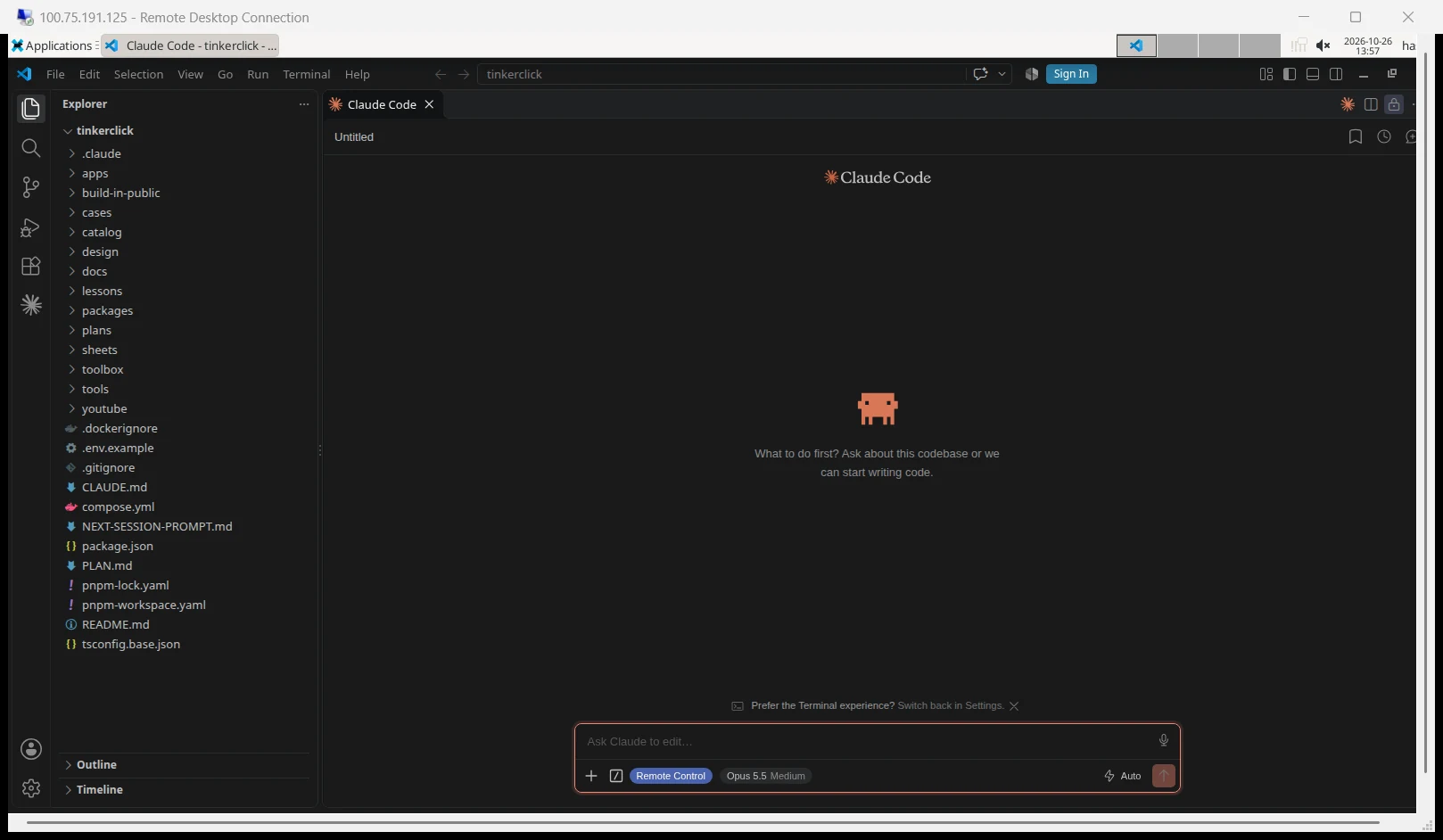
On Windows, press the Windows key, type Remote Desktop Connection and open it. Put your Tailscale IP, 100.x.y.z, in Computer and click Connect.
Windows warns: "The identity of the remote computer cannot be verified. Do you want to connect anyway?" That's expected. xrdp made its own certificate, so Windows has nobody to check it with. Your connection already runs inside Tailscale's encrypted tunnel. Tick Don't ask me again for connections to this computer and click Yes.
xrdp then shows its own login box. Leave Session on Xorg, type your username and its password, and click OK. You're on the VPS desktop.
- Mac: install Windows App from the App Store (it replaced Microsoft Remote Desktop). Add a PC and enter the Tailscale IP.
- Linux: use Remmina with the RDP protocol.
I ran everything from Windows 11.
Step 9: Set up VS Code and Claude Code
Everything here happens inside the Remote Desktop window.
- Open Applications → Development → Visual Studio Code.
- Open Extensions (Ctrl+Shift+X), search Claude Code, and install the one by Anthropic.
- Click the Claude icon in the left bar and sign in. The sign-in opens a browser inside the desktop.
Then get your code. In VS Code, open Terminal → New Terminal. Log in to GitHub. Pick GitHub.com, HTTPS, and log in with a web browser when it asks.
gh auth login
Make a projects folder:
mkdir -p ~/projects && cd ~/projects
Clone your repo:
gh repo clone your-username/your-repo
Then File → Open Folder, pick ~/projects/your-repo, and start working. To test what Claude builds, open Chrome inside the desktop at localhost:3000, or whatever port your app uses.
The overnight rules
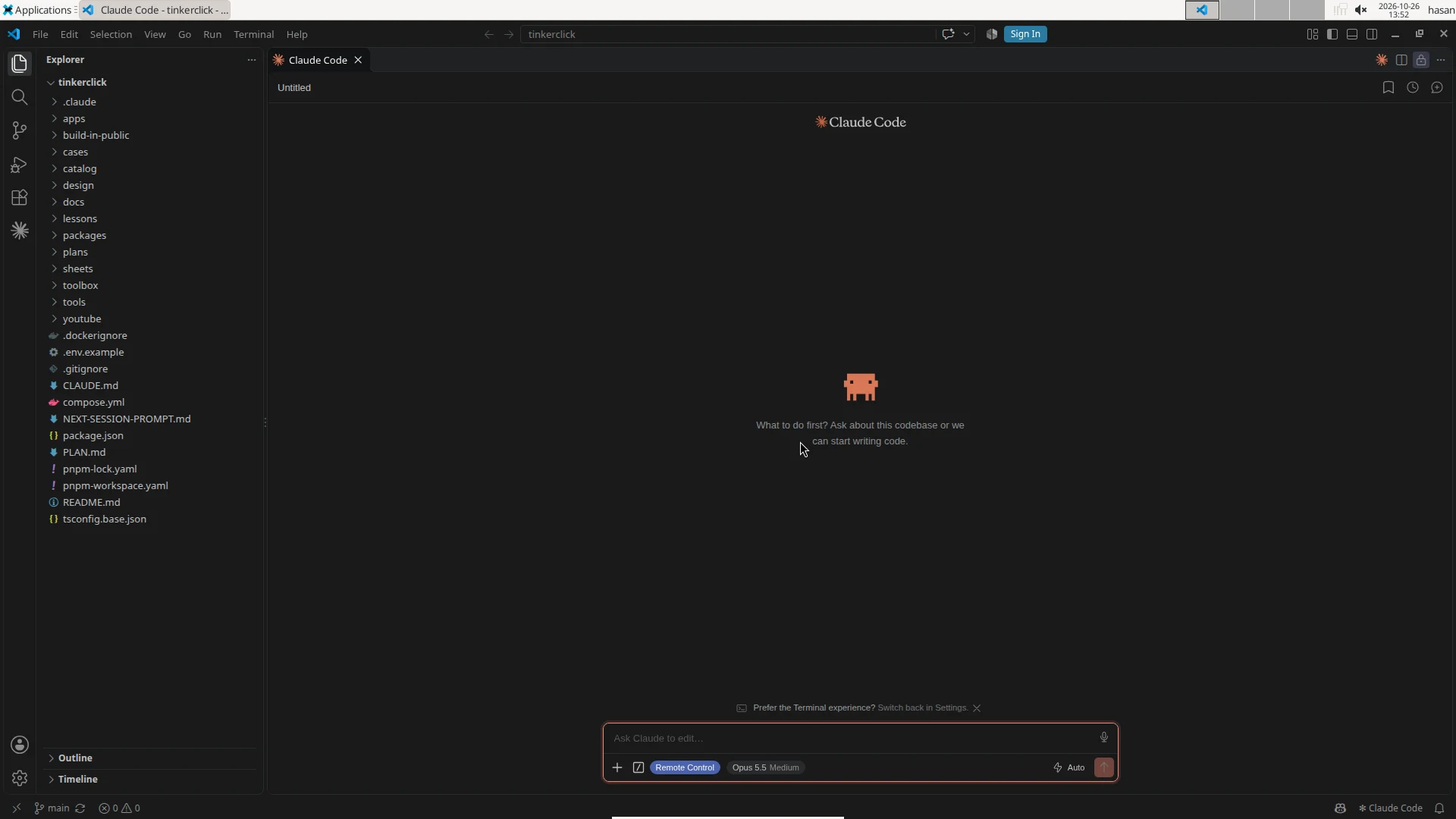
Leave with the X. Close the Remote Desktop window with its X button. If Windows asks you to confirm, click OK. Never click Log Out inside the desktop. Log Out ends the session, and Claude stops with it.
Let Claude run without you. Recent versions start the panel in Auto mode. You see "Auto" at the bottom right of the prompt box. Claude runs without asking, and a second model checks each action first. It blocks risky moves like curl | bash, force pushes, git reset --hard and production deploys.
One honest catch: after 3 blocks in a row, or 20 in total, Auto pauses and goes back to asking. So a task can still sit waiting for you. Remote Control, below, is how you'd notice.
If you'd rather stay in Manual mode, pre-approve the commands you trust by name. Put this in your project. Then start a new session in the panel.
{
  "permissions": {
    "allow": ["Bash(npm test)"]
  }
}
Check from your phone. Type /remote-control (or /rc) in the panel's prompt box. A Remote Control badge appears there. Open claude.ai/code or the Claude app and pick the session. To turn it on for every session, open the panel's command menu, go to Settings, and switch on Enable Remote Control for all sessions.
Test before your first overnight run. Give Claude a short task. Close the window. Wait a few minutes, then reconnect. Same screen, task still going? You're ready.
Here's mine, from the server's own logs:
Oct 25 10:09:10  claude starts (pid 26105)
Oct 25 10:37:55  I close the Remote Desktop window
                 ... 27 hours, nobody connected ...
Oct 26 13:55:47  ++ reconnected session: username hasan, display :10.0
Oct 26 13:56:34  26105  started Sun Oct 25 10:09:10  elapsed 1-03:47:22  claude
Same session, same Claude process, 27 hours and 47 minutes later. To be fair, the panel was idle in this run. It proves the process survives a disconnect, not that a long task finishes. Run your own test with a real task. With all of it open, the server used 1.8 GB of its 12 GB.
Bonus: one account here, one on your laptop
This is how I use it. VS Code on my laptop is signed in to one Claude subscription. The VPS is signed in to a second one. Each has its own usage limits, so a long job on the VPS doesn't eat the limits I'm using at my desk.
There's nothing extra to install. In Step 9, sign in to the VPS panel with the second account.
If two accounts at once is all you want, and not overnight runs, you don't need a VPS. You can run both on one Windows PC with WSL.
Both subscriptions must be yours. Anthropic's terms say you can't share an account or let anyone else use it.
FAQ
Why not use VS Code Remote-SSH or Remote Tunnels?
With those, the Claude Code panel runs in VS Code's extension host on the server, and that host exits within seconds of your laptop disconnecting. The Claude process exits with it. Raising the reconnection grace time doesn't change that. It is tracked as an open issue on the Claude Code repo, number 97754.
I use Claude Code in the terminal. Do I need this?
No. SSH into any server, start claude inside tmux, detach, and log out. It keeps running. This guide is for people who want the VS Code panel and a browser next to it.
How big a VPS do I need?
With the desktop, VS Code and an idle Claude session open, my 6 vCPU, 12 GB server used 1.8 GB of RAM. The real load is what Claude runs: builds, tests, browsers. I haven't tested anything smaller.
Can I connect from a different computer?
Yes. Install Tailscale on it and use any Remote Desktop app. xrdp matches your session by username and color depth, not screen size, so you land on the same desktop.
What happens if the VPS reboots?
The desktop session ends and Claude stops. Your conversations stay in the panel's history, but work that was in flight stops. Ubuntu's automatic security updates don't reboot the server by default.
Can I check on Claude from my phone?
Yes, with Remote Control. Type /remote-control or /rc in the panel, then open the session in the Claude app or at claude.ai/code. The work still runs on your VPS. Your phone is one more window into it.
Is Remote Desktop open to the internet?
No. The firewall only lets it in through Tailscale. From outside, my server's Remote Desktop port didn't answer at all. Through Tailscale it answered in 0.3 seconds.
What this is part of
A server that never sleeps changes how you use Claude Code. You stop babysitting and start handing over longer jobs. The hard part moves to the job itself: how you plan it, split it, and check what comes back.
If keeping Claude running overnight is all you came for, this page is the whole thing. You don't need a course.
If you want the method for planning and checking those long jobs, that's what I teach in Build With AI 1.0. It walks from an empty folder to a deployed AI product:
- Building a real AI app with Python and Django, start to finish
- Wiring AI models into real features
- Directing AI with written playbooks instead of copy, paste and hope
- Auth, payments, and shipping to real users
Course
Plan the long jobs, then let Claude run them
Related

Get the free Vibe Engineering Blocks guide
The exact building blocks I use to ship real products with AI — yours as a free PDF.
Questions & Discussion
Ask a question about this guide →Have a question? Ask it in the community — it's tagged #guide and linked back here. Reading is open to everyone; posting needs a free account.
Loading questions…