How to Use Multiple Claude Accounts at Once in VS Code (Windows + WSL)
 Hasan Aboul Hasan
Published 2026-10-26
Hasan Aboul Hasan
Published 2026-10-26
Claude Code keeps one login per user on your PC. Switch accounts in one VS Code window and every window switches with it. My fix: run the second account inside WSL (Ubuntu on Windows). WSL has its own user and home folder, so it keeps its own Claude login. You still work in normal VS Code windows with the Claude Code panel. Window A on subscription 1, window B on subscription 2, at the same time.
- Two VS Code windows open at once, each on its own Claude subscription
- The Claude Code panel in both, no terminal workflow
- Account 2's projects, history and settings kept apart from account 1's
- GitHub signed in inside Ubuntu, so Claude can push and create repos for account 2
- A one-command backup of the whole Ubuntu side
What you need first
- Windows 11, or Windows 10 version 2004 or newer (build 19041+)
- VS Code with the Claude Code extension, signed in to your first account
- Two Claude subscriptions (Pro or Max), both yours
- Admin rights on the PC
- About 30 minutes
What can go wrong: Step 1 turns on a Windows feature and restarts your PC, so save your work first. Nothing here touches your current Windows login. Account 1 keeps working the whole time.
Why one login follows every window
I run two Max subscriptions. One isn't enough for everything I do with Claude: editing videos, and building VidTSX, PyRunner, TinkerClick, Qissatuna and more. Qissatuna and TinkerClick also get their own path. Their own costs, their own files, their own history. Nothing mixed with my other projects.
And I don't want to do this in a terminal. The Claude Code panel is better for reading long plans, and for Arabic text, which Qissatuna is full of.
Here's the problem. Claude Code saves your login in one file in your user folder: C:\Users\you\.claude\.credentials.json. Every VS Code window on your PC reads that same file.
Think of it as one key hook by the front door. Every window takes its key from the same hook. Sign in to account 2 in one window and you've swapped the key for every window.
WSL is a second house on the same PC. Ubuntu has its own user and its own home folder, so it has its own hook: /home/you/.claude/.credentials.json.
Windows
C:\Users\you
.claude\.credentials.json
Claude account 1
WSL: Ubuntu
/home/you
.claude/.credentials.json
Claude account 2
One login file per home folder. Two homes, two logins, both live at once.
Anthropic's docs give a one-line alias that points a second claude command at its own config folder. WSL is for what this guide covers: the VS Code panel. There, the setting that would do the same job is machine-wide, so every Windows window would share one folder.
One plan, one bill, no setup. I'm on Max and it still isn't enough for everything I run, so I split by business.
Step 1: Install WSL
Open PowerShell as administrator: Start menu, type PowerShell, right-click it, Run as administrator. Then run:
wsl --install
It turns on what WSL needs and installs Ubuntu. Restart your PC when it's done.
After the restart, Ubuntu opens and asks you to create a username and password. They're for Ubuntu only, not your Windows login. The password stays invisible while you type. That's normal.
Now check that Ubuntu runs on WSL 2. Run this in PowerShell (no admin needed):
wsl -l -v
If you use Docker Desktop, a docker-desktop line shows too. Ignore it. If Ubuntu says VERSION 1, switch it:
wsl --set-version Ubuntu 2
Step 2: Install the WSL extension in VS Code
In VS Code, open Extensions (Ctrl+Shift+X), search WSL, and install the one by Microsoft. It lets a normal VS Code window on Windows work on files inside Ubuntu.
Step 3: Install the basics in Ubuntu
Open Ubuntu from the Start menu. Everything in this step runs there, as your Ubuntu user. sudo asks for the Ubuntu password from Step 1.
First, install git, the GitHub CLI, and the build tools some packages need:
sudo apt update && sudo apt install -y git gh build-essential
Then Node.js. Claude Code itself doesn't need it, because the extension brings its own copy of Claude (a 290 MB file on my PC). Node is for your own projects: npm, dev servers. Skip the next three blocks if your projects aren't JavaScript.
This adds the Node.js LTS source:
curl -fsSL https://deb.nodesource.com/setup_lts.x | sudo -E bash -
This installs Node.js from it:
sudo apt install -y nodejs
This checks it worked. It prints a version number, and mine says v24.22.1:
node -v
Step 4: Log in to GitHub
Still in Ubuntu. This signs in the GitHub CLI, and git with it:
gh auth login
Pick: GitHub.com → HTTPS → Yes → Login with a web browser.
The browser won't open by itself. That's normal inside WSL. Copy the one-time code it shows, open github.com/login/device in your Windows browser, and enter the code. This can be a different GitHub account from the one you use on Windows. Ubuntu keeps its own.
Then tell git who you are. First your name:
git config --global user.name "Your Name"
Then the email on your GitHub account:
git config --global user.email "[email protected]"
Step 5: Clone a project and open it
Still in Ubuntu. Make a projects folder in your Ubuntu home and move into it:
mkdir -p ~/projects && cd ~/projects
Clone your repo. Put your GitHub username and repo name in place of the example:
gh repo clone your-username/your-repo
Move into it:
cd your-repo
Open it in VS Code:
code .
The first time, this installs a small VS Code server inside Ubuntu, so give it a minute. Then VS Code opens on Windows, and the bottom-left corner says WSL: Ubuntu. That's your account-2 window.
![A VS Code window connected to WSL: the Explorer header reads QISSATUNA [WSL: UBUNTU] above the project's folders, and the blue badge in the bottom-left corner of the status bar says WSL: Ubuntu.](/static/images/guides/claude-code-multiple-accounts/wsl-window.7dc464d0089e.webp)
Step 6: Install Claude Code inside WSL
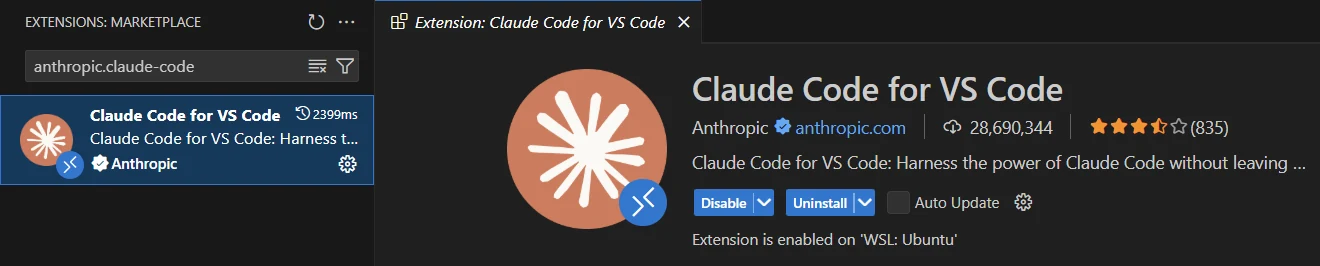
In that WSL window, open Extensions, find Claude Code (by Anthropic) and click Install in WSL: Ubuntu. Your Windows extensions don't run in a WSL window until you install them there. So the Claude Code you already have doesn't count yet.
Step 7: Sign in with your second account
Open the Claude panel: click ❋ Claude Code at the bottom right of the status bar. A sign-in screen appears. Click Sign in.
Copy the login link into a private (incognito) browser window, and log in with account 2 there. Your normal browser is already signed in to claude.ai as account 1, and it may connect account 1 without asking.
Step 8: Check both accounts
In the WSL window's Claude panel, type /status and press Enter. It shows the account in use: account 2. Then open a normal Windows project in another VS Code window and do the same. It shows account 1. (The Status view needs Claude Code 2.1.280 or newer.)
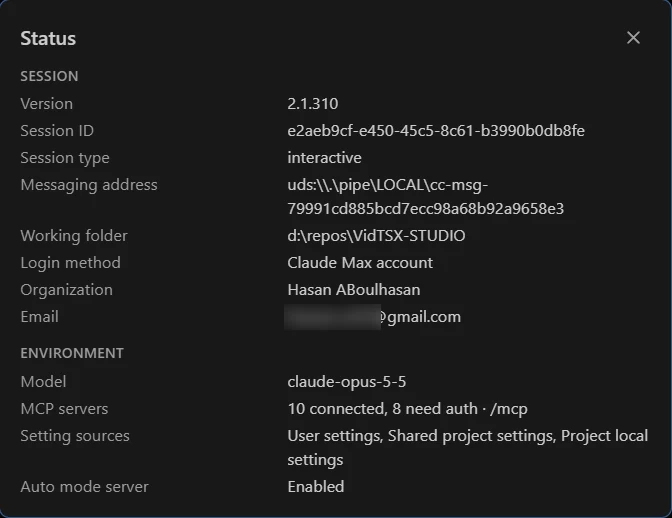
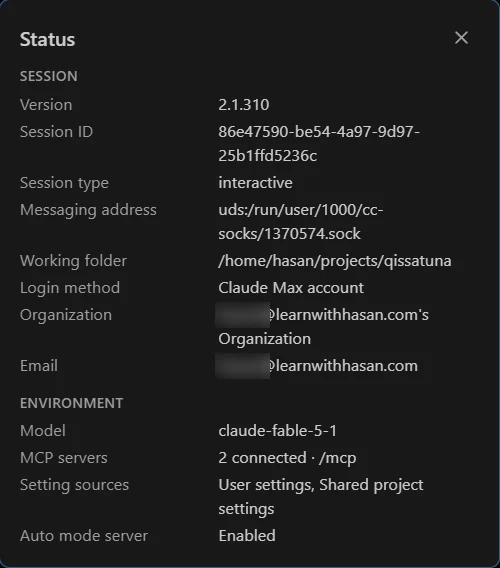
Both windows were open at the same time on my PC, on 26 October 2026. Both are Claude Max. I blurred the start of each email.
Done. Both run side by side.
Daily use
- Open account-2 projects from VS Code. File → Open Recent shows them with a [WSL: Ubuntu] tag. Or click the bottom-left corner and pick Connect to WSL.
![The VS Code Open Recent list: qissatuna [WSL: Ubuntu] ~/projects above VidTSX-STUDIO D:\repos.](/static/images/guides/claude-code-multiple-accounts/open-recent-wsl-tag.5b2f01a8c828.webp)
- New projects for account 2 go in
~/projectsinside Ubuntu, not on the C: drive. WSL can reach C: at/mnt/c, but it's much slower. Microsoft's own docs say to keep WSL project files in the Linux file system. - Dev servers running in WSL open normally in your Windows browser, at
localhost:3000or whatever port they print. - Need a new repo? Ask Claude in the panel to create and publish it.
ghis already signed in. - The WSL side starts with nothing from Windows. Your skills, MCP servers, plugins and user settings live in
C:\Users\you\.claude, so account 2 doesn't see them. On my PC the Windows window shows 10 MCP servers and the WSL window shows 2. Set up only what account 2 needs. Files that live in the repo, like its CLAUDE.md and.claudefolder, come with the project.
Rules that keep it clean
One project, one account. Don't move a project back and forth between subscriptions. Claude keeps each project's session history in the home folder of the account that ran it. Bouncing splits the history in two, and the costs land on two bills.
Both accounts must be yours. Anthropic's Consumer Terms say you may not share your account, make it available to anyone else, or resell the service. One person with two accounts is something Anthropic's own Claude Code docs show how to set up. Sharing one with a friend is not allowed.
Back up the Ubuntu side. Everything account 2 owns lives inside Ubuntu. Close your WSL windows first. Then, in PowerShell, stop WSL:
wsl --shutdown
Make a folder for the backup. No D: drive? Use C:\Backups here and in the next block:
mkdir D:\Backups
Export Ubuntu into one file:
wsl --export Ubuntu D:\Backups\ubuntu.tar
wsl --import brings that file back later. Push your code to GitHub often too: the backup covers your setup, git covers your code.
FAQ
Is it against Anthropic's terms to have two Claude accounts?
Anthropic's terms forbid sharing your account, letting someone else use it, and reselling access. They say nothing against one person holding two accounts, and Anthropic's Claude Code docs show how to stay signed in to several at once, like work and personal. Keep both yours, used by you.
Why not just use CLAUDE_CONFIG_DIR?
It works in the terminal: Anthropic's docs give an alias that sends a second command to its own config folder. In the VS Code extension you'd set it through claudeCode.environmentVariables, which VS Code treats as a machine-wide setting. So every Windows window gets the same folder, and the same account. A WSL window counts as another machine, so it keeps its own.
Do my skills, MCP servers and settings carry over to the WSL side?
No. They live in your Windows home folder. The WSL side has its own ~/.claude and starts empty. On my PC that's 10 MCP servers on Windows against 2 in WSL. Project files in the repo come along with it.
Can I open my existing C: drive projects from WSL?
You can, at /mnt/c/..., but it's slow, because every file read crosses from Linux to Windows. Clone the project into ~/projects instead.
Does Claude Code need Node.js inside WSL?
No. The extension ships its own Claude program (290 MB on my PC). Node is only for your own JavaScript projects.
How do I undo all of this?
Uninstall Claude Code from the WSL side, or remove Ubuntu completely with wsl --unregister Ubuntu. That deletes everything inside Ubuntu, including ~/projects, so export a backup first. Your Windows setup and account 1 are not touched.
Related

Get the free Vibe Engineering Blocks guide
The exact building blocks I use to ship real products with AI — yours as a free PDF.
Questions & Discussion
Ask a question about this guide →Have a question? Ask it in the community — it's tagged #guide and linked back here. Reading is open to everyone; posting needs a free account.
Loading questions…