12 Git Commands Every Vibe Coder Needs to Know (Cheat Sheet + Practice Repo)
 Hasan Aboul Hasan
Published 2026-10-10
Hasan Aboul Hasan
Published 2026-10-10
Git is how you stay in charge of the code Claude writes. You don't need 150 commands. You need 12. I had Claude Code build a small app, then ran all 12 on it for real, on a public repo, and kept every output. This page has each command, what it really printed, the sentence you can say to Claude instead, a free cheat sheet, and the repo so you can practise every step.
- The 12 commands to save, see, undo, try ideas and sync with GitHub
- One picture, four places, that explains all 12
- The plain sentence to give Claude Code for each one
- A free cheat sheet (PNG, no email)
- A real repo with the 7 saves from this page, to clone and practise on
What you need first
- Git 2.23 or newer.
git restoreandgit switcharrived in 2.23. Check yours withgit --version. To install it, follow git-scm.com/install: Git for Windows on Windows,xcode-select --installor Homebrew on a Mac, your package manager on Linux. - A free GitHub account, for push, pull and pull requests.
- Node.js, only if you want to run the practice app and watch it change. Git itself doesn't need it.
- Claude Code is optional. Every command works typed by hand.
Every command on this page is the same on Windows, macOS and Linux.
Watch the video
This page is the written version of my video: same app, same 12 commands, same order. The video shows the app changing live. This page has every command and its real output, ready to copy.
The 12 commands on one page
Here is the whole list first, so you can come back to it. Each row is a command, what it does in plain words, and what you can say to Claude Code instead of typing it.
| # | Command | What it does | Say to Claude |
|---|---|---|---|
| 1 | git init | Starts tracking this folder. Once per project. | "Start tracking this project with git" |
| 2 | git status | Shows what changed since your last save. | "What changed?" |
| 3 | git add . | Puts your changes in the next save. | "Stage these changes" |
| 4 | git commit -m "msg" | Makes the save, with a message. | "Save a checkpoint" |
| 5 | git push | Sends your saves to GitHub. | "Back it up to GitHub" |
| 6 | git diff | Shows every line that changed. | "Show me exactly what you changed" |
| 7 | git restore . | Throws away unsaved edits. | "Throw away these changes" |
| 8 | git switch -c idea | Makes a branch and moves you onto it. | "Try this on a new branch" |
| 9 | git merge idea | Brings a branch's saves into the one you're on. | "Bring that branch into main" |
| 10 | git log --oneline | Lists your saves, newest first. | "Show me the saves" |
| 11 | git revert --no-edit <id> | Adds a new save that undoes an old one. | "Undo that save" |
| 12 | git pull | Brings the latest saves from GitHub to your folder. | "Get the latest from GitHub" |
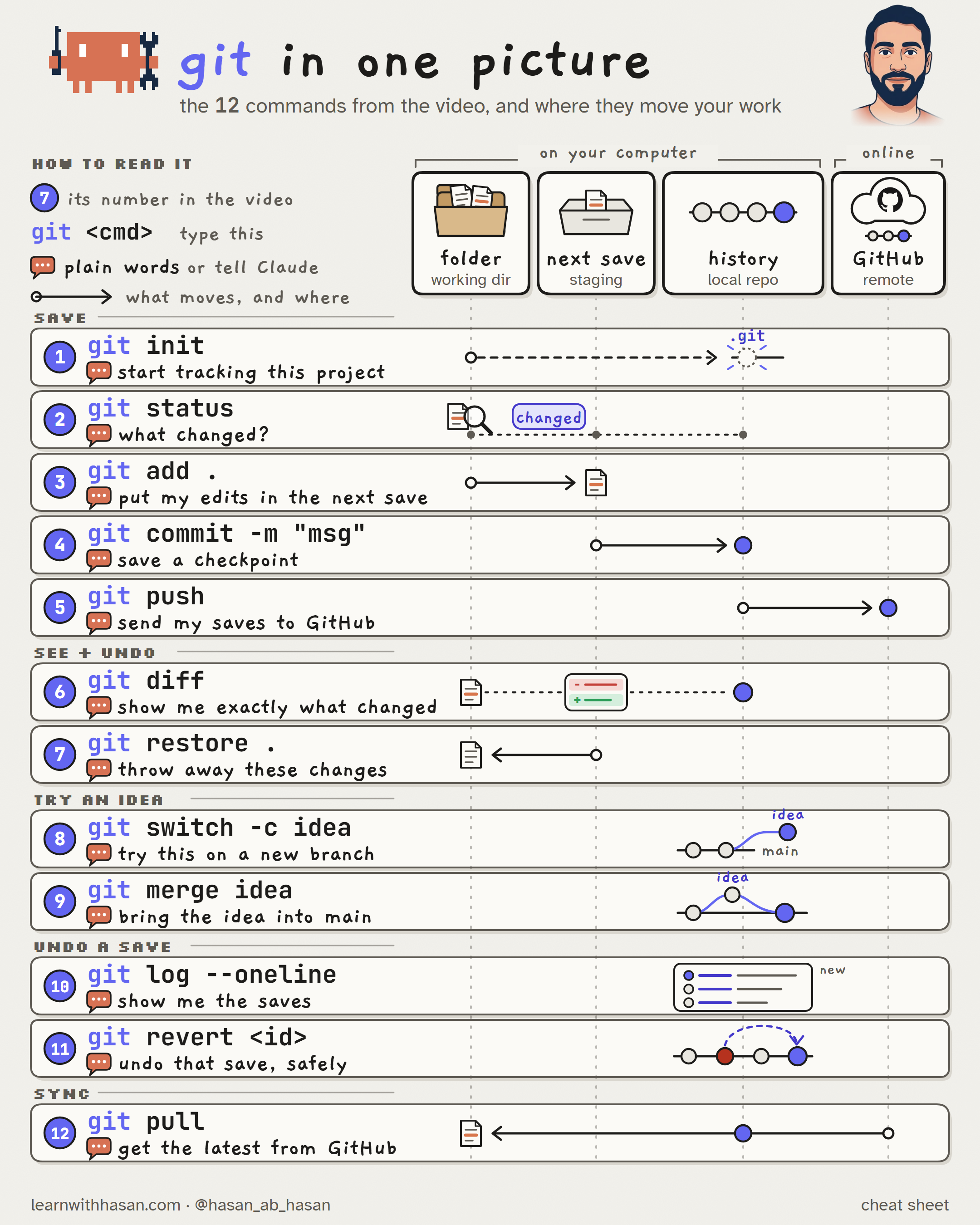
git-cheat-sheet.png
The same 12 on one page, straight from the video. Every command is drawn as an arrow between the four places you'll meet in the next section. 2160 x 2700 pixels, so it stays sharp on a phone or a second monitor.
The one picture: four places
Before any command, picture this. While you build, your work lives in four places:
- Your folder. The files you and Claude edit.
- The next save. A box where you put the changes that go into your next save. Git calls it the staging area.
- History. Every save you made. Git calls a save a commit.
- GitHub. A copy of your history, online.
The first three are git, on your computer. GitHub is a website. They are not the same thing. Every command on this page either moves your work from one place to another, or lets you look at it.
Get the practice repo
Everything on this page happened in one afternoon, on 6 October 2026. I asked Claude Code to build a small habit tracker called Rings. Then I ran all 12 commands on it, for real, and pushed every step to a public repo: github.com/hassancs91/habit-rings. Its history is the story of this page, save by save.
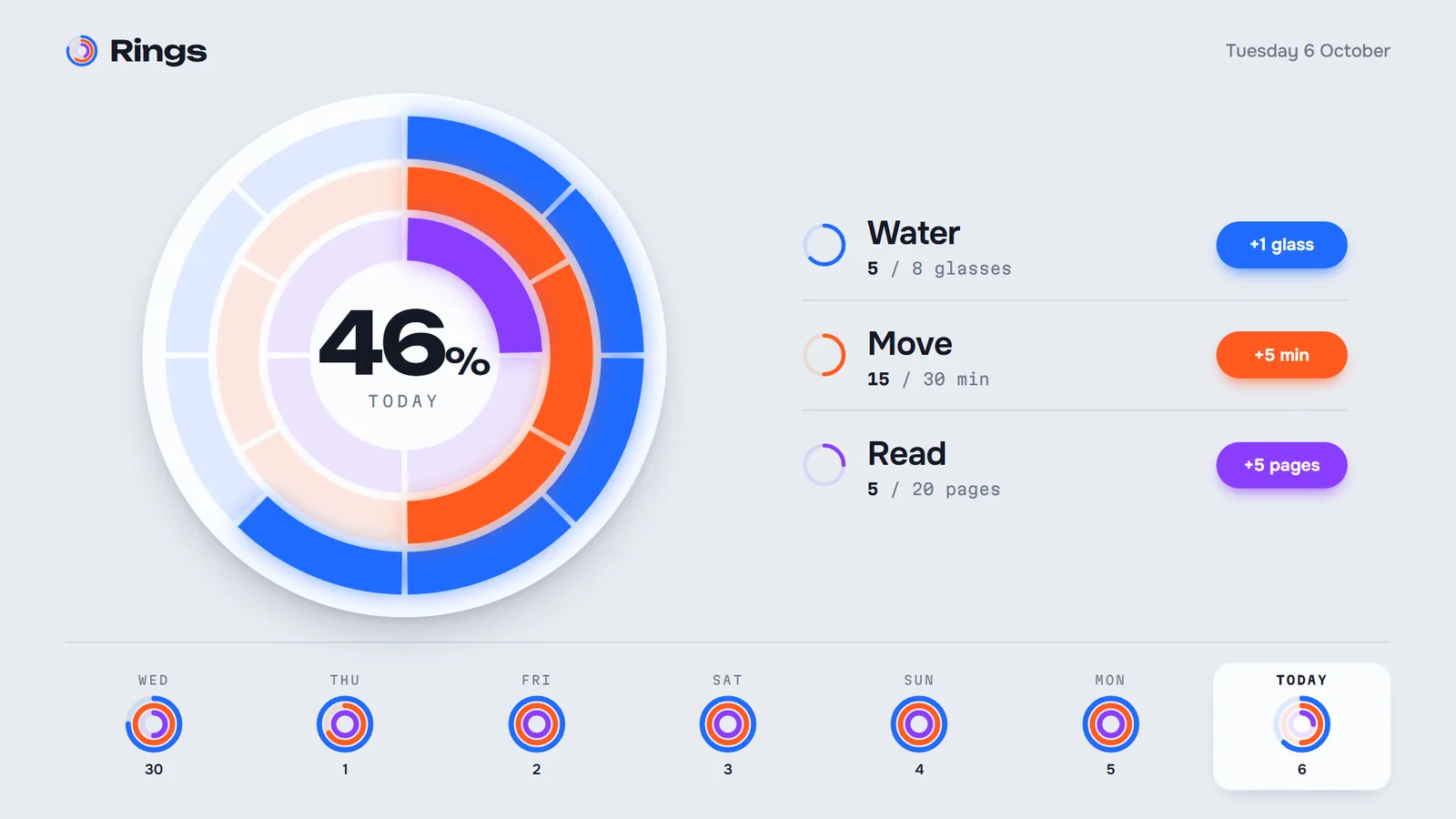
To practise, first fork it: open the repo on GitHub and click Fork. That gives you your own copy, so git push works for you later. Then, in a terminal, in the folder where you keep your projects, clone your fork. Put your GitHub username in place of YOUR-USERNAME:
git clone https://github.com/YOUR-USERNAME/habit-rings.git
Then move into the project folder. Every command after this one runs from here:
cd habit-rings
To run the app (optional, needs Node.js), install its packages once:
npm install
Then start it, and open http://localhost:5190 in your browser. Leave it running in its own terminal window. It reloads by itself whenever a file changes.
npm run dev
Now look at the history you just downloaded:
git log --oneline --graph
Seven saves, newest on top. Each step below is one or two of them.
Step 1: Save (commands 1 to 5)
Without a save, there is nothing to go back to. So saving comes first.
1git init
Run this once, inside your project's folder. It creates a hidden .git folder where all your saves will live.
git init
Say to Claude"Start tracking this project with git"
The repo you cloned already has this. To practise git init, make a new empty folder and run it there.
2git status
Run it any time, from the project folder. It tells you what changed since your last save. This is what it showed me on the brand new repo:
git status
Say to Claude"What changed?"
Look at the first file: .env. That's where your API keys live. If it goes into a save and that save reaches a public repo, your key is public.
Before the first save: .gitignore
Bots scan GitHub for keys all day. In a honeypot test by Comparitech, attackers started using AWS keys leaked on GitHub within about a minute. GitHub turns push protection on for your account by default, and it blocks pushes to public repos that contain keys it recognises. But not every secret. Your own app's key format can slip right through.
So check if your project has a file called .gitignore in its top folder. If not, create one. Each line is a name git should never save:
.env
node_modules
dist
.env holds your keys. node_modules and dist are folders your tools create, and your tools can always create them again. Save the file, then run status again:
git status
.env and node_modules/ are gone from the list. Git ignores them now.
.gitignore only works on files git isn't tracking yet. If .env is already in a save, run git rm --cached .env and save again. And if that save was pushed: revoke or rotate the key first, in the dashboard of the service it belongs to. Deleting the file in a new save leaves the key in your history.
3git add
This puts your changes in the next save. The dot means "everything in this folder".
git add .
It prints nothing when it works. Run git status if you want to see the files waiting in the box.
Say to Claude"Stage these changes"
4git commit
This turns the box into a save, with a message that says what it is.
Git refuses your first save until it knows who you are. Run these two once, with your own name and email. To keep your real email private, use the noreply address GitHub gives you under Settings, then Emails.
git config --global user.name "Your Name"
git config --global user.email "[email protected]"
Then make the save:
git commit -m "first working version"
Say to Claude"Save a checkpoint"
3627a2c is that save's id. Whatever Claude does next, you can come back to this point. Make this a habit: every time the app works, save.
5git push
If your laptop dies, your project dies with it. git push sends your saves to GitHub.
The first time, create an empty repo on GitHub: the + menu, then New repository, and add no README. GitHub then shows three lines under "push an existing repository from the command line". Those are exactly the three I ran. The first tells git where your GitHub copy lives. Use the URL GitHub shows you, not mine:
git remote add origin https://github.com/hassancs91/habit-rings.git
The second names your branch main. Git may call it master by default, like it did for me:
git branch -M main
The third sends it. The -u links your local main to GitHub's, so from now on a plain git push or git pull just works. On Windows, the first push opens a browser window to sign in to GitHub. That's Git Credential Manager, which comes with Git for Windows. On a Mac or Linux, set up the sign-in once with GitHub's credentials guide.
git push -u origin main
Say to Claude"Back it up to GitHub"
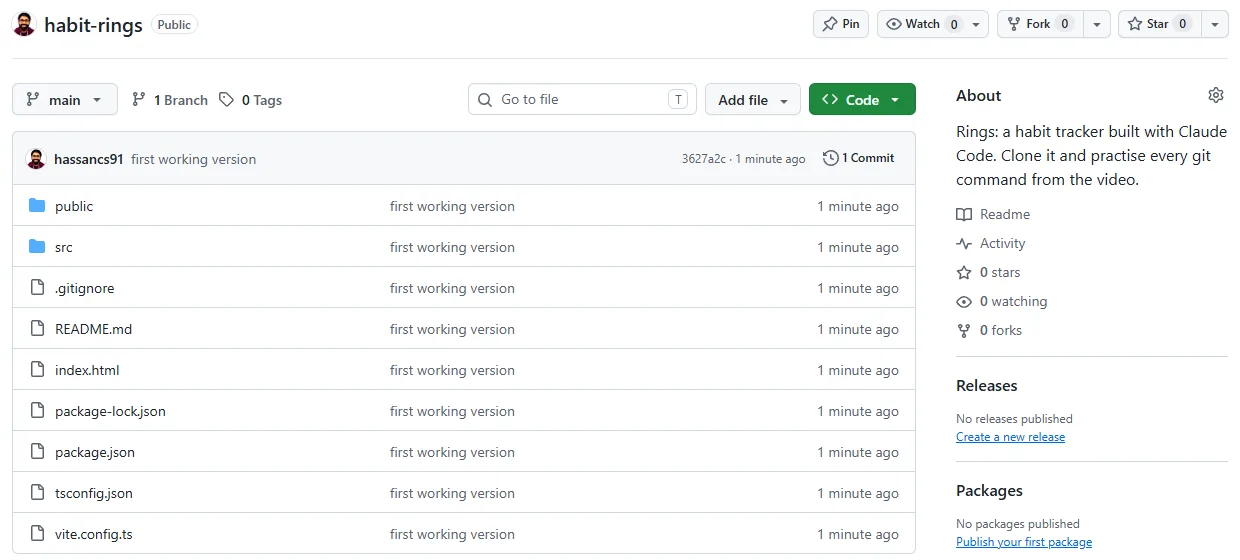
.gitignore made it. .env didn't.On any other computer, git clone gets it all back, like you did with the practice repo.
Open src/habits.ts and change the water goal from 8 to 10. Then run git status, git add ., git commit -m "more water" and git push. Refresh your fork on GitHub: your save is there.
Step 2: See and undo (6 and 7)
Now let Claude work. Claude is faster than you can read, so you need two things: a way to see exactly what it did, and a way to throw it away. To get a real mess on camera, I gave Claude Code this prompt on purpose:
Give Rings a completely new layout. Go wild and experimental: break the grid, rotate and overlap things, use giant type. Keep it to the files we already have, no new files.
Three minutes later:
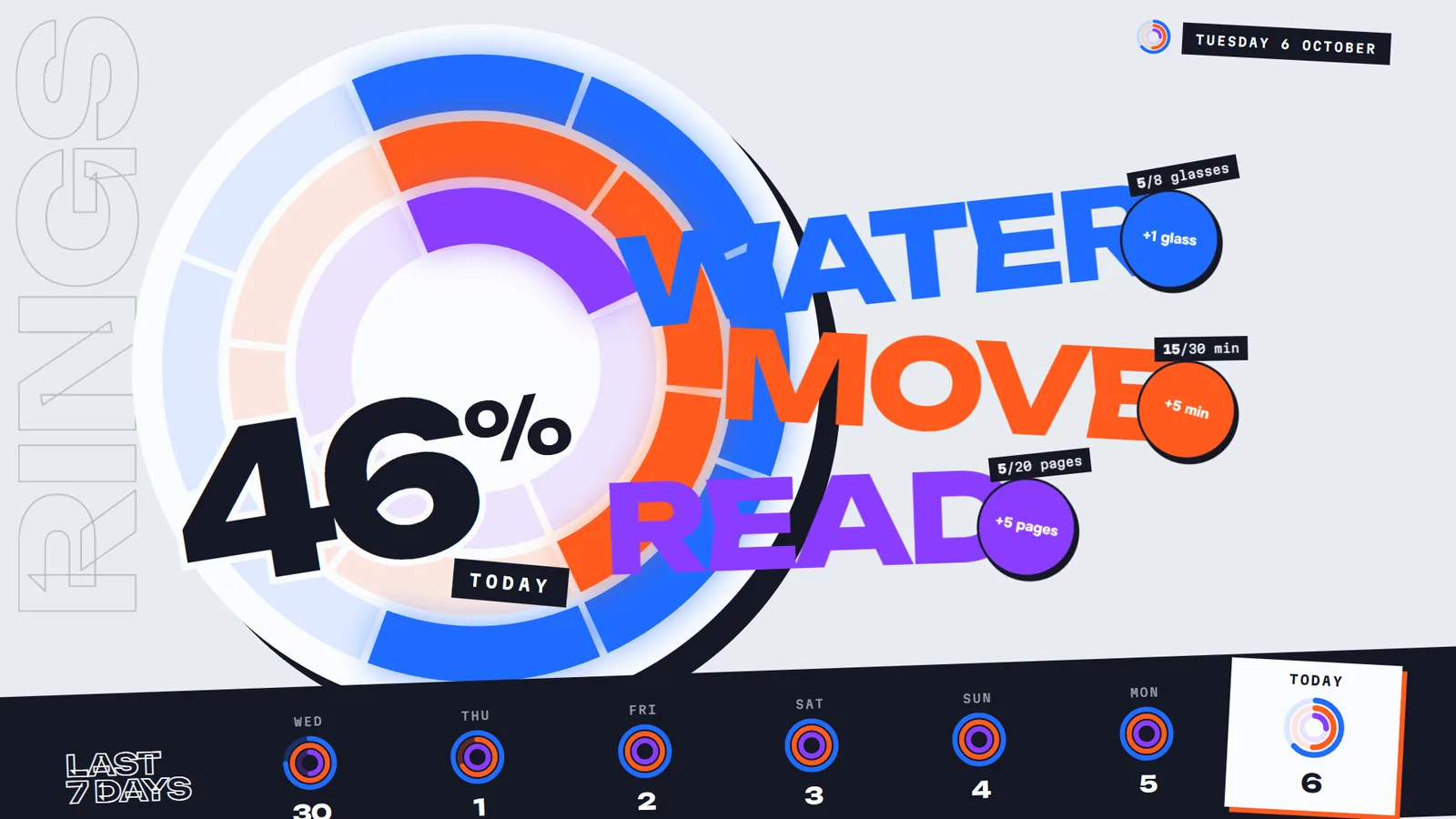
git status showed which files Claude had touched:
6git diff
This shows every line Claude changed since your last save. Lines starting with - were removed. Lines starting with + were added.
git diff
diff --git a/src/App.tsx b/src/App.tsx
@@ -52,46 +52,40 @@ export default function App() {
     <div className="app">
+      <h1 className="wordmark">Rings</h1>
+
       <header className="top">
-        <div className="brand">
-          <MiniRings fractions={[0.78, 0.6, 0.42]} size={44} />
-          <span className="wordmark">Rings</span>
-        </div>
+        <MiniRings fractions={HABITS.map((habit) => fraction(habit, today))} size={44} />
         <time className="today" dateTime={todayKey}>
           {TODAY_LABEL.format(new Date())}
         </time>
       </header>

-      <main className="main">
-        <div ref={dialRef} className="dial-wrap">
+      <div ref={dialRef} className="dial-wrap">
Say to Claude"Show me exactly what you changed"
Mine was 685 lines: 315 added and 136 removed, across 4 files. When the output is longer than your screen, git shows it one page at a time. Press Space to scroll and q to quit.
This is the one I want you to remember. git diff is your code review. Claude writes it, you read it, you decide if it stays. This one didn't.
7git restore
This throws away the unsaved edits in your files and puts them back the way they were. Run it from the project's top folder. The dot means "this folder and everything in it":
git restore .
No output. The app snapped back right away, and git status said:
Say to Claude"Throw away these changes"
- It has no undo. Git kept no copy of the edits it threw away. Run
git difffirst. - It leaves new files alone.
git statuslists them as untracked. Delete the ones you don't want yourself. That's why my prompt said "no new files". - It skips edits you already added. If you ran
git add, rungit restore --staged .first, thengit restore .
Now watch Claude run the same commands
Then I asked for a change I actually wanted:
Add a small minus button next to each habit's button, so I can undo a tap I made by mistake.
It worked, so I told Claude:
Looks good, save a checkpoint on main.
And Claude ran this, by itself:
git status --short && git add src/App.tsx src/styles.css && git commit -q -m "Add undo button to each habit"
That's the same add and commit from Step 1. Claude even added only the two files it changed, not everything. This is why you learn the commands. Not to type them. To know what Claude is doing for you.
One detail from my practice run: say "on main". Without it, Claude Code made a new branch before it saved.
Paste my wild-layout prompt into Claude Code, or just edit a few files yourself. Then run git status, read the git diff, and throw it all away with git restore .
Step 3: Try an idea on a branch (8 and 9)
For a bigger idea, don't build it on the version that works. Build it on the side.
8git switch -c
A branch is a side copy of your history, where Claude can try anything. This makes a branch called streak and moves you onto it:
git switch -c streak
Say to Claude"Try this on a new branch"
Then I asked Claude for the idea:
Add a streak flame: count how many days in a row I've closed all three rings, and show it as a big animated flame with the number next to the dial. Then save a checkpoint.
Claude built it and saved it, on streak. Now the part I love. I switched back to main:
git switch main
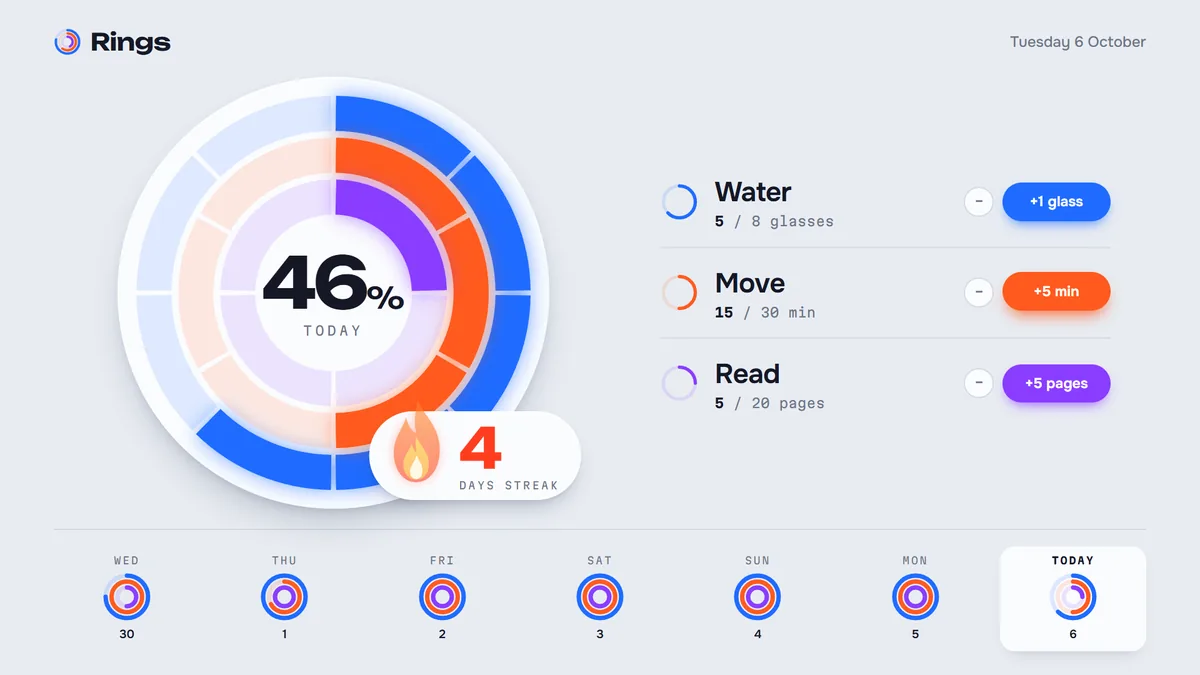
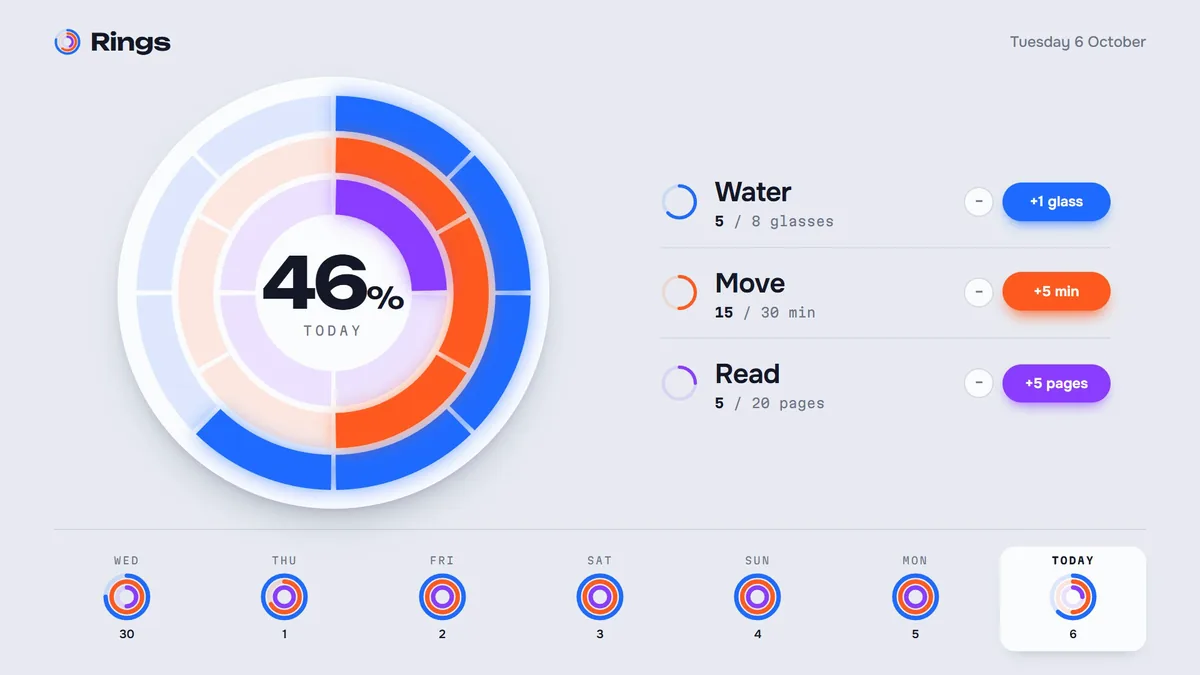
The flame vanished from the running app. main never saw it, so the version that worked was safe the whole time.
9git merge
The idea worked, so bring it home. Run this while you're on main:
git merge streak
Say to Claude"Bring that branch into main"
The flame was back, now on main. "Fast-forward" means main hadn't moved since the branch started, so git just slid main forward. If both sides have new saves, git makes a merge save instead, and it may open a text editor for the message. Save and close it. If it's Vim, type :wq and press Enter.
Then git push, like any save.
Run git switch -c my-idea, ask Claude for any change, and let it save. Then git switch main and watch the change disappear. Keep it with git merge my-idea, or just leave the branch where it is.
Step 4: Undo a save (10 and 11)
git restore only works on edits you haven't saved. So what if the mistake is already saved, and pushed? I asked Claude for this:
Add a celebration when you finish a day, when all three rings are closed. Make it feel amazing: confetti, fireworks, everything. Go all out, and make it last!
It went a little too far.

And I had already saved it and pushed it, with git add ., git commit -m "Add a celebration when you finish a day" and git push. Now restore can't help.
10git log
This lists every save, with the newest on top. --oneline keeps each save to one line:
git log --oneline
Say to Claude"Show me the saves"
There's the bad one: 0baf6d3. If your history is long, press q to get back to the prompt.
11git revert
Revert doesn't delete the bad save. It adds a new save that does the exact opposite. Give it the id from git log, your own, not mine. --no-edit keeps git's default message instead of opening a text editor:
git revert --no-edit 0baf6d3
Say to Claude"Undo that save"
Then git push, like any other save. I closed all three rings again: no storm. And the bad save is still in the history, right under the save that undid it:
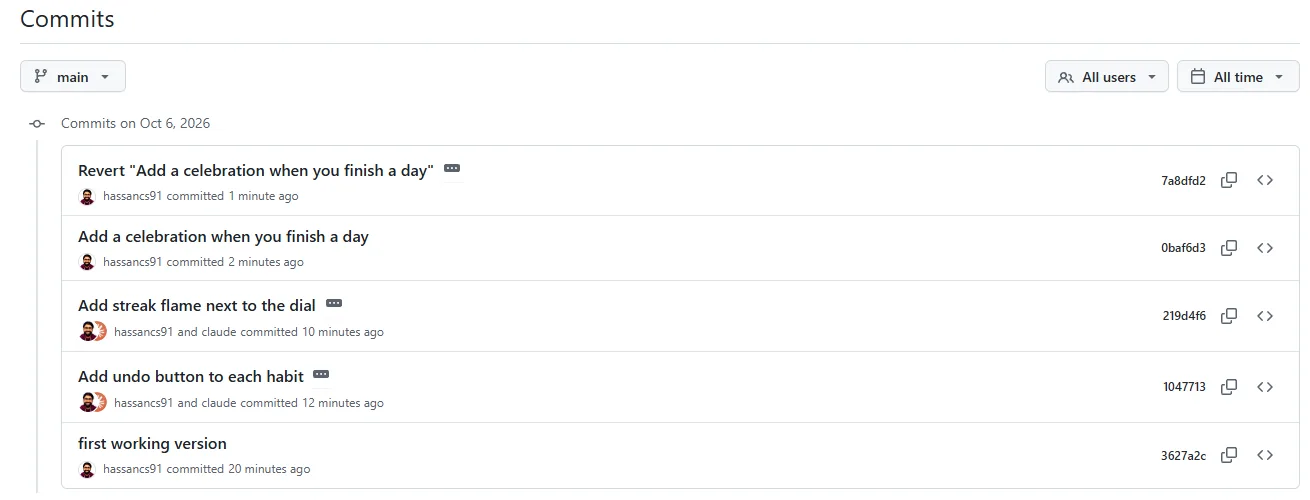
Your history never lies. And because revert adds instead of deleting, it's safe on saves you already pushed. Claude can do this too. In my practice run I said "Undo that last save." and Claude ran git revert --no-edit with the right id.
Run git revert --no-edit 7a8dfd2. That reverts my revert, so the celebration comes back. Close all three rings to see it. Then find the new save with git log --oneline and revert that one too.
Step 5: Sync, plus two Claudes at once (12)
The last command comes with a bonus most people haven't met yet: two Claudes working at the same time.
Two Claudes editing the same folder will step on each other's files. A worktree fixes that: a second folder of the same project, on its own branch, sharing the same history. Claude Code has a flag for it. Run this in the project folder. It starts a new Claude session in .claude/worktrees/dark-mode, on a new branch called worktree-dark-mode:
claude -w dark-mode
Then I gave that second Claude this prompt:
Add a dark mode to Rings, with a toggle in the header. When it's done, push the branch and open a pull request.
While it worked, my main folder and the running app didn't change once. When it finished, it pushed its branch and opened a pull request: a branch on GitHub asking to join main. You see every change before you accept it.
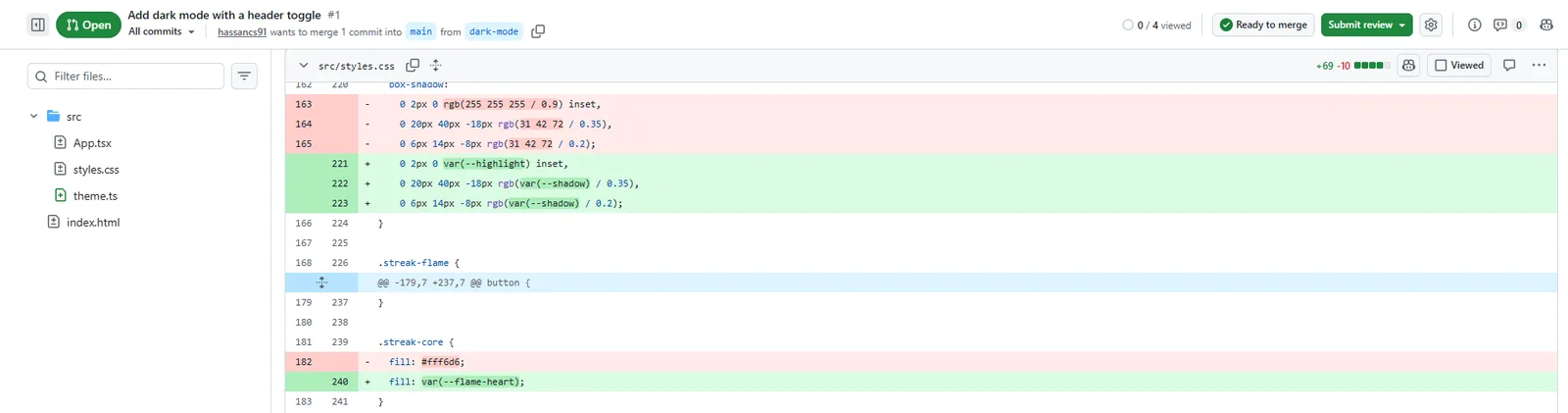
git diff.Claude opened it with GitHub's gh command line tool. If you don't have gh, Claude can still push the branch, and GitHub shows a Compare & pull request button on the repo page for you.
I clicked Merge pull request on GitHub. Now GitHub had dark mode, and my laptop didn't.
12git pull
This brings the latest saves from GitHub into your folder. Run it from the project folder:
git pull
Say to Claude"Get the latest from GitHub"
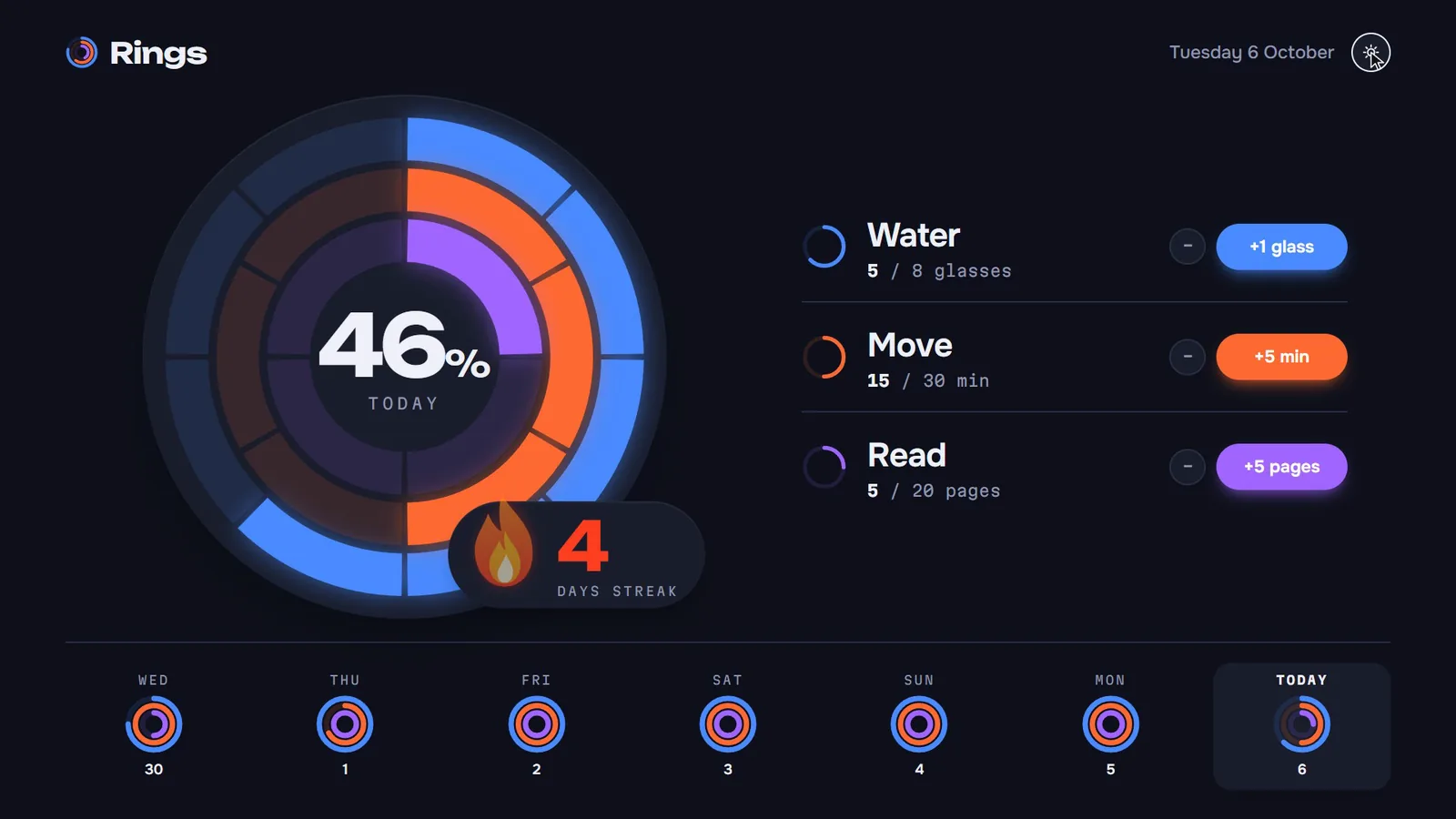
Get in the habit of running git pull before you start work, any time GitHub might have something your laptop doesn't.
On your fork on GitHub, open README.md, click the pencil, change a line and commit it there. Then run git pull in your folder and open the file.
Which undo do I need?
Most panic moments with AI are one of these. Find yours:
| What happened | Run this |
|---|---|
| Claude edited files. Nothing added or saved yet. | git restore . |
You already ran git add. | git restore --staged . then git restore . |
| Claude created new files you don't want. | Delete them. git status lists them as untracked. |
| It's saved. Pushed or not. | git log --oneline, then git revert --no-edit <id> |
| A key reached GitHub. | Revoke or rotate the key first. Then clean up. |
You'll see git reset in other tutorials. It rewrites your history. I left it out on purpose: revert does the same job without that risk, and it stays safe after a push.
FAQ
Is git the same as GitHub?
No. Git is the save system on your computer: init, add, commit, branches and history all work with no internet. GitHub is a website that keeps a copy of your history online. You can use git without GitHub, but not the other way around.
Does Claude Code run git for me?
Yes, when you ask in plain words. In my run, "Looks good, save a checkpoint on main." made Claude run git add and git commit with its own message, and a second Claude pushed a branch and opened a pull request. You learn the commands to read what it did, not to type them.
What is the difference between git restore and git revert?
git restore throws away edits you have not saved yet, and they are gone for good. git revert undoes a save that is already in your history, even a pushed one, by adding a new save that does the opposite. Not saved yet: restore. Already saved: revert.
Will git restore delete the new files Claude created?
No. git restore only puts back files git already tracks. New files stay where they are, and git status lists them as untracked. Delete the ones you don't want yourself.
I already pushed my .env file. What do I do?
Revoke or rotate the key first, in the dashboard of the service it belongs to. Deleting the file in a new save does not help on its own, because the key stays in your history. Then add .env to .gitignore, run git rm --cached .env, and save.
Do I need branches if I work alone?
Yes, for anything risky. A branch costs one command, and it means the version that works is never the one Claude is experimenting on. In my run the streak flame was built on a branch and disappeared from the app the moment I switched back to main.
Can I break anything by practising on the repo?
No. You work on your own fork and your own copy. The worst case is a messy folder, and the fix is to delete it and clone your fork again.
What this is part of
Git is the first building block. It turns "Claude built something" into "I can see it, keep it, and undo it". Every other part of building real apps with AI works the same way: you understand the block, then you direct Claude with it. I call that Vibe Engineering.
If git is all you came for, you don't need a course. This page, the cheat sheet and the repo are the whole lesson. Do each "Try it" box on your fork twice, and you're set.
If you want the rest of the blocks in order, Build With AI 1.0 walks from an empty folder to a deployed AI product:
- Building a real AI app with Python and Django, start to finish
- Wiring AI models into real features
- Directing AI with written playbooks instead of copy, paste and hope
- Auth, payments, and shipping to real users
Course
From blind vibe coding to real apps you control
Related

Get the free Vibe Engineering Blocks guide
The exact building blocks I use to ship real products with AI — yours as a free PDF.
Questions & Discussion
Ask a question about this guide →Have a question? Ask it in the community — it's tagged #guide and linked back here. Reading is open to everyone; posting needs a free account.
Loading questions…