Docker Volumes and Networking: Where Data Lives, How Containers Talk
 Hasan Aboul Hasan
Published 2026-08-11
Hasan Aboul Hasan
Published 2026-08-11
There are two moments that teach every self-hoster how Docker actually works. The morning an update wipes your data. And the night an app cannot reach its own database. Both come from the same two half-understood ideas: where container data lives, and how containers talk. So I booted a fresh DigitalOcean droplet and triggered both failures on purpose. Every command and every line of output on this page came off that server.
A container's own filesystem dies with the container. That is by design. Data you want
to keep goes in a named volume (Docker manages it at
/var/lib/docker/volumes/<name>/_data, I show you the real files) or a
bind mount (a folder you choose). For networking: containers only find
each other by name on a user-defined network. The default one has no DNS,
which is why "can't reach the database" happens. And publish as few ports as possible,
because a published port is public even when your firewall says otherwise. I prove each of
these below with captured output.
I have run this stack in production for years, and these two concepts are the exact foundation my Self Hosting 2.0 course builds on before it ever touches a deploy tool. Tools change. The volume and the network underneath them do not.
New to Docker? The jargon on this page, translated
- Image
- The frozen blueprint an app ships as: files, settings, everything. You never edit it, you start containers from it.
- Container
- A running copy of an image. Disposable by design: you delete and recreate containers all the time.
- Container layer
- The thin writable surface on top of the image where a running container's file changes land. Deleted with the container.
- Named volume
- A chunk of disk Docker creates and manages for keeping data. Lives on the host, survives the container.
- Bind mount
- A normal host folder you hand to a container, like
/root/site-data. You manage it, Docker just connects it. - Bridge network
- A virtual switch inside your server that containers plug into. Each container gets a private IP on it.
- DNS
- The phone book that turns a name like
dbinto an IP address. Docker runs a tiny private one for your containers. - Publishing a port
- The
-p 8080:80flag: connect a port on the server's public side to a port inside a container. This is the doorway to the internet.
- The three places container data can live, and exactly what survives
docker rm(tested, with output) - The real paths on disk: where a named volume's files actually sit, shown with
ls - Why
docker compose down -vis the flag that deletes data, and the anonymous-volume trap - Why a container "can't reach the database", reproduced and then fixed with one command
- When to publish a port and when to keep it internal, including the firewall bypass most guides skip
- You need: any Linux box with Docker. I used a fresh DigitalOcean droplet (2 vCPU / 4 GB). Docker not installed yet? The official Docker install docs for Ubuntu take about five minutes.
- Everything is copy-paste safe. The demos use throwaway containers (alpine, nginx, Postgres) and clean up after themselves.
- Tested on: Ubuntu 24.04, Docker 29.6.2, Compose v5.3.1, on 11 August 2026.
Containers are disposable on purpose
Here is the mental shift that makes everything else on this page obvious: a container is not a small server. It is a running copy of a frozen image, and the normal way to change it is to throw it away and start a new one. Update an app? Remove the container, start a fresh one from the newer image. Change a setting? Same move. When I timed a Plausible upgrade, the whole remove-and-recreate took 16 seconds. This is routine, not surgery.
Which raises the obvious question. If the container gets thrown away on every update, and your database lives inside it... where exactly is your data?
That question has three possible answers, and one of them loses your data.
The three places container data can live
One host, three places a container's files can land
Everything is on the host's disk in the end. What differs is who manages it, and what happens on delete.
1 · Container layer · dies with the container
2 · Named volume · Docker's territory
-v app_data:/dataDocker creates and manages the storage3 · Bind mount · your territory
-v /root/site-data:/datayou pick a host folder, Docker connects itThe flag syntax is nearly identical: a name before the colon means
named volume, a path before the colon means bind mount.
One character of difference (/) decides who manages your data.
Lane 1 is the dangerous one, and it is the default. Run a database container with no
-v flag at all and it happily writes everything into its container layer. It
works. It keeps working through restarts. Then the first real update deletes the container,
and the data goes with it. Nothing warned you, because nothing was wrong until that moment.
Lanes 2 and 3 both survive. The rest of this page is about proving that, and choosing between them.
Where Docker volumes are actually stored on disk
This is the question that sends people to Reddit: I made a volume, my data is in it, but where are the files? The answer is one command away. Create a volume and ask Docker to describe it:
docker volume create app_data
docker volume inspect app_data
Every named volume tells you exactly where it lives
Output from the demo droplet, 11 August 2026. The field that matters is Mountpoint.
root@server:~# docker volume inspect app_data
[
    {
        "CreatedAt": "2026-08-11T17:40:08Z",
        "Driver": "local",
        "Labels": null,
        "Mountpoint": "/var/lib/docker/volumes/app_data/_data",
        "Name": "app_data",
        "Options": null,
        "Scope": "local"
    }
]
On Linux, every named volume is a plain directory at
/var/lib/docker/volumes/<name>/_data. Not a disk image, not a hidden
database. A folder. To prove the two worlds are the same folder, I wrote a file from
inside a container, then read it from the host with no container running at all:
Written inside the container, found on the host's disk
The volume is mounted at /data inside the container. Same bytes, two doors.
root@server:~# docker run --rm -v app_data:/data alpine sh -c 'echo hello-from-inside-the-container > /data/hello.txt'

root@server:~# ls -la /var/lib/docker/volumes/app_data/_data
total 12
drwxr-xr-x 2 root root 4096 Aug 11 17:40 .
drwx-----x 3 root root 4096 Aug 11 17:40 ..
-rw-r--r-- 1 root root   32 Aug 11 17:40 hello.txt

root@server:~# cat /var/lib/docker/volumes/app_data/_data/hello.txt
hello-from-inside-the-container

root@server:~# echo written-on-the-host > /var/lib/docker/volumes/app_data/_data/from-host.txt
root@server:~# docker run --rm -v app_data:/data alpine cat /data/from-host.txt
written-on-the-host
It works in both directions: the container's /data and
the host's /var/lib/docker/volumes/app_data/_data are the same
directory. This is also why backups are simple: the files are right there. My
Docker backups guide (coming to this hub) is built on exactly that fact.
A bind mount is even less mysterious. You pick the folder, so you already know where it is:
mkdir -p /root/site-data
docker run --rm -v /root/site-data:/data alpine sh -c 'echo hello-from-bind-mount > /data/hello.txt'
cat /root/site-data/hello.txt
One habit worth stealing: when you are not sure how a running container's storage is wired,
ask it. docker inspect lists every mount with its type and its host path:
How Docker records the two mount types
One container running with both: a named volume at /named, a bind mount at /bind.
root@server:~# docker inspect mounts-demo --format '{{json .Mounts}}' | python3 -m json.tool
[
    {
        "Type": "volume",
        "Name": "app_data",
        "Source": "/var/lib/docker/volumes/app_data/_data",
        "Destination": "/named",
        "Driver": "local",
        "RW": true
    },
    {
        "Type": "bind",
        "Source": "/root/site-data",
        "Destination": "/bind",
        "RW": true
    }
]   # trimmed: Mode and Propagation fields
Named volumes vs bind mounts: which one?
Both survive the container. The differences are in who manages them, what pre-fills them, and what deletes them:
| Named volume | Bind mount | |
|---|---|---|
| Syntax | -v app_data:/data | -v /root/site-data:/data |
| Lives at | /var/lib/docker/volumes/<name>/_data | any host path you choose |
| Managed by | Docker (create, list, inspect, remove) | you; Docker just connects it |
Survives docker rm | yes (tested below) | yes (tested below) |
Deleted by compose down -v | yes, that is the trap | no, never touched by Docker |
| First use on existing image data | pre-filled with the image's files at that path | starts with whatever your folder holds (an empty folder hides the image's files) |
| Best for | app state: databases, uploads, anything the app owns | things you edit: configs, code, files you want visible in your file manager |
My rule, and the one Docker's own docs lean toward: named volumes for data the app owns, bind mounts for files you own. The database's storage directory is the app's business, so give it a named volume. Your nginx config or a folder of site files is your business, so bind mount it where you can edit it.
The pre-fill row in that table deserves one more sentence, because it bites. If an image ships files at a path (say a default config), mounting a named volume there copies those files into the volume on first use. Mounting an empty bind folder there hides them, and the app boots into a directory with nothing in it. If an app mysteriously starts blank only when you add your mount, this is usually why.
What survives docker rm? I destroyed three containers to check
Time to actually run the failure. I started three alpine containers and wrote the same marker file into each, one per storage mode:
docker volume create survive_vol
mkdir -p /root/survive-bind

docker run -d --name c-layer alpine sleep 3600
docker exec c-layer sh -c 'echo my-precious-data > /marker.txt'

docker run -d --name c-volume -v survive_vol:/data alpine sleep 3600
docker exec c-volume sh -c 'echo my-precious-data > /data/marker.txt'

docker run -d --name c-bind -v /root/survive-bind:/data alpine sleep 3600
docker exec c-bind sh -c 'echo my-precious-data > /data/marker.txt'
Then I killed all three, recreated them with identical commands, and asked each one for its marker back:
The survival matrix: destroy, recreate, ask for the data back
docker rm -f on all three, then an identical recreate. Real exit codes from the droplet.
root@server:~# docker rm -f c-layer c-volume c-bind
c-layer
c-volume
c-bind

# recreate all three identically, then:

root@server:~# docker exec c-layer cat /marker.txt
cat: can't open '/marker.txt': No such file or directory  (exit code: 1)

root@server:~# docker exec c-volume cat /data/marker.txt
my-precious-data

root@server:~# docker exec c-bind cat /data/marker.txt
my-precious-data
There is the whole storage story in three lines. Container layer: gone. Named volume: survived. Bind mount: survived. The container was never the place to keep anything.
The anonymous-volume trap
There is a fourth case, and it is sneaky. Mount a path with no name at all, like
-v /data (many Dockerfiles do the equivalent with a bare VOLUME
line), and Docker creates an anonymous volume with a 64-character hash for a
name:
The volume nobody will ever find again
One container started with -v /data, then removed.
root@server:~# docker run -d --name anon-demo -v /data alpine sleep 3600
root@server:~# docker volume ls
DRIVER    VOLUME NAME
local     7d0e85d43825a60599e7257211abf23bb3284d449b7d977afe5f31339a27953f
local     app_data
local     survive_vol

root@server:~# docker rm -f anon-demo
root@server:~# docker volume ls
DRIVER    VOLUME NAME
local     7d0e85d43825a60599e7257211abf23bb3284d449b7d977afe5f31339a27953f
local     app_data
local     survive_vol
The container is gone. The hash volume stays, holding data nothing
points to anymore. Do this for a year and docker volume ls becomes a graveyard
where one of the tombstones might be data you need. Always name your
volumes.
Compose: down keeps data, down -v deletes it
Most real stacks run under Docker Compose, so here is the same lifecycle there. A minimal stack with one named volume:
services:
  app:
    image: alpine
    command: sleep 3600
    volumes:
      - appdata:/data
volumes:
  appdata:
I wrote a marker into the volume, took the stack down, brought it back, and then did it again with one extra flag:
down vs down -v, on the same stack
The difference is one flag and all of your data.
root@server:~/e2-stack# docker compose down
root@server:~/e2-stack# docker volume ls --filter name=e2-stack
DRIVER    VOLUME NAME
local     e2-stack_appdata

root@server:~/e2-stack# docker compose up -d && docker compose exec app cat /data/marker.txt
compose-data

root@server:~/e2-stack# docker compose down -v
root@server:~/e2-stack# docker volume ls --filter name=e2-stack
DRIVER    VOLUME NAME
(empty: the volume and the data are gone)
Plain docker compose down is safe: containers and network go, named volumes
stay. The -v flag is the destructive one, and people reach for it as a
"clean restart" without knowing what it means. A clean restart of the app is
down then up -d. down -v is "and erase its memory
too". Type it only when that is what you want.
Does data survive an image update?
The update is the moment people actually lose data, so I tested the exact move every self-hosted upgrade makes: remove the container, start a newer image on the same volume. With a real database, and a real row in it:
docker run -d --name pg -e POSTGRES_PASSWORD=labpass \
  -v pgdata:/var/lib/postgresql/data postgres:16.3
Insert on 16.3, read it back on 16.14
The container changed. The volume did not. That is an update.
root@server:~# docker exec pg psql -U postgres -tAc 'SELECT version();'
PostgreSQL 16.3 (Debian 16.3-1.pgdg120+1) on x86_64-pc-linux-gnu ...
root@server:~# docker exec pg psql -U postgres -c "CREATE TABLE customers(name text); INSERT INTO customers VALUES ('Hasan');"
CREATE TABLE
INSERT 0 1

# the update: remove the container, newer image, SAME volume
root@server:~# docker rm -f pg
root@server:~# docker run -d --name pg -e POSTGRES_PASSWORD=labpass -v pgdata:/var/lib/postgresql/data postgres:16

root@server:~# docker exec pg psql -U postgres -tAc 'SELECT version();'
PostgreSQL 16.14 (Debian 16.14-1.pgdg13+1) on x86_64-pc-linux-gnu ...
root@server:~# docker exec pg psql -U postgres -tAc 'SELECT * FROM customers;'
Hasan
Eleven minor versions forward, container destroyed and rebuilt, and the row is still there. Updates only lose data when the data lived in the container layer. With a named volume, an update is just a container swap.
One honest caveat for databases specifically: this is safe for minor updates (16.3 to 16.14). A major jump (Postgres 16 to 17) changes the on-disk format and needs a real migration, not just a tag change. That is a database rule, not a Docker rule.
How containers talk: the model
Storage half done. Now the other half of the page: how does the app container find the database container?
Docker networking is easier to hold in your head if you picture a virtual switch
inside your server. Docker calls it a bridge. Containers plug into it, each gets a
private IP address (mine got 172.17.0.2 and 172.17.0.3), and
anything plugged into the same switch can talk to anything else on it, on any port, without
a single port being published. Traffic between them never leaves the machine.
Out of the box there is one switch, called the default bridge, and every
docker run plugs into it unless you say otherwise. You can also create your own
switches, called user-defined networks, with one command. They look
identical at first. They are not, and the difference is the single most common source of
"my containers can't see each other":
The same two containers on the two kinds of network
Same apps, same commands. The only change is which network they plug into.
Default bridge · IPs work, names do not
User-defined network · names just work
Container IPs are assigned at start and change when containers are recreated. So hardcoding an IP works until the next update, the same way container-layer storage works until the next update. Names are the only stable handle, and only user-defined networks provide them.
The default-bridge trap: "can't reach the database", reproduced
Let me show you the failure itself, not just claim it. Two containers, plain
docker run, which means the default bridge:
docker run -d --name db  alpine sleep 3600
docker run -d --name web alpine sleep 3600
docker exec web getent hosts db
On the default bridge, the name simply does not resolve
getent hosts asks the container's own resolver, exactly like your app does.
root@server:~# docker exec web getent hosts db
(exit code: 2, no output: the name does not exist)

root@server:~# docker exec web ping -c 1 -W 2 db
(exit code: 1: "bad address 'db'")

root@server:~# docker exec web ping -c 1 -W 2 172.17.0.2
PING 172.17.0.2 (172.17.0.2): 56 data bytes
64 bytes from 172.17.0.2: seq=0 ttl=64 time=0.152 ms

root@server:~# docker exec web cat /etc/resolv.conf
nameserver 10.135.255.254        # the HOST's DNS, copied in. No container names here.
(duplicate nameserver + comment lines trimmed)
This is the anatomy of "my app can't reach the database" when both
containers are running fine. The network path exists (the ping by IP proves it). What is
missing is name resolution: on the default bridge, a container's
resolv.conf just points at the host's DNS, which has never heard of a
container called db.
The fix costs one command. Create a network, run the same two containers on it:
docker network create appnet
docker run -d --name db  --network appnet alpine sleep 3600
docker run -d --name web --network appnet alpine sleep 3600
docker exec web getent hosts db
On a user-defined network, the same question gets an answer
Identical containers. The only change: --network appnet.
root@server:~# docker exec web getent hosts db
172.18.0.2        db  db

root@server:~# docker exec web ping -c 1 -W 2 db
PING db (172.18.0.2): 56 data bytes
64 bytes from 172.18.0.2: seq=0 ttl=64 time=0.085 ms

root@server:~# docker exec web cat /etc/resolv.conf
nameserver 127.0.0.11            # Docker's embedded DNS, inside the container
options edns0 trust-ad ndots:0
(comment lines trimmed)
Look at resolv.conf now: 127.0.0.11.
That is a tiny DNS server Docker runs for every user-defined network, and it knows every
container on that network by name. This is the entire magic behind service names. Nothing
more exotic than a private phone book.
So the practical rule writes itself: containers that belong together get their own
network. One docker network create per stack. The default bridge is
legacy behavior kept for compatibility, and Docker's own docs steer you off it.
Compose does the right thing for you
Here is the good news that makes this whole section click into place: if you use Docker Compose, you have been getting user-defined networks for free all along. Compose never uses the default bridge. It creates a network per project and puts every service on it:
services:
  web:
    image: nginx:alpine
  app:
    image: alpine
    command: sleep 3600
Compose: a network appears, and service names resolve
No networks: section anywhere in the file. This is default Compose behavior.
root@server:~/mystack# docker compose up -d && docker network ls
NETWORK ID     NAME              DRIVER    SCOPE
7922323d5042   bridge            bridge    local
f7f41825a961   host              host      local
89a051d5d87c   mystack_default   bridge    local
33c6ed89b058   none              null      local

root@server:~/mystack# docker compose exec app getent hosts web
172.18.0.3        web  web

root@server:~/mystack# docker compose exec app wget -qO- http://web | head -4
<!DOCTYPE html>
<html>
<head>
<title>Welcome to nginx!</title>
The app service fetched a web page from
http://web, no IP, no published port, no config. When a compose file says
DATABASE_HOST=db, this is the machinery making that work:
service name → embedded DNS → container IP, all inside the
project's private network.
This is also why the classic beginner bug is copy-pasting a database hostname like
localhost into an app's config. Inside a container, localhost means
that container, not the machine and not the database next door. On a Compose network,
the database's name is its service name. Use it.
Publish a port, or keep it internal?
Everything so far happened on the private switch. The internet cannot see any of it. The
-p flag is the deliberate act of opening a doorway, and the decision of
which containers get one is a security decision.
Here is the shape of a typical stack done right. The web app gets a published port. The database gets nothing:
docker network create stacknet
docker run -d --name db  --network stacknet -e POSTGRES_PASSWORD=labpass postgres:16
docker run -d --name web --network stacknet -p 8080:80 nginx:alpine
The db needs no ports to serve the app
Inside the network: full access. From the host's public side: only 8080 exists.
root@server:~# docker run --rm --network stacknet alpine sh -c 'nc -z -w 2 db 5432 && echo db reachable from inside the network'
db reachable from inside the network

root@server:~# ss -tlnp | grep LISTEN | grep -E ':8080|:5432'
LISTEN 0  4096  0.0.0.0:8080  0.0.0.0:*  users:(("docker-proxy",pid=9390,fd=8))
LISTEN 0  4096     [::]:8080     [::]:*  users:(("docker-proxy",pid=9395,fd=8))

root@server:~# docker port db
(no output: nothing is published)
Read those three results together: the app can use the database on the private network, the server's public side is listening only on 8080, and the database has no doorway at all. A port scanner sees one service. Your app sees everything it needs.
The trap: a published port walks straight past your firewall
Now the part I really wanted to show you, because most guides skip it and it is the one with consequences. Say you think "I'll publish 5432 but my firewall blocks it anyway". On this droplet, ufw was active with a default-deny policy, allowing only SSH and 8080. Then I published the database port and probed the server from my laptop, outside the box:
ufw says no. The port is open anyway.
Left: the firewall rules on the server. Right: what my laptop could actually reach.
On the server · 5432 is not allowed
root@server:~# ufw status
Status: active

To             Action    From
--             ------    ----
OpenSSH        ALLOW     Anywhere
8080/tcp       ALLOW     Anywhere
OpenSSH (v6)   ALLOW     Anywhere (v6)
8080/tcp (v6)  ALLOW     Anywhere (v6)
From my laptop · outside the droplet
PS> probe 157.230.105.56
 8080/tcp : OPEN            # published + allowed
 5432/tcp : OPEN            # published, NOT allowed by ufw
 9999/tcp : closed/filtered  # never published (baseline)
The database port answered from the public internet with the
firewall actively denying it. This is not a bug in your setup. Docker programs
the kernel's packet rules (iptables) directly for published ports, and its rules run
before ufw's. The honest summary: on a default Ubuntu setup,
-p overrides ufw, and the only reliable ways out are to not publish
the port, or to bind it to localhost (-p 127.0.0.1:5432:5432).
I tore that container down right after the probe, but on a real server this is exactly how databases end up in breach reports: the owner published the port for a quick debugging session, trusted the firewall, and moved on. The scanning background noise finds it within hours. I measured that noise separately in the VPS hardening guide: a fresh server got its first uninvited SSH attempt 2 minutes 35 seconds after boot.
So the port decision tree is short. Does the internet need it? Publish it. Does
only another container need it? Same network, no -p, done. Do you,
sometimes, need it for debugging? Bind it to localhost and reach it over SSH. This
"publish almost nothing" pattern has a natural endpoint: one
reverse proxy as
the only published container, with every app internal behind it. That is its own guide, and
it is the architecture every serious self-hosted box converges on.
What about host networking?
One more mode you will meet in the wild: --network host. It skips the switch
entirely. The container shares the host's network stack, so "the container's port 80"
is the server's port 80:
Host networking: no mapping, no isolation
nginx with --network host, then a second one trying the same thing.
root@server:~# docker run -d --name hostweb --network host nginx:alpine
root@server:~# ss -tlnp | grep ':80 '
LISTEN 0  511  0.0.0.0:80  0.0.0.0:*  users:(("nginx",pid=10072,fd=6))

root@server:~# docker port hostweb
(no output: nothing is mapped, the container IS on the host's network)

root@server:~# docker run -d --name hostweb2 --network host nginx:alpine
root@server:~# docker logs hostweb2 | tail -2
nginx: [emerg] bind() to [::]:80 failed (98: Address in use)
Notice ss shows nginx itself on port
80, not docker-proxy. And the second container hits "Address in use", a collision the
bridge model would have made impossible. Host networking trades isolation for direct
access.
When is that trade right? Monitoring agents that need to see the host's real interfaces, VPN servers, apps that open hundreds of dynamic ports. In my experience, for ordinary web apps and databases, the answer is: it isn't. Use the bridge model and publish deliberately.
The whole page in three rules
Everything above compresses into a setup you can apply to any stack today:
- Named volumes for anything the app owns. Databases, uploads, state.
You now know where the files live (
/var/lib/docker/volumes/), what survives (rm, recreates, updates), and what kills them (down -v, anonymous volumes). - One user-defined network per stack. Compose does it for you. Containers find each other by name through DNS at 127.0.0.11, and never through hardcoded IPs.
- Publish only what the internet needs. Usually that is one web port, and eventually just one reverse proxy. Everything else stays internal, where ufw cannot be bypassed because there is no doorway to bypass it through.
Volumes are also the honest answer to "what do I back up?" You back up the volumes. That guide is next in this hub.
Questions people actually ask
Where are Docker volumes stored on disk?
On Linux: /var/lib/docker/volumes/<volume-name>/_data. Confirm any
volume's exact path with docker volume inspect <name> and read the
files with normal tools, no container needed. Bind mounts live wherever you pointed them.
What is the difference between a Docker volume and a bind mount?
Both survive the container. A named volume is managed by Docker under
/var/lib/docker/volumes/, gets pre-filled with the image's files on first
use, and is deleted by compose down -v. A bind mount is a host folder you
chose: Docker never manages or deletes it. Volumes for app data, bind mounts for files
you edit.
Does docker rm delete my data?
It deletes the container layer, so anything written inside the container with no mount is gone. Named volumes and bind mounts survive. I tested all three on one server and only the container-layer file was lost.
Will updating a container image delete my data?
Not if the data is in a volume. I inserted a row on postgres:16.3, replaced the container with postgres:16.14 on the same volume, and the row was still there. For databases, that covers minor updates; major version jumps need a real migration.
What does docker compose down -v do?
down removes containers and the network but keeps named volumes.
down -v also deletes the volumes, permanently. It is the difference between
restarting an app and wiping it.
Why can't my container reach my database by name?
Both containers are probably on the default bridge, which has no DNS between
containers. Create a network (docker network create appnet) and start both
with --network appnet. Names then resolve through Docker's embedded DNS at
127.0.0.11.
Should I publish my database port with -p 5432:5432?
No. Containers reach it over the shared network without any published port. And on
Ubuntu, publishing it bypasses ufw: I proved from outside the server that a published
5432 answered while the firewall was actively denying it. If you need occasional access
yourself, bind to localhost: -p 127.0.0.1:5432:5432, then tunnel over SSH.
When should I use host networking?
Rarely. --network host gives the container the host's network stack
directly: no isolation, real port conflicts (I demonstrated two nginx containers fighting
over port 80). It fits monitoring agents and VPN servers, not ordinary apps.
What is an anonymous volume?
A volume created without a name (-v /data, or a Dockerfile
VOLUME line), identified only by a 64-character hash. It survives its
container but nothing points to it anymore, so it becomes orphaned storage. Name your
volumes and this never happens.
Related
Volumes and networks are the foundation layer. In Self Hosting 2.0 I build up from here to the full stack you own: Coolify, real apps, backups, email, and security, in the order it should actually happen. 34 lessons, nothing skipped between them.

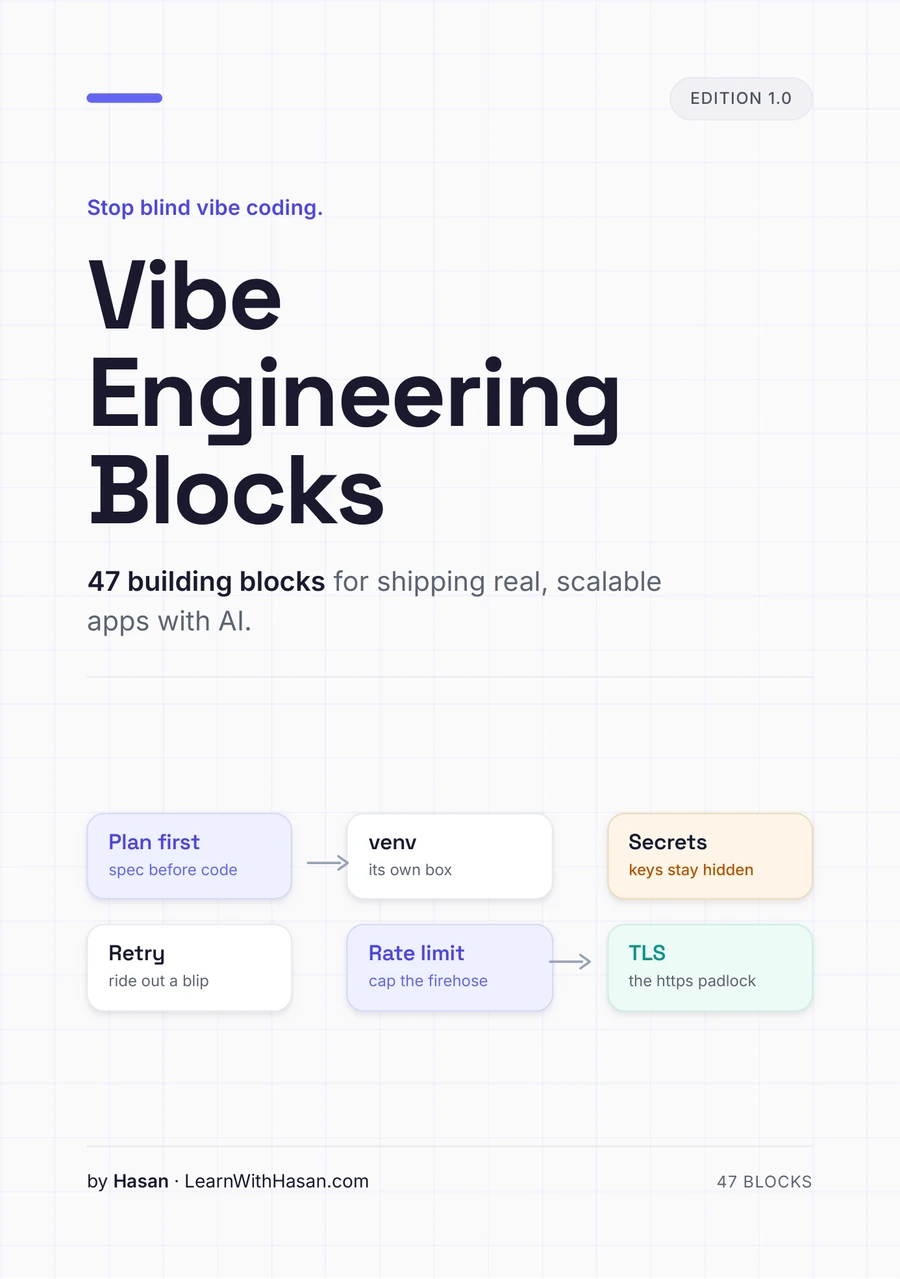
Get the free Vibe Engineering Blocks guide
The exact building blocks I use to ship real products with AI — yours as a free PDF.
Questions & Discussion
Ask a question about this guide →Have a question? Ask it in the community — it's tagged #guide and linked back here. Reading is open to everyone; posting needs a free account.
Loading questions…