 By Hasan Aboul Hasan
Build With AI 1.0
Build & ship your dream project in 12 days... Solo, with AI.
The smart way to build with AI... engineer software you understand, NOT blind vibe coding.





Last updated: August 03, 2026

Build Like a Pro, Think Like a Solopreneur 🚀
🎲 Blind Vibe Coding
- 🙈 Accept everything AI suggests
- ❓ Copy code you don't understand
- 🙏 Pray it works in production
- 😤 One project, months of struggle
- 🤷 "It works... I think?"
🎯 Vibe Engineering
- 📋 Review plans before accepting
- 🧠 Understand every decision
- 🔧 Know exactly how to debug
- 🚀 Ship in days, not months
- ✅ "I know why it works"
The 12-Day Journey
The Vibe Engineering method, applied: from zero to a secured, production-ready product in 12 days.
Foundation
Django setup, project structure, and your first working endpoints
AI Power
SimplerLLM integration, web scraping with failover, structured JSON
Users & Money
Magic link authentication and token-based monetization
Payments
Stripe integration and complete billing system
Launch
Security audit, Docker setup, and production deployment
What You'll Learn
What's Inside the Curriculum
Django Web Framework
Setup, project structure, views, URLs, templates, ORM, and RESTful APIs
Web Scraping with Failover
Build reliable scrapers with rate limit handling, failover strategies, and error handling
AI Integration (SimplerLLM)
Connect to OpenAI, Claude, and more with reliable AI calls, failover, and structured output
Structured JSON Responses
Get consistent AI output with schemas, parsing, validation, and error handling
Security Hardening
Django security features, AI-powered audits, and fixing SSRF, XSS vulnerabilities
Production Deployment
Docker basics, Dockerfile, docker-compose, and deploying to Railway
Course Curriculum
1
Day 1
(4 lessons)
- Installing Python
- Installing VS Code
- Understanding the Basic Concepts
- Frontend Components (HTML, CSS, JavaScript)
2
Day 2
(2 lessons)
- Your First AI-Built Project (Frontend Only)
- Understanding Patterns in AI Coding
3
Day 3
(2 lessons)
- The Secret to Scalable AI Coding
- Patterns + Modularity Across Different Languages
4
Day 4
(3 lessons)
- Understanding Packages
- Virtual Environments
- Python Ecosystem
5
Day 5
(4 lessons)
- Databases & Django ORM
- Django in Action (Demo)
- Building a Simple Blog
- Quick Quiz
6
Day 6
(3 lessons)
- What is an API?
- How APIs Work + JSON
- Building a Keyword Research Tool
7
Day 7
(2 lessons)
- AI Prompting
- Building an AI App
8
Day 8
(4 lessons)
- What is GitHub?
- CSS Frameworks
- What is a CDN?
- Starting a New Project!
9
Day 9
(6 lessons)
- Web Scraping - Methods & Limitations
- Unified Function Interface
- Integrating AI into Your Application
- Reliable AI with Fallback Mechanisms
- Building the AI Service Module
- Combining Everything
10
Day 10
(3 lessons)
- Building the User Interface
- Error Pages
- Authentication
11
Day 11
(2 lessons)
- Token System
- Billing System
12
Day 12
(3 lessons)
- Security Audit
- Moving To Production DB
- Publishing The App
What Students Say
"I'm blown away by you. You are a constant stream of generosity. You and your effort are something beautiful to behold. Thank you."

James Ruff
Student
"To say Hasan is an amazing entrepreneur, besides being a great teacher, would be quite an understatement. I don't think I've seen anyone who exceeds the value he provides. Hasan epitomizes someone who provides value first and foremost and delivers quality education with clear & concise examples at very affordable prices."

Bob Truesdale
Student
"Hasan's teaching style is engaging and easy to follow. He explains complex concepts in a clear and concise way, and he provides plenty of examples and exercises to help you learn. But what really sets Hasan's course apart is his passion for the subject matter."

Omar
Student
What Students of This Course Have Shipped
Finish the course, submit your project, and it gets listed on the student showcase with a DoFollow backlink from this DR 60+ site.
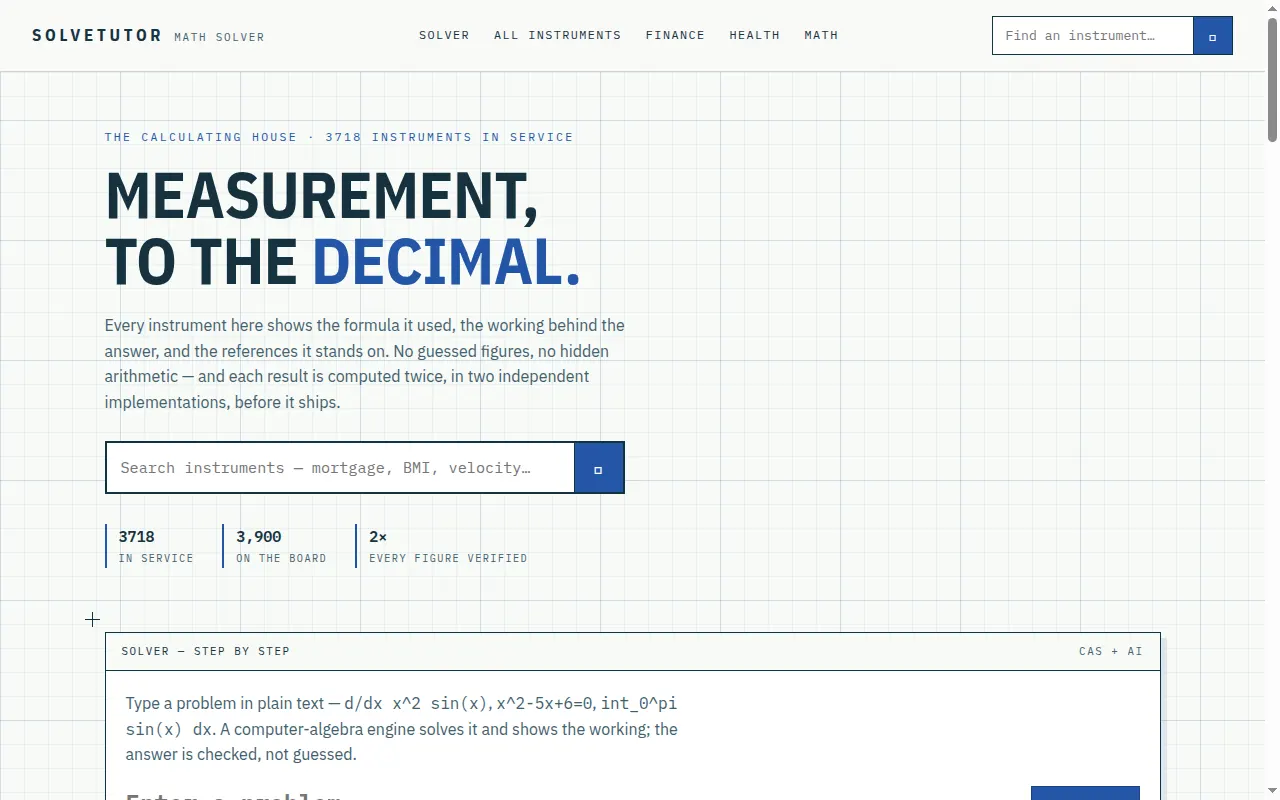
SolveTutor
A comprehensive online calculator and math solver platform with 3700+ verified instruments for mathematics, finance, and health calculations. Features a step-by-step computer algebra engine with AI that shows formulas, working, and double-verified results.

care
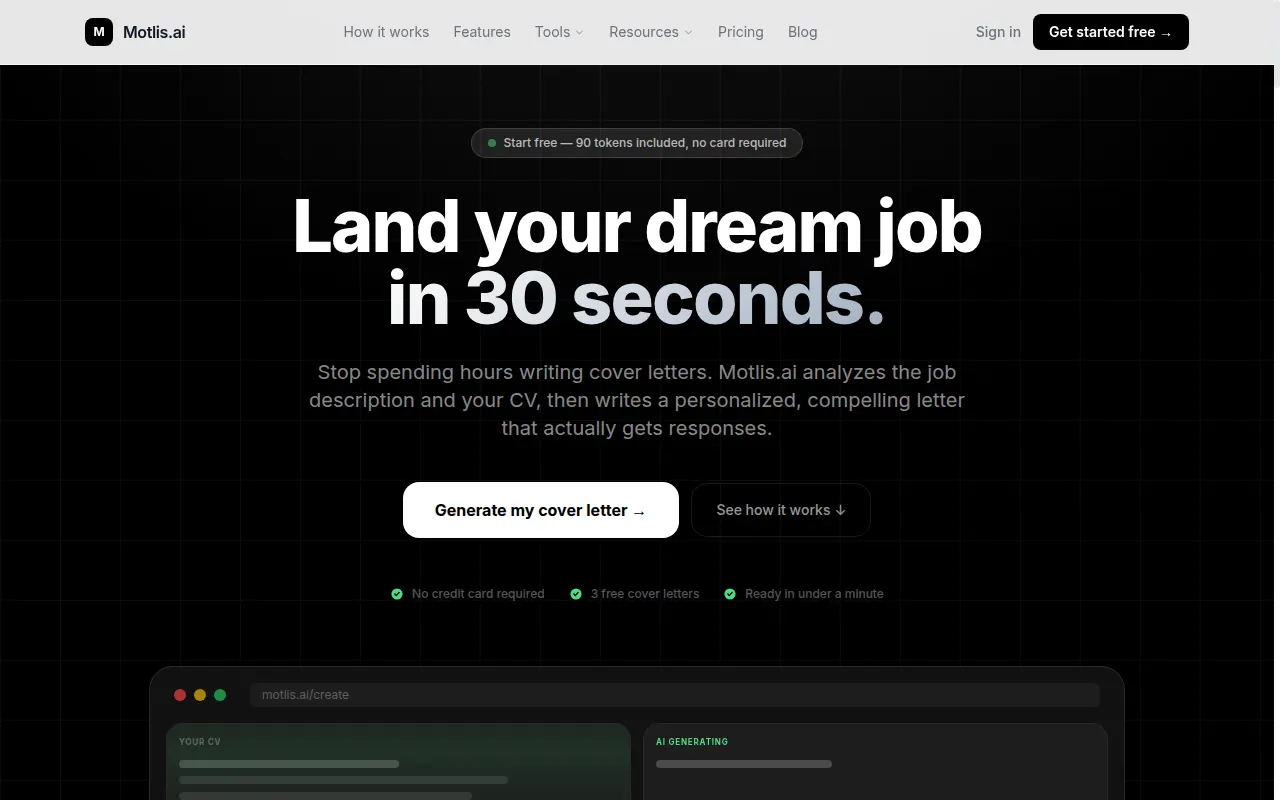
Motlis.ai
AI-powered cover letter generator that creates personalized, tailored letters in 30 seconds by analyzing your CV and job descriptions across 9+ languages.

mj.martinjavorsky
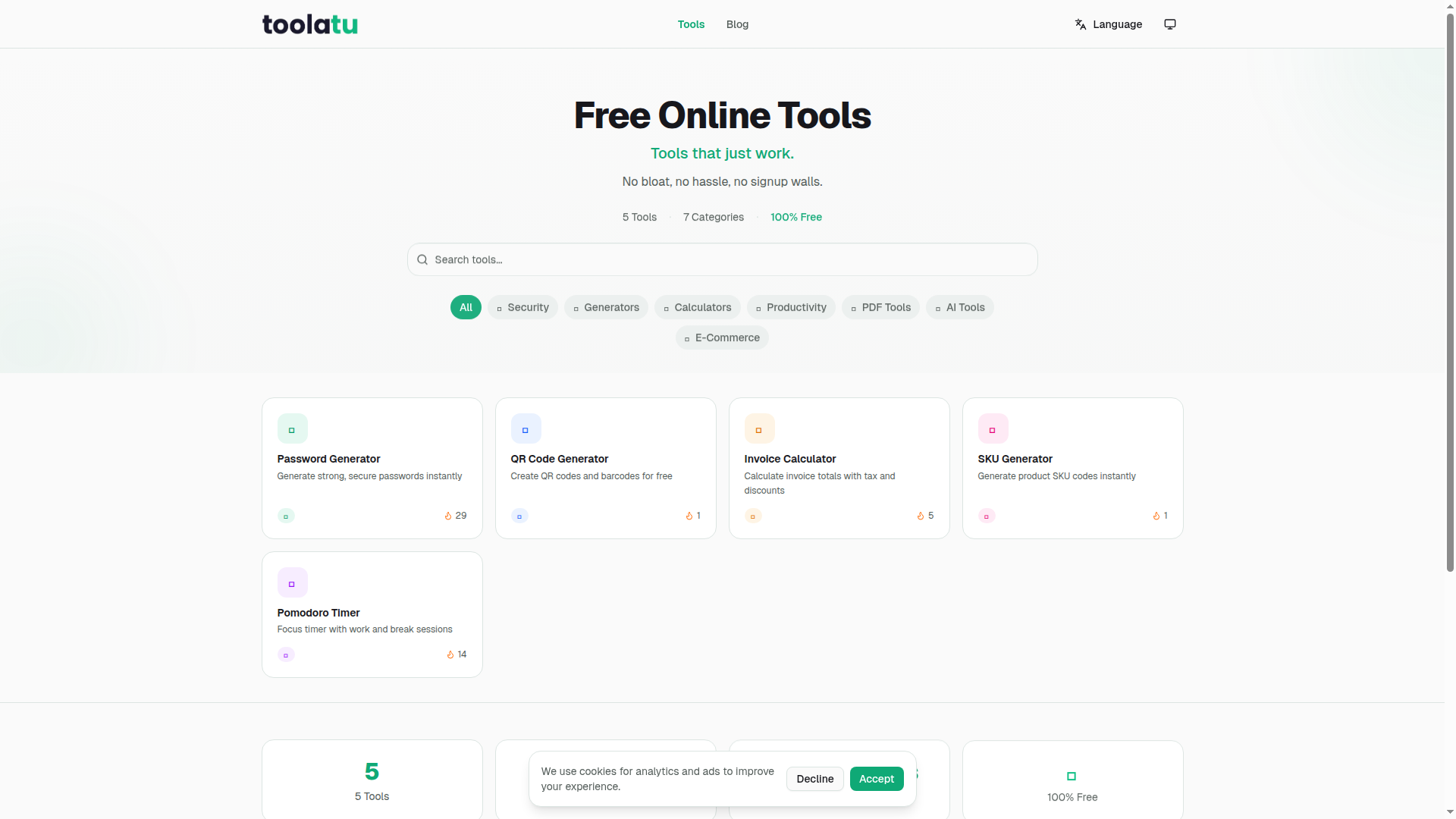
Toolatu
Toolatu offers a variety of free online tools designed to simplify tasks, including password generation, QR code creation, invoice calculations, SKU generation, and a Pomodoro timer.

Zain ai
Recent student reviews
I'm 60 years old and have always loved learning about new technologies, but so much of it felt mysterious. This course took that mystery out of things. I was fascinated by Hasan's Instagram carousels video and I'm currently making it a little more robust. I wish there was an affiliate program because I'd promote this course everywhere.
Eric Johnson
Im a print broker with a new super power
I was stuck on the Stripe CLI login for days, checking the docs and YouTube with no luck. Claude Code gave me the answer I needed, and now I've got my web-analyser site in production on Railway. I'm really happy with this project and grateful for how it simplified the programming concepts for me.
Claudy
AI Enthusiast
Get started
Build With AI 1.0
The course + all 4 boilerplates.
- Build With AI 1.0Course $149
- Desktop App Boilerplate $49
- Python MCP Server Boilerplate $79
- Mobile App Boilerplate $59
- Django SaaS Boilerplate $49
- Private Discord community $99
- Lifetime access to all updates
Solo Builder Complete
Every course, boilerplate, and product I build, in one bundle.
- Agentic Automation 3.0Course Coming · In production $149
- Build With AI 1.0Course $149
- Self Hosting 2.0Course $69
- Vibe Engineering Blocks $0
- Vibe Engineering Blocks Full Edition $29
- Desktop App Boilerplate $49
- Python MCP Server Boilerplate $79
- Mobile App Boilerplate $59
- Django SaaS Boilerplate $49
- Business Ideas Database $49
- Private Discord community $99
- Lifetime access to all updates
Frequently Asked Questions
Do I need coding experience?
Basic familiarity with programming concepts helps, but this course is designed for all levels. The Vibe Engineering approach leverages AI to help you build even if you're not an expert coder. We start from the fundamentals and build up.
What is Vibe Engineering exactly?
Vibe Engineering is a systematic approach to AI-assisted development. You'll learn to direct AI like a senior engineer directing a junior developer. You understand the architecture, review the plans, and make the decisions. AI just executes faster. Unlike "blind vibe coding" where you randomly accept suggestions, Vibe Engineering gives you control and understanding.
Why Django and not another framework?
Django is a mature, batteries-included framework perfect for rapid development. It handles authentication, database, admin, and more out of the box. Combined with AI-assisted development, you can build production-ready applications incredibly fast. The principles you learn apply to any framework.
Can I really build something in 12 days?
Yes! The 12-day framework is designed to help you build a focused, functional SaaS product. You'll learn to scope appropriately and use AI efficiently to accelerate your development. Many students ship their projects before the 12 days are up.
What if I get stuck?
The course includes detailed explanations and examples for every concept. You'll also have access to the community where you can ask questions and get help from other students. Plus, the Vibe Engineering approach teaches you how to use AI to debug and solve problems.
What will I actually build?
You'll build a complete SaaS application with user authentication (magic links), AI-powered features using SimplerLLM, a token-based monetization system, Stripe payment integration, and production deployment with Docker. Everything you need to launch a real product.
What is the Business Ideas Library?
A growing library of validated business ideas, each enriched with Google Trends data, competitor analysis, keyword research, a suggested tech stack, and an AI viability score, updated weekly. Full access is included with the course, plus the AI Idea Validator that runs the same 8-step research pipeline on your own ideas. Not sure what to build during the 12 days? Pick an idea from the library.
How does the 14-day guarantee work?
If you're not satisfied with the course for any reason, simply contact us within 14 days of purchase for a full refund. No questions asked. You can even watch the full course and still get a refund if it's not for you. Zero risk, all reward.
Do I need a Claude Code subscription for this course?
To follow along and build projects, you'll need access to an AI coding agent. In the course, I use Claude Code as my preferred tool, which requires either a subscription or API access. However, you can use any AI coding agent you prefer. Alternatives like Google Antigravity (currently free), Cursor, GitHub Copilot, or other AI-powered IDEs work just as well.
Are there any additional costs beyond the course price?
If you want to use Claude Code as shown in the course, you'll need a Claude subscription or API credits. That said, you're free to use any AI coding tool you prefer. Google Antigravity is currently free, and many other tools have free tiers available. The course teaches concepts that work with any AI coding agent.
Still not sure? Have more questions?
Ask Hasan anything →