Backup Docker Volumes: Destroyed, Restored, and Timed
 Hasan Aboul Hasan
Published 2026-08-11
Hasan Aboul Hasan
Published 2026-08-11
I deployed WordPress on a fresh server, filled it with posts and a thousand checksummed database rows, backed it up three ways, and then deleted every byte of its data while the site was running. On purpose. Then I brought it back from each backup tool, with a stopwatch running. Most backup guides stop at "and now your data is safe." This one starts where they stop, because a backup you have never restored is a hope, not a backup.
Back up two things: your volume files, and a dump of your database. Never copy a live database directory: my test restore of one started fine and had silently lost two thirds of its rows. Send backups off the server to S3-compatible storage ($5/mo covers more than you think). My pick after benchmarking all three tools on the same app: restic. It restored the destroyed site in 17 seconds, kept three full snapshots in 43 MB, and schedules with 15 lines of systemd. Kopia is close behind if you want a web UI. Duplicati is the full-GUI option and the slowest of the three by a wide margin. Then run the restore drill below once. That is what makes it a backup.
Everything on this page ran on a fresh Ubuntu 24.04 droplet, the same kind of box my Self Hosting 2.0 course starts from. The app is WordPress with MariaDB, but nothing here is WordPress-specific: n8n, Ghost, Nextcloud, any app with a database and a files folder has exactly the same two problems.
The jargon on this page, translated
- Volume
- The folder Docker keeps outside a container so data survives container
restarts. It does not survive
rm -rf, a dead disk, or a fat finger. That is what backups are for. - Repository
- The place a backup tool stores its snapshots. For all three tools here, an encrypted folder structure inside an S3 bucket.
- Snapshot
- One point-in-time backup. Tools store snapshots incrementally: only changed data is uploaded, but every snapshot restores as a full copy.
- Deduplication
- Storing identical data once even if it appears in many snapshots. The reason three full backups of my 75 MiB site used 43 MB, not 225 MB.
- Database dump
- A consistent export of everything in the database, produced by the
database itself (
mariadb-dump,pg_dump). The only safe way to back up a running database. - S3-compatible
- Object storage that speaks Amazon S3's protocol. DigitalOcean Spaces, Backblaze B2, and self-hosted MinIO all qualify, so backup tools work with all of them the same way.
- Retention
- The rules for which old snapshots to keep: 7 daily, 4 weekly, 6 monthly is a common shape. Without it, repositories grow forever.
- Restore drill
- Deliberately destroying a test copy of your app and restoring it from backup, to prove the restore actually works before you need it to.
You are protecting two different things
Every self-hosted app with state stores it in two shapes. Files: uploads, themes, config, certificates. And a database: posts, users, orders, settings. Both usually live in Docker volumes, and if you want the full story of where a volume actually sits on disk, I took one apart in the volumes and networking guide.
The reason this distinction matters: files can be copied while the app runs. A database cannot. It rewrites its files constantly, and a copy taken mid-write is a corrupted copy. So every honest backup plan is the same two moves:
1. Ask the database for a dump (it produces a consistent export
while running).
2. Back up the files plus that dump to somewhere off the
server.
My test stack for this whole page: WordPress 6.9.4 and MariaDB 11.8.8 in Docker compose, two named volumes, seeded with posts, an uploaded image, and a sentinel table of 1,000 rows with a checksum I can verify after every restore. If the checksum matches, the restore is real. If it does not, the backup lied to me. You will see this checksum come back several times.
The trap: never copy a live database
The most common advice for Docker backups is a one-liner: tar the volume. It is in the official docs, it is all over Stack Overflow, and for a files volume it is fine. So I did exactly that to a database volume, while a writer hammered the database with inserts, the way a live app would. Three runs, same protocol each time: tar the live volume, take a proper dump under the same load, restore both, count the rows.
tar a live database, then restore it: three runs
Real output from the lab server, August 2026. The
loadtest table was receiving inserts during every backup.
root@cf-docker-backups:~# bash e2_live_tar_trap.sh
--- run 1: naive tar of the LIVE db volume (what the internet tells you to do)
tar: ./ib_logfile0: file changed as we read it
--- run 1: restore the naive tar into a fresh MariaDB
NAIVE_RESTORE,run1,state=started,rows=4800,source=15400
--- run 1: restore the dump instead
DUMP_RESTORE,run1,rows=15000,source=15400,sentinel=1000 883940643
--- runs 2 and 3: same story
NAIVE_RESTORE,run2,state=started,rows=5000,source=14800
NAIVE_RESTORE,run3,state=started,rows=5600,source=15800
DUMP_RESTORE,run2,rows=14400,source=14800,sentinel=1000 883940643
DUMP_RESTORE,run3,rows=15400,source=15800,sentinel=1000 883940643
The dangerous part is that the broken restore looks fine. The database started. It answered queries. It had also silently thrown away about two thirds of the rows, every single run: 4,800 of 15,400, then 5,000 of 14,800, then 5,600 of 15,800. Nothing crashed. Nothing warned at restore time. You would find out weeks later, from a customer.
Notice tar itself tried to warn me: file changed as we read it. That
warning scrolls past in a cron log and nobody reads it. Meanwhile the proper dump,
taken under the exact same write load, restored a consistent snapshot all three times,
sentinel checksum intact. And it was faster: the dump took 0.3 seconds against 10
seconds for the tar.
docker exec your-db-container mariadb-dump -uroot -p"$DB_PASS" --single-transaction --quick yourdb > /root/backups/db.sql
--single-transaction is the flag doing the work: it gives the dump one
consistent view of the whole database while writes continue. Postgres users get the
same behavior from plain pg_dump by default. That dump file now joins the
files backup, and the database volume itself stays out of the backup set entirely.
The off-box destination (DO Spaces)
A backup on the same server does not help if the server itself dies. Disk failure, account lockout, a deleted droplet: same blast radius for the app and its "backup". So the backups on this page go to object storage in a different failure domain: DigitalOcean Spaces, which is S3-compatible and costs $5/mo flat for 250 GB. All three snapshots repositories from this page's tests together used 0.08% of that quota. If you would rather own the storage side too, a self-hosted MinIO on a second box speaks the same S3 protocol and every command below works unchanged.
Create a bucket (mine is cf-docker-backups in fra1),
generate a Spaces access key, and note the endpoint:
fra1.digitaloceanspaces.com or your region's equivalent.
Every S3-compatible tool needs the endpoint spelled out, not just the bucket name. Get it wrong and the error you see is usually about access keys, not about the endpoint, because the S3 protocol signs every request against the server's hostname (the signature scheme is called AWS Signature V4). If a tool insists your correct key is invalid, check the endpoint and region first. That error lies.
restic: the default
restic is a single binary, no dependencies, and it treats S3 as a first-class home. Install it, point four environment variables at your bucket, and initialize the repository once:
cd /tmp
curl -sLo restic.bz2 https://github.com/restic/restic/releases/download/v0.19.1/restic_0.19.1_linux_amd64.bz2
bunzip2 restic.bz2 && chmod +x restic && mv restic /usr/local/bin/

export AWS_ACCESS_KEY_ID=your-spaces-key
export AWS_SECRET_ACCESS_KEY=your-spaces-secret
export RESTIC_REPOSITORY="s3:https://fra1.digitaloceanspaces.com/your-bucket/restic"
export RESTIC_PASSWORD="pick-a-strong-one-and-store-it"

restic init
All three tools on this page encrypt everything they upload. That means the repository password is a real key: lose it and the backups are unreadable, by anyone, forever. Store it in your password manager the moment you create it, not after the first backup.
Then a backup is one command: the volume directory, plus the database dump from the previous section.
restic backup /var/lib/docker/volumes/yourapp_wp_data/_data /root/backups/db.sql
Here is what that actually looked like against my stack, real output:
restic: first backup of the whole site
75 MiB, 3,354 files plus the database dump, to DO Spaces in fra1.
root@cf-docker-backups:~# restic backup /var/lib/docker/volumes/cf-docker-backups_wp_data/_data /root/lab/dumps/db.sql
Files:        3354 new,     0 changed,     0 unmodified
Dirs:          372 new,     0 changed,     0 unmodified
Added to the repository: 76.140 MiB (30.648 MiB stored)

processed 3354 files, 75.155 MiB in 0:02
snapshot bb9b371f saved
root@cf-docker-backups:~# restic check
check snapshots, trees and blobs
no errors were found
2.5 seconds for the first full backup, and the 76 MiB of data landed as 30.6 MiB in the bucket because restic compresses by default (2.13× on this dataset). The next two backups, after I added 5 MB of new uploads each time, took 1.1 seconds: only the new data travels. Three full snapshots, 43 MB of storage total.
The trade-off is honest: restic is a command-line tool. No dashboard, no browse
button. You list snapshots with restic snapshots and restore with
restic restore. If that sentence made you comfortable, restic is your
tool and you can jump to the drill. If it made you
uncomfortable, the next two tools trade some speed for a UI.
Kopia: the middle ground
Kopia is the same
idea as restic (encrypted, deduplicated snapshots in an S3 bucket) with two additions:
a policy engine that handles retention automatically at snapshot time, and an optional
web UI served by kopia server. Setup follows the same shape:
curl -s https://kopia.io/signing-key | gpg --dearmor -o /etc/apt/keyrings/kopia-keyring.gpg
echo "deb [signed-by=/etc/apt/keyrings/kopia-keyring.gpg] http://packages.kopia.io/apt/ stable main" > /etc/apt/sources.list.d/kopia.list
apt update && apt install kopia

kopia repository create s3 \
  --bucket=your-bucket --prefix=kopia/ \
  --endpoint=fra1.digitaloceanspaces.com \
  --access-key=your-spaces-key --secret-access-key=your-spaces-secret \
  --password=pick-a-strong-one

kopia snapshot create /var/lib/docker/volumes/yourapp_wp_data/_data /root/backups
Kopia was the fastest tool in my benchmarks: 2.2 seconds for the first full backup, 0.7 to 0.8 seconds for incrementals. But its bucket usage told a different story: 105 MB where restic used 43 MB for the same three snapshots.
The repository creation output says it plainly: Compression
disabled. Part of why Kopia felt fastest is that it was doing less work.
One command fixes it, and new snapshots compress from then on:
kopia policy set --global --compression=zstd. My speed and size
numbers are stock defaults for all three tools, so you are seeing Kopia's
uncompressed behavior; with zstd on, expect the bucket size to land near restic's
and the speed gap to narrow.
The web UI is genuinely useful for browsing and restoring single files. One detail I
respect: when I tried to expose the UI on a public port without authentication, Kopia
refused to start, calling the idea exactly what it is
(--allow-extremely-dangerous-unauthenticated-server-on-the-network is the
flag you would have to type). Run kopia server start bound to localhost
and reach it through an SSH tunnel.
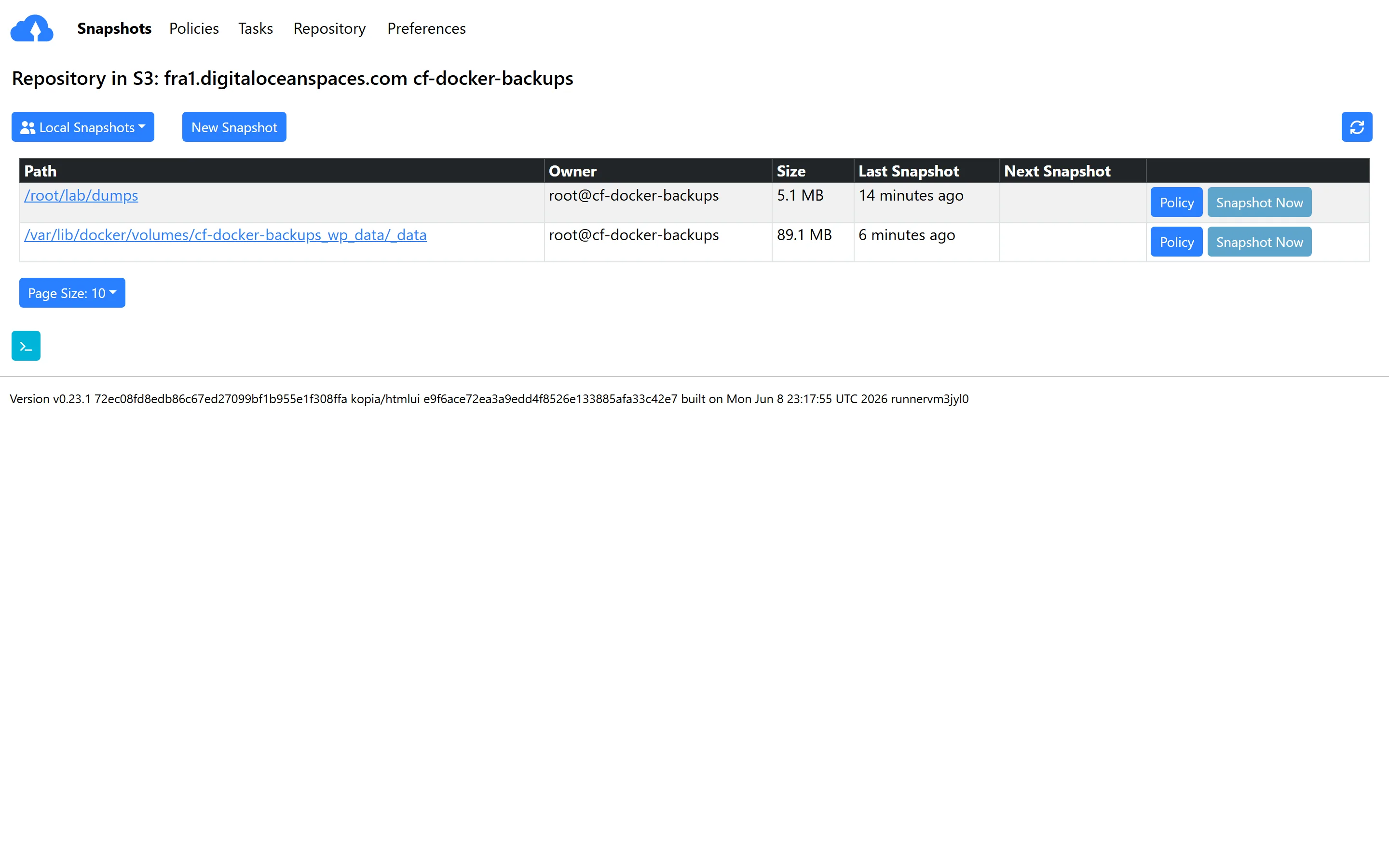
fra1.digitaloceanspaces.com, bucket
cf-docker-backups. Both sources, sizes, and snapshot times
visible.Duplicati: the full GUI
Duplicati is the tool for people who want a backup product with screens: configure the job in a browser, pick sources with checkboxes, restores through a wizard. It runs happily as a Docker container itself:
docker run -d --name duplicati \
  -p 8200:8200 \
  -e DUPLICATI__WEBSERVICE_PASSWORD=pick-a-ui-password \
  -v /var/lib/docker/volumes/yourapp_wp_data/_data:/source/wp:ro \
  -v /root/backups:/source/dumps:ro \
  -v duplicati-config:/data \
  duplicati/duplicati:latest
Then open port 8200 (through an SSH tunnel, not the public internet), create a backup job, and point its destination at S3 with your Spaces endpoint and keys. The volume paths are mounted read-only into the container, which is a nice safety property: the backup tool physically cannot modify your app's data.
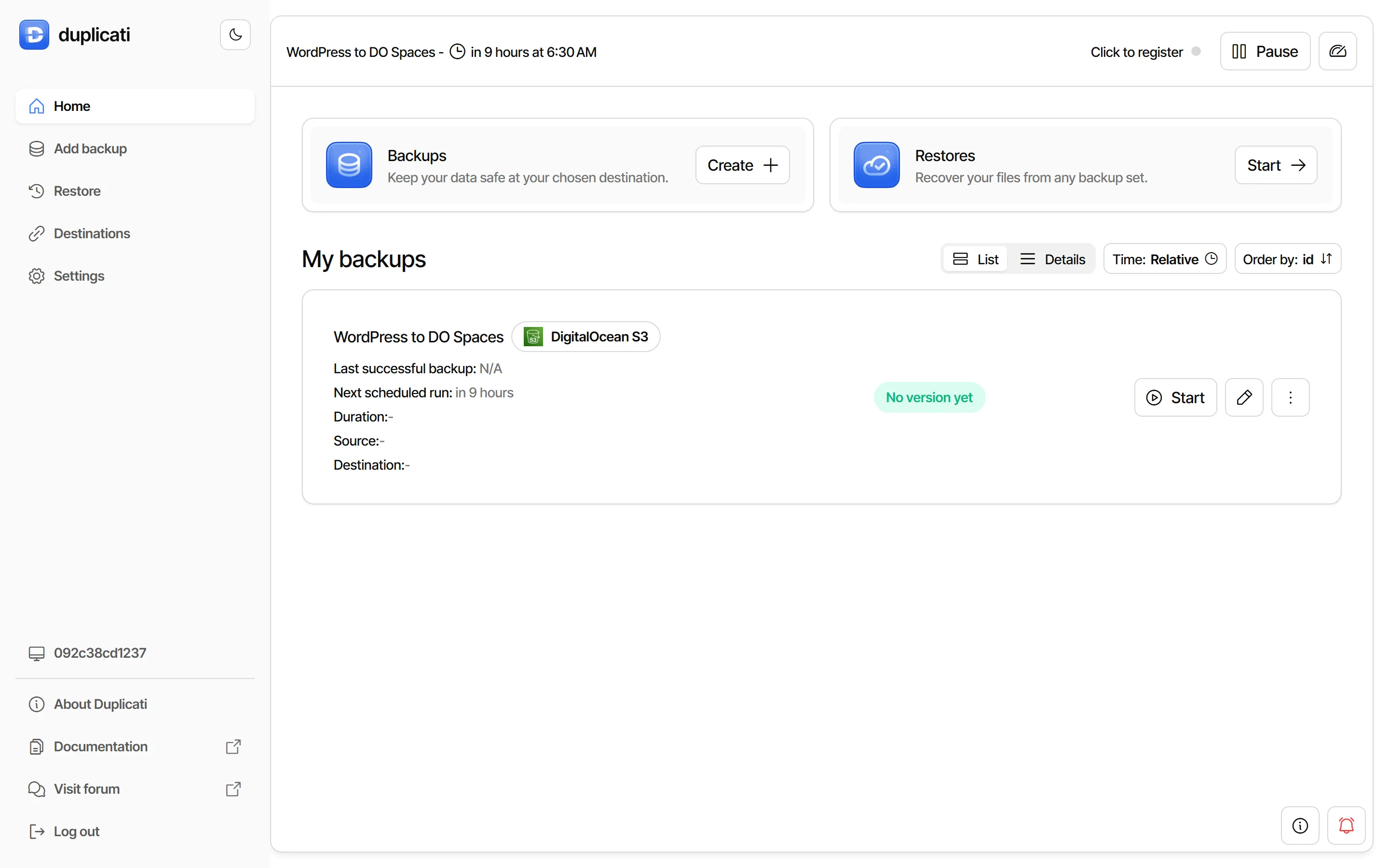
The honesty section: Duplicati was the slowest tool in every single test I ran. The first full backup took 26.5 seconds against 2.5 for restic and 2.2 for Kopia. The 5 MB incremental took 7 to 9 seconds against about one. The restore, which you will see next, took twice as long as the others. For a 75 MiB site none of that hurts. For 50 GB it will. Storage was fine: 44.7 MB for three snapshots, compressed and encrypted (AES) by default.
The restore drill: destroy and recover
Now the part nobody publishes. All three tools had three snapshots of the healthy
site sitting in DO Spaces. I verified the app was serving, recorded the sentinel
checksum one more time, and then destroyed the running app's data. Not a polite
docker compose down. This:
rm -rf /var/lib/docker/volumes/cf-docker-backups_db_data/_data/*
rm -rf /var/lib/docker/volumes/cf-docker-backups_wp_data/_data/*
Both volumes emptied while the containers were live. Here is what a visitor saw four seconds later:

rm -rf. WordPress is not
erroring. WordPress is gone: Apache found an empty folder and served a
403. This is what a dead volume actually looks like from outside.The recovery, per tool, is the same three moves in reverse: restore the files into a fresh volume, start the database and import the dump, start the app. I scripted the full cycle and ran it three times per tool, wiping everything back to empty volumes between runs. The clock ran from empty volumes until the site answered with the right content and the sentinel checksum matched. Nine drills, nine verified recoveries:
The drill: destroyed volumes → healthy, verified app
Mean of 3 timed runs each, same app, same DO Spaces repos the backups landed in. Every run verified: 1,000 sentinel rows, checksum 883940643, wp-config.php present, front page serving.
The timed window includes everything a real recovery needs: pulling data back from Spaces, recreating volumes, a fresh MariaDB boot, the dump import, and WordPress coming up. A destroyed app was back, data verified, in under 40 seconds with every tool. The differences matter less than the fact that the drill was run at all.
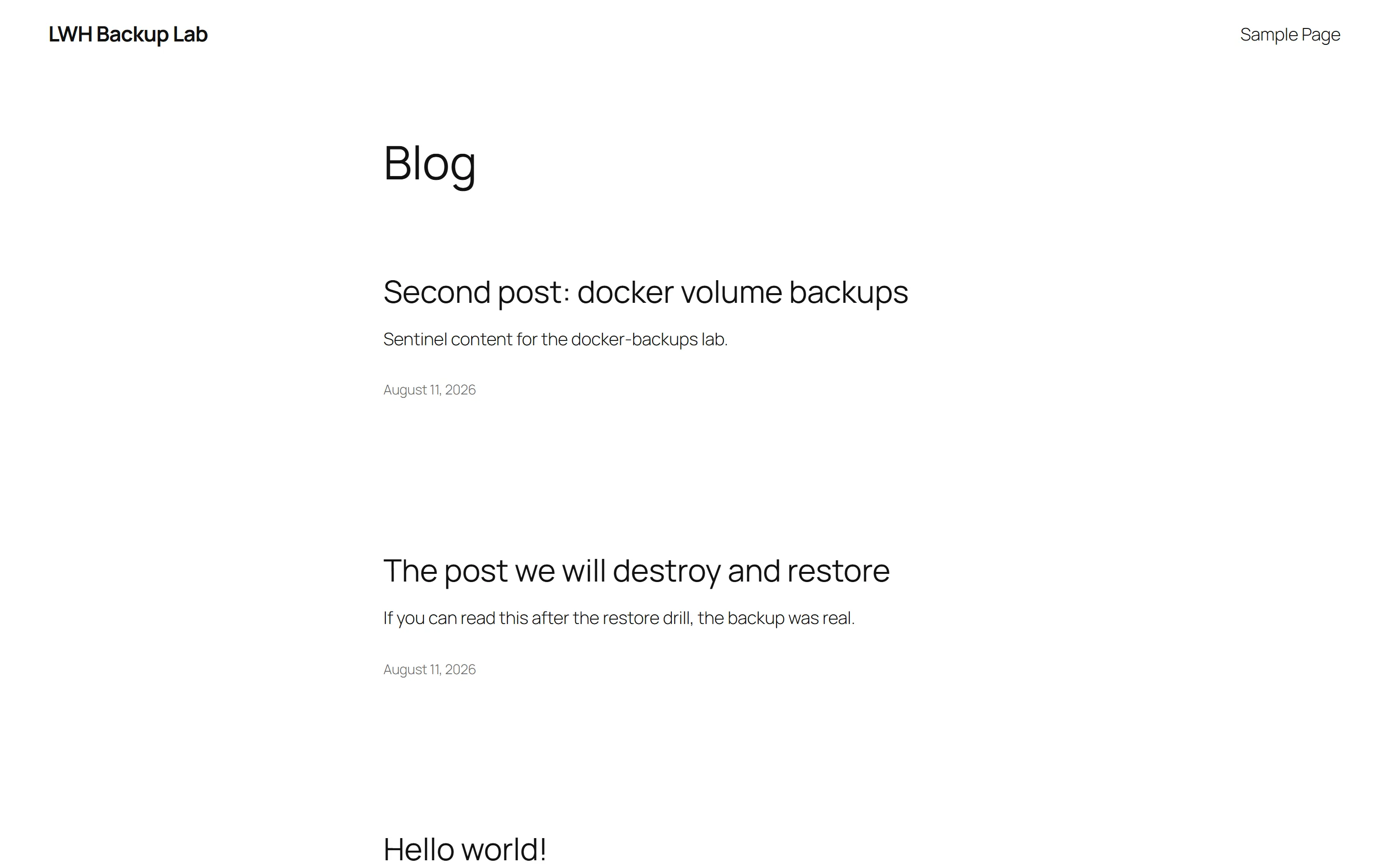
And the after picture, same URL that served the 403:
The restore commands, condensed to the restic version since it is my pick (the other two are the same shape through their own restore commands or UI):
restic restore latest --target /root/restore
docker volume create yourapp_wp_data
cp -a /root/restore/var/lib/docker/volumes/yourapp_wp_data/_data/. /var/lib/docker/volumes/yourapp_wp_data/_data/
docker compose up -d db          # fresh, empty database container
docker exec -i yourapp-db-1 mariadb -uroot -p"$DB_PASS" yourdb < /root/restore/root/backups/db.sql
docker compose up -d
You do not need to destroy your production app to get this certainty. Spin the same compose file up under a different project name on any box, restore your real backup into it, and check the data is there. Thirty minutes, once. After that you do not hope your backups work. You know.
My pick, and when to pick differently
| Measured on the same app | restic | Kopia | Duplicati |
|---|---|---|---|
| First full backup (75 MiB) | 2.5s | 2.2s | 26.5s |
| Incremental (+5 MB) | 1.1s | 0.8s | 7–9s |
| Full restore to healthy app (mean of 3) | 16.7s | 18.4s | 33.6s |
| Bucket size, 3 snapshots | 42.9 MB | 105.4 MB (compression off by default) | 44.7 MB |
| Interface | CLI | CLI + web UI | Web UI (CLI exists) |
| Retention | restic forget in your cron/timer |
Policy engine, applied automatically at snapshot time | Per-job setting in the UI |
My default is restic. It is one binary with nothing to babysit, it was at or near the front of every benchmark, its repository was the smallest, and the whole nightly setup is a 5-line script plus a systemd timer you will see in the next section. When something goes wrong at 2 AM, a single static binary with four environment variables is the tool I want to be debugging.
Pick Kopia over restic if you want to browse snapshots and restore single files through a web page, or if you like retention living inside the tool instead of inside your cron script. Turn compression on first. Pick Duplicati if you want the entire experience to be a GUI and your data is small enough that a 10× slower full backup does not matter, which for a blog or a small app it honestly does not.
In my experience the tool choice is the least important decision on this page. The dump-not-copy rule and the off-box destination are what save you. Pick any of the three, run the drill once, and you are ahead of most production setups I have seen.
Put it on a schedule (with retention)
A backup that depends on you remembering it is a backup that stops the week you get
busy. Here is the complete nightly setup for restic. First the script. Save it as
/usr/local/bin/backup-stack.sh and make it executable: it does the dump,
the backup, and retention in one pass.
#!/usr/bin/env bash
set -euo pipefail
docker exec yourapp-db-1 mariadb-dump -uroot -p"$DB_PASS" --single-transaction --quick yourdb > /root/backups/db.sql
restic backup /var/lib/docker/volumes/yourapp_wp_data/_data /root/backups/db.sql
restic forget --keep-daily 7 --keep-weekly 4 --keep-monthly 6 --prune
Then a systemd service, saved as
/etc/systemd/system/backup-stack.service. Credentials live in a root-only
env file, not in the script:
[Unit]
Description=Nightly restic backup of the docker stack
[Service]
Type=oneshot
EnvironmentFile=/root/restic.env
Environment=HOME=/root
ExecStart=/usr/local/bin/backup-stack.sh
And its timer, saved as /etc/systemd/system/backup-stack.timer:
[Unit]
Description=Run the stack backup nightly
[Timer]
OnCalendar=*-*-* 03:30:00
RandomizedDelaySec=15m
Persistent=true
[Install]
WantedBy=timers.target
systemctl daemon-reload && systemctl enable --now backup-stack.timer
That Environment=HOME=/root line is not decoration. Without it my
service failed instantly: unable to locate cache directory: neither
$XDG_CACHE_HOME nor $HOME are defined. Systemd services do not get a HOME
by default, and restic needs one for its cache. Cron users hit the same class of
problem with PATH. One line, and the scheduled run went green.
The forget line is retention: keep 7 daily, 4 weekly, 6 monthly
snapshots, delete what falls outside, and --prune actually reclaims the
space. I tested that it does what it claims by planting backdated snapshots: 10
snapshots went in, the policy kept 8, and the two oldest were really gone from the
bucket afterward. Kopia does the same thing without the cron line, through
kopia policy set --global --keep-daily 7 --keep-weekly 4 --keep-monthly 6,
applied automatically every time a snapshot is created. Duplicati takes
--retention-policy="1W:1D,4W:1W,12M:1M" as a job option.
That is the whole system. Nightly dump, nightly off-box backup, automatic retention,
and a restore you have personally watched work. The last piece is knowing your
schedule actually fires: systemctl list-timers backup-stack.timer shows
the next run, and this pairs well with
the
container update habit, because "backup before updating" stops being advice and
starts being one command you already have.
FAQ
What about Borg?
Borg is excellent and shares the dedup-encrypt-incremental model. I left it out of the benchmark for one practical reason: object storage is not its native home. Borg 1.x wants SSH access to a machine running Borg on the other end, and Borg 2 reaches S3 only through an rclone layer. If your off-box target is another server you own, Borg is a strong pick. If it is object storage (Spaces, B2, MinIO), restic and Kopia connect natively and Borg does not.
Do I need to stop containers before backing up?
For file volumes, no. For databases, stopping is not the fix: dumping is.
mariadb-dump --single-transaction (or pg_dump) produces a
consistent export while the database keeps serving. Mine took 0.3 seconds under
active write load and restored perfectly all three times.
How often should backups run?
Nightly by default. The real question is how much data you can afford to lose: a restore rolls you back to the last dump. My whole nightly run took under 3 seconds, so if a day of data is too much to lose, run the dump hourly. Frequency is not a cost problem at this scale.
What about offen/docker-volume-backup?
A well-built sidecar that tars volumes on a schedule and ships them to S3 or SSH. Two caveats: tar archives do not deduplicate, so every nightly is a full copy, and the live-database problem is still yours to solve through its pre-backup hooks. If you want everything inside compose, it works. I prefer restic on the host: dedup kept three full snapshots at 43 MB.
Can I restore to a completely new server?
Yes, and that is the point of off-box. Install the tool, export the same repository URL and password, restore, import the dump, start the same compose file. My drill did this against empty volumes nine times, verified each time. Same procedure on a brand-new box.
Does Coolify have built-in backups?
Coolify schedules database dumps to S3-compatible storage for databases it manages, which is half the problem solved. It does not back up arbitrary named volumes (your uploads folder). The restic setup above covers both halves on any Docker host.
Related
Backups are one system inside a bigger one: a server you own, apps running on it, security, updates, and email, built in the right order. In Self Hosting 2.0 I build that stack from an empty VPS, including the backup and restore habits from this page. 34 lessons.

Get the free Vibe Engineering Blocks guide
The exact building blocks I use to ship real products with AI — yours as a free PDF.
Questions & Discussion
Ask a question about this guide →Have a question? Ask it in the community — it's tagged #guide and linked back here. Reading is open to everyone; posting needs a free account.
Loading questions…