Claude Code Guide
A practical, copy-paste reference for everything in Claude Code — setup, commands, hooks, configs, prompts, and workflows. Built for developers who want to ship, not read tutorials.
Getting Started
Up and running in under 60 seconds.
Claude Code is an agentic coding tool that lives in your terminal. It can edit files, run commands, search your codebase, and interact with git — all through natural language. Follow the ↗ official Anthropic installation guide to install it on macOS, Linux, or Windows.
Once installed, open any project directory and launch:
cd your-project
claude--dangerously-skip-permissions,
but a better option is Auto mode — an AI classifier decides what's safe.
Cycle to it with Shift + Tab.
Using in VS Code
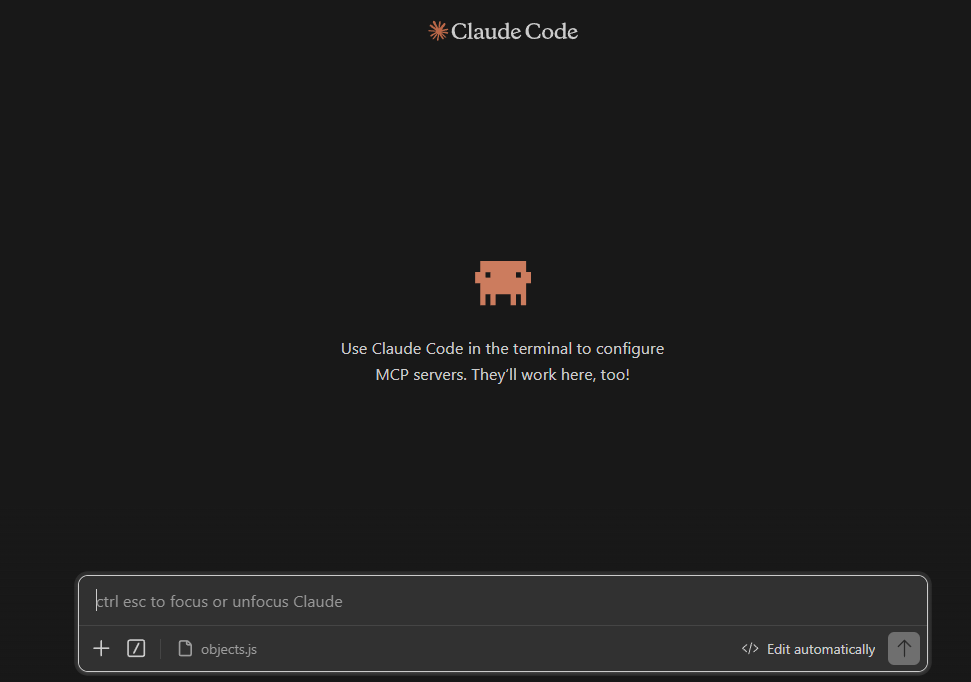
You can also run Claude Code directly inside VS Code. Install the Claude Code extension from the VS Code marketplace, and it will appear as an integrated panel in your editor.
Keyboard Shortcuts
The shortcuts worth memorizing.
Permissions
Control exactly what Claude Code can and can't do.
Claude Code uses a tiered permission system: read-only tools (file reads, grep) need no approval, bash commands require approval per project, and file modifications require approval per session. Rules are evaluated in order: deny → ask → allow. Deny always wins.
Where to configure
Permissions live in settings.json at two levels:
.claude/settings.json
Checked into git. Shared with your team.
~/.claude/settings.json
Applies to all your projects.
Permission Modes
Set defaultMode in your settings to change how Claude asks for approval:
| Mode | Behavior |
|---|---|
default | Prompts for permission on first use of each tool |
plan | Read-only — Claude can analyze but not modify anything |
auto | AI classifier decides what's safe to auto-approve |
acceptEdits | Auto-accepts file edit permissions for the session |
bypassPermissions | Skips all prompts — only use in containers/VMs |
Example 1: Minimal — auto-approve reads only
Good starting point. Claude can read your code freely but still asks before running commands or editing files.
{
  "permissions": {
    "allow": [
      "Read",
      "Grep",
      "Glob"
    ]
  }
}
Example 2: Solo developer — trust most tools
For personal projects where you want minimal interruption. Put this in your global settings.
{
  "permissions": {
    "allow": [
      "Bash(npm *)",
      "Bash(git *)",
      "Read",
      "Edit",
      "Grep",
      "Glob",
      "WebFetch",
      "WebSearch",
      "mcp__*"
    ]
  }
}
Example 3: Team project — allow builds, block danger
Allow common dev commands but explicitly block destructive ones. Great for shared repos.
{
  "permissions": {
    "allow": [
      "Bash(npm run *)",
      "Bash(git commit *)",
      "Read",
      "Grep",
      "Glob"
    ],
    "deny": [
      "Bash(git push *)",
      "Bash(rm -rf *)"
    ]
  }
}--permission-mode auto or
cycle to it with Shift + Tab.
Commands
Every built-in command and when to reach for it.
| Command | What it does | When to use it |
|---|---|---|
/init | Initialize project with a CLAUDE.md guide | First time in a project |
/compact | Compact conversation with optional focus instructions | Context usage exceeds 80% |
/clear | Wipe context, start fresh | Switching tasks |
/diff | Interactive diff viewer for uncommitted changes | Before committing |
/model | Switch between Opus / Sonnet | Match model to task complexity |
/effort | Set effort level (low/medium/high/max/auto) | Balance speed vs. thoroughness |
/plan | Enter plan mode — Claude plans before coding | Starting a complex task |
/resume | Pick up a previous session | Returning to unfinished work |
/branch | Branch the conversation at this point | "What if" experiments |
/rewind | Rewind conversation and/or code to a previous point | Undo Claude's changes |
/memory | Manage auto-saved context | Persist info between sessions |
/context | Visualize current context usage as a grid | Check how much context is used |
/cost | Show token usage statistics | Check spending |
/config | Open settings (theme, model, preferences) | Customizing Claude Code |
/permissions | View and manage permission rules | Reviewing what's allowed |
/doctor | Diagnose installation and settings | Something isn't working |
/btw | Quick side question without polluting context | Need a fast answer mid-task |
/export | Export conversation as plain text | Save or share a session |
/ in your session to see which commands are available to you.
Bundled Skills
These ship with Claude Code — no installation needed:
/simplifyCode quality review + auto-fix/batchParallel execution across files/loopRepeat tasks on an interval/debugStructured debugging workflowCustom Commands
Create your own slash commands with plain markdown files.
Custom commands are markdown files that become slash commands. Save them as skills (recommended) or in the legacy commands folder:
.claude/skills/name/SKILL.md
Shared with your team via git.
~/.claude/skills/name/SKILL.md
Available in all your projects.
.claude/commands/ still work,
but .claude/skills/ is now the recommended path. Skills add optional features like
YAML frontmatter, auto-triggering, and bundled scripts.
Use $ARGUMENTS in your skill to accept input when invoked.
Review the changes on the current branch compared to main.

Focus on:
1. Logic errors and edge cases
2. Security issues
3. Performance concerns
4. Missing error handling

Reference file names and line numbers.
Show the diff summary first.Write tests for $ARGUMENTS
Cover:
- Happy path
- Empty / null input
- Error cases
- Edge cases
Use the existing test framework. Run tests after writing them.Refactor $ARGUMENTS to be cleaner and more maintainable.
Rules:
- Keep the same behavior (no feature changes)
- Improve naming and readability
- Extract repeated logic into functions
- Add type hints if missing
- Run tests after to confirm nothing brokeHooks
Automated actions that run at specific points in Claude Code's lifecycle.
Hooks are shell commands, HTTP calls, or LLM prompts that execute automatically at specific lifecycle points.
Add them to .claude/settings.json (project) or ~/.claude/settings.json (global).
Hook commands receive JSON on stdin with tool details.
Stop, SessionStart,
UserPromptSubmit, FileChanged, and more.
The examples below cover the most common ones. See the
↗ full hooks reference
for all events.
Auto-format Python files after every edit
{
  "hooks": {
    "PostToolUse": [{
      "matcher": "Write|Edit",
      "hooks": [{
        "type": "command",
        "command": "jq -r '.tool_input.file_path' | xargs black 2>/dev/null; exit 0"
      }]
    }]
  }
}
Auto-format JavaScript/TypeScript with Prettier
{
  "hooks": {
    "PostToolUse": [{
      "matcher": "Write|Edit",
      "hooks": [{
        "type": "command",
        "command": "jq -r '.tool_input.file_path' | xargs npx prettier --write 2>/dev/null; exit 0"
      }]
    }]
  }
}
Block dangerous commands
{
  "hooks": {
    "PreToolUse": [{
      "matcher": "Bash",
      "hooks": [{
        "type": "command",
        "command": "jq -r '.tool_input.command' | grep -qE 'rm -rf|git push.*--force|git reset --hard' && echo 'Blocked: dangerous command' >&2 && exit 2 || exit 0"
      }]
    }]
  }
}
Protect sensitive files from edits
{
  "hooks": {
    "PreToolUse": [{
      "matcher": "Write|Edit",
      "hooks": [{
        "type": "command",
        "command": "bash -c 'FILE=$(jq -r \".tool_input.file_path\"); for p in \".env\" \"secrets/\" \".git/\"; do [[ \"$FILE\" == *\"$p\"* ]] && echo \"Protected file\" >&2 && exit 2; done; exit 0'"
      }]
    }]
  }
}
Desktop notification when Claude needs input
{
  "hooks": {
    "Notification": [{
      "matcher": "",
      "hooks": [{
        "type": "command",
        "command": "osascript -e 'display notification \"Claude Code needs input\" with title \"Claude Code\" sound name \"Ping\"'"
      }]
    }]
  }
}{
"hooks": {
"Notification": [{
"matcher": "",
"hooks": [{
"type": "command",
"command": "powershell -Command \"Add-Type -AssemblyName System.Windows.Forms; [System.Windows.Forms.MessageBox]::Show('Claude Code needs your attention','Claude Code')\""
}]
}]
}
}"command" (shell),
"http" (webhook), "prompt" (single-turn LLM eval),
and "agent" (spawns a subagent). For blocking hooks,
exit code 2 blocks the action and shows stderr as feedback.
CLAUDE.md
The context file that tells Claude how your project works.
Claude reads CLAUDE.md at the start of every session. It's where you put your project's architecture, coding standards, build commands, and any rules you want Claude to follow.
For existing projects, run /init — Claude analyzes your codebase
and generates a CLAUDE.md with the conventions it discovers. Then refine it with anything
Claude wouldn't know on its own. For new projects, use the template below as a starting point.
Where to place it
./CLAUDE.md or ./.claude/CLAUDE.md
Shared with your team via git.
~/.claude/CLAUDE.md
Your preferences across every project.
Template
Use this as a starting guide — customize it for your project:
# Project: [Name]

## Tech Stack
- [Framework], [Language + version]
- [Database], [Key libraries]

## Commands
- Dev: [command]
- Build: [command]
- Test: [command]
- Lint: [command]

## Architecture
- [Where services live]
- [Where routes/views live]
- [Where models/types live]
- [Where tests live]

## Code Style
- [Rule 1 — be specific]
- [Rule 2]
- [Rule 3]

## Rules
- ALWAYS run tests after changes
- ALWAYS use TypeScript strict mode
- NEVER commit directly to main
- Keep files under 300 lines — split if larger.claude/rules/ files — you can scope rules to specific
file types using paths frontmatter. You can also import
other files with @path/to/file syntax.
Skills
Advanced auto-triggering commands with bundled resources.
Skills are the next level beyond custom commands. They live at .claude/skills/your-skill-name/SKILL.md and
support auto-triggering, bundled scripts, and subagent control.
- Plain markdown file
- Manual /slash invocation
- No bundled files
- Simple — start here
- YAML frontmatter + markdown
- Auto-triggered by AI
- Bundled scripts, references, assets
- Advanced — upgrade when needed
Popular Skills
Find More Skills
The skill ecosystem is growing fast. Browse community directories:
Create Your Own Skill
Create a directory in .claude/skills/your-skill-name/ with a SKILL.md file.
Add YAML frontmatter for name and description — Claude uses the description to decide when to auto-load it.
---
name: explain-code
description: Explains code with diagrams and analogies. Use when the user asks "how does this work?"
---

When explaining code, always include:

1. **Start with an analogy** — compare the code to something from everyday life
2. **Draw a diagram** — use ASCII art to show the flow or structure
3. **Walk through the code** — explain step-by-step what happens
4. **Highlight a gotcha** — what's a common mistake or misconception?

Keep explanations conversational.disable-model-invocation: true in the frontmatter
to make a skill manual-only (e.g. for deploy workflows you don't want Claude auto-triggering).
Workflows
The mental models that separate productive Claude Code users from everyone else.
The Three Pillars
Modular Structure
Every feature in its own file. Check at 300 lines — if a file is longer, it needs splitting.
One Task Per Session
Plan → Code → Test → Commit → /clear → Next. Fresh sessions are cheap. Polluted sessions cost quality.
Know Your Building Blocks
Before prompting: What APIs do I need? What data flows where? What does the output look like? This is the approach we teach in ↗ Solo Builder Course — understand the building blocks before you prompt.
The Development Cycle
Power Prompts
Battle-tested prompts for common situations. Copy them directly.
Before writing any code, analyze the existing codebase structure and create a detailed plan. List every file you'll create or modify, and explain why. Wait for my approval before implementing.
Knowing everything you know now, scrap this and implement the elegant solution.
This error is happening: [paste error]
Don't just fix the symptom. Find the root cause, explain it, then fix it properly. Run tests after.
Use parallel subagents for these independent tasks:
1. [Task A]
2. [Task B]
3. [Task C]
Work on all three at the same time. Combine results when done.
Create a modular project structure for [description].
Each feature gets its own file in a logical folder structure.
No file should be longer than 300 lines.
Include type hints and error handling from the start.
Scan the entire project for files larger than 600 lines of code. List them sorted by size, and suggest how each could be split into smaller, focused modules.
Before you start, ask me questions to make sure you understand exactly what I want.
Plugins & MCP
Extend Claude Code with plugins and MCP servers.
Plugins bundle skills, agents, hooks, and MCP servers for easy sharing. MCP servers connect Claude to external tools like browsers, databases, and APIs.
Installing Plugins
Run /plugin inside Claude Code to open the plugin manager. Browse the Discover tab
to see available plugins, or install directly:
# UI generation with design system
/plugin install frontend-design@claude-plugins-official

# GitHub integration
/plugin install github@claude-plugins-official

# Sentry error monitoring
/plugin install sentry@claude-plugins-official

# TypeScript code intelligence
/plugin install typescript-lsp@claude-plugins-official/plugin marketplace add owner/repo, then
/plugin install name@marketplace.
MCP Servers
MCP servers give Claude Code access to external tools — browsers, databases, APIs,
and anything that speaks the MCP protocol. Add them with claude mcp add.
# Browser automation — Claude can see your UI
claude mcp add --transport stdio playwright -- npx @playwright/mcp@latest

# Fetch web content — read docs, APIs
claude mcp add --transport stdio fetch -- npx @anthropic-ai/mcp-fetch@latest# SimplerLLM — AI library docs and code examples
claude mcp add --transport sse simplerllm https://learnwithhasan.com/simplerllm/mcp/server/sse/
# Notion — connect to your workspace
claude mcp add --transport http notion https://mcp.notion.com/mcpLearn more about the ↗ SimplerLLM MCP server for AI library documentation access.
Model Selection
Match the model to the task. Use CC Switch for non-Anthropic models.
Claude Code defaults to Anthropic models (Opus and Sonnet). Use /model to switch between them.
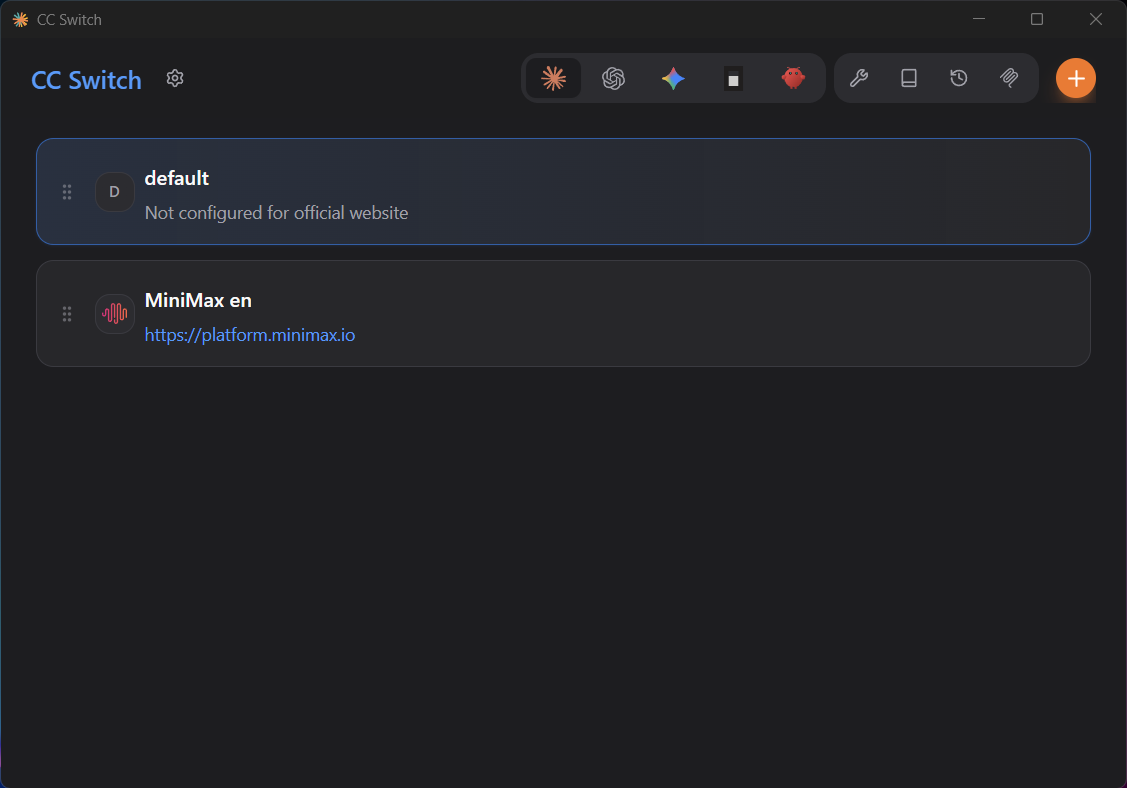
For non-Anthropic models, ↗ CC Switch
lets you route to 50+ models from providers like DeepSeek, MiniMax, OpenRouter, and more.
| Model | Best for | Cost |
|---|---|---|
| Claude Opus 4.6 | Complex architecture, planning | $$$ |
| Claude Sonnet 4.6 | Everyday coding | $$ |
| MiniMax M2.7 | Strong coding, much cheaper | $ |
| DeepSeek V3 | Budget tasks | ¢ |
export CLAUDE_CODE_SUBAGENT_MODEL="claude-sonnet-4-6"
FAQ
Quick answers to common questions.
.claude/commands/ and .claude/skills/ work, but skills are the recommended approach. Skills add YAML frontmatter for auto-triggering, bundled scripts, and subagent control./compact manually or /clear to start fresh. The best practice is one task per session with commits between.