How to Generate Motion Graphics With AI For Free – Prompts and Tools Inside
 Hasan
Hasan

TL;DR
You can create professional motion graphics, animations, and videos using AI completely free. The trick is combining a specially crafted prompt with Remotion, an open-source video renderer. I built a portable system that lets you describe any video, generate the code with AI, and render it to MP4 in seconds. No After Effects, no subscriptions, no coding required. Download my free toolkit below with the exact prompts and renderer I use.
Why I Built This Free AI Motion Graphics System
Here’s the thing about motion graphics: they’re everywhere. YouTube intros, social media content, explainer videos, product demos. But creating them traditionally means either learning After Effects (steep learning curve) or paying someone hundreds of dollars per video.
AI video tools like Runway and Pika exist, but they’re expensive. We’re talking $15-96 per month just to generate a few videos.
I wanted something different. Something free. Something that works.
After 10 years of building tools online and experimenting with AI, I found a method that actually delivers. It combines a specific prompt technique with Remotion, an open-source React-based video renderer.
The result?
Describe what you want, AI generates the code, you render a real MP4 video. All for $0.
How AI Motion Graphics Generation Works
Traditional video creation requires frame-by-frame editing or complex keyframe animations. This method flips that completely.
Here’s the simple breakdown:
You describe the video you want in plain English
AI generates a TSX file (React-based video code)
My renderer converts that code into an MP4 video
Done. No editing software needed.
The magic is in the prompt. I spent 3 days perfecting it so AI outputs code in the exact structure Remotion needs. Without this specific format, the render fails. With it, almost anything works.
My favorite AI for this is Claude (I use it daily for everything I build), but this technique works with other AI models too.
What You Need to Get Started
Good news: almost nothing.
Requirement | Details |
|---|---|
AI Access | Claude (free tier works), ChatGPT, or any capable AI |
My Renderer | Free download, fully portable |
Computer | Windows (Mac/Linux coming soon) |
Coding Skills | None required |
Software Installation | None - everything runs as-is |
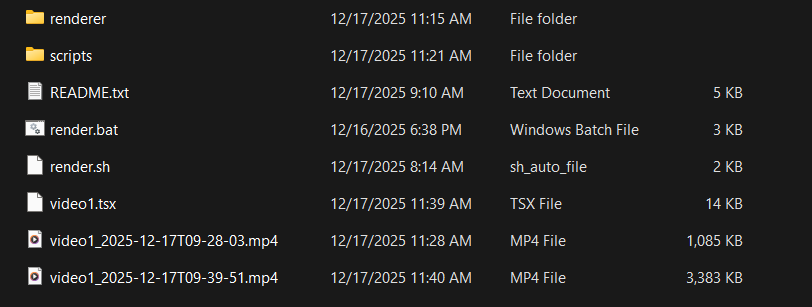
The renderer package I built is completely portable. No installation required. No dependencies to manage. Just download, extract, and run.
Step-by-Step: Generate Your First AI Motion Graphic
Let me walk you through exactly how I create these videos.
Step 1: Set Up Your AI With the Secret Prompt
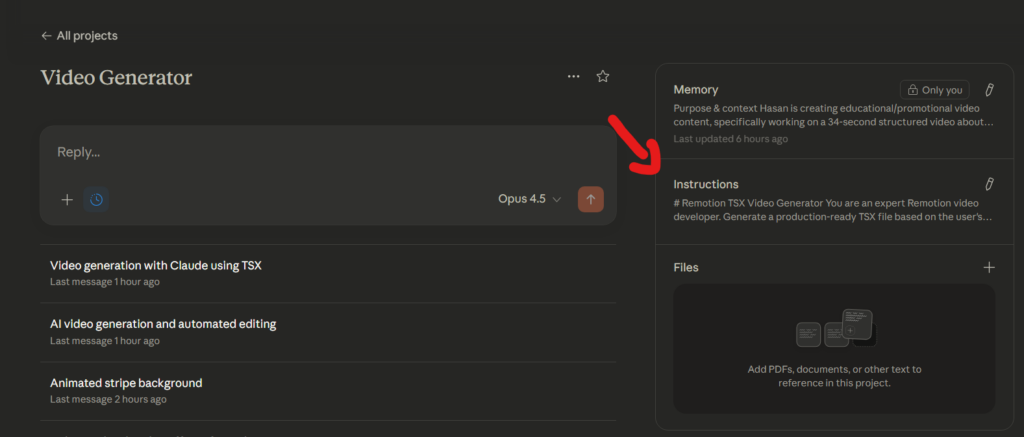
If you’re using Claude (my preference), create a new Project:
Go to claude.ai
Click Projects → New Project
Name it something like “Video Generator”
Click the + icon in Project Instructions
Paste the special prompt (included in the free download below)
This prompt forces the AI to output code in a very specific structure.
It includes rules for animation timing, layout, typography, and Remotion-specific syntax that took me days to figure out.
Step 2: Describe Your Video
Now just tell the AI what you want. Be descriptive but simple.
For example:
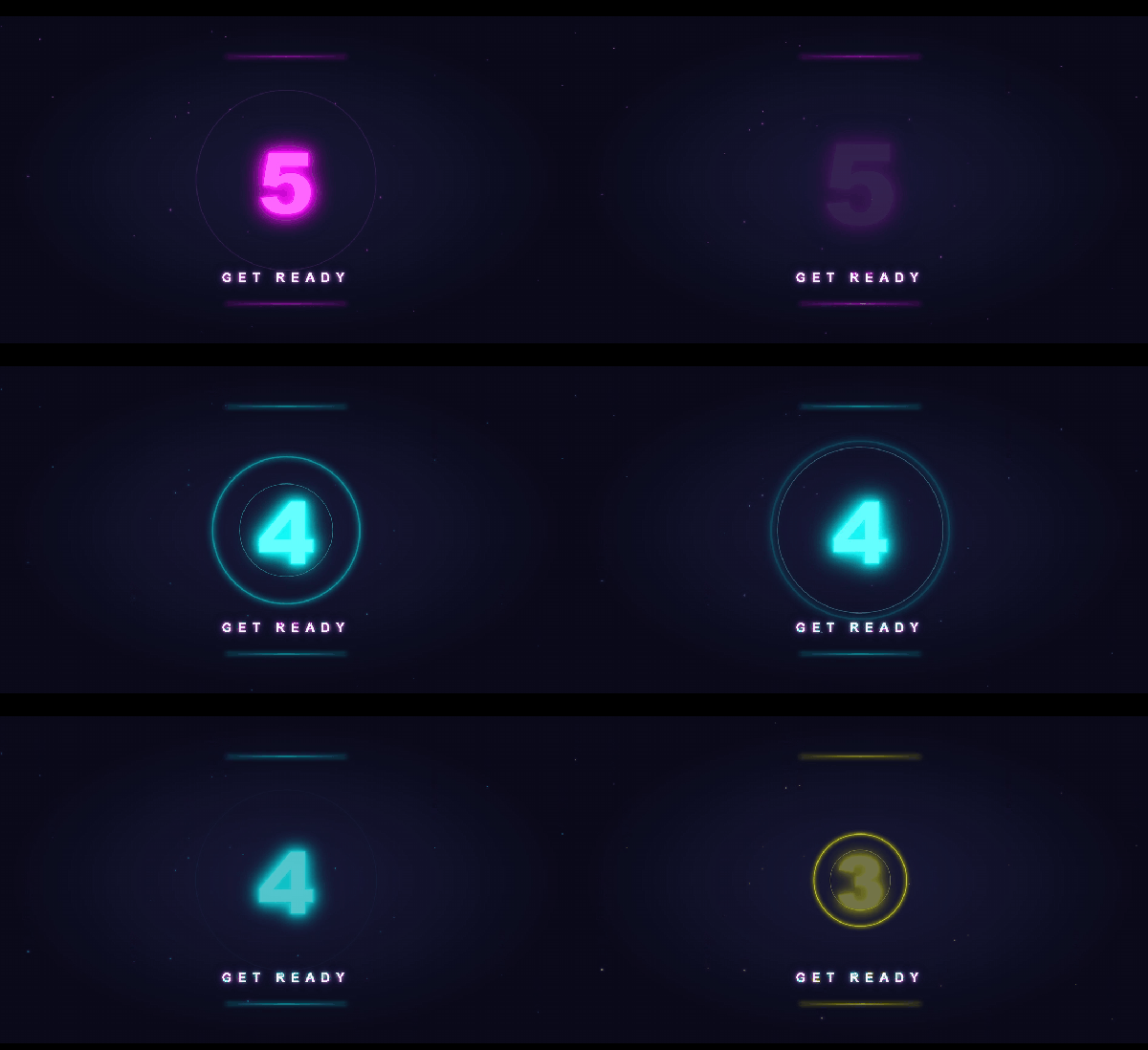
Create a 5-second countdown from 5 to 1 with neon glow effectThe AI generates a complete TSX file. Copy all the code.
Step 3: Save as TSX File
Create a new text file anywhere on your computer
Rename it to something like
countdown.tsx(change the extension from .txt to .tsx)Open with Notepad and paste the code
Save
Step 4: Render to MP4
Download my renderer package (link below)
Extract it to the same folder as your TSX file
Open command prompt in that folder (type
cmdin the address bar)Run:
render.bat countdown.tsxWait a few seconds
That’s it. Your MP4 video appears in the same folder.
5 Ready-to-Use Prompts (Copy and Paste)
Here are five example prompts I’ve tested. Each creates a different style of motion graphic.
1. Neon Countdown Timer
Create a 5-second countdown from 5 to 1.
Each number should have a bright neon glow effect with a dark background.
Numbers should pulse and scale up slightly when they appear, then fade out before the next number.
Use vibrant cyan or pink neon colors.
Best for: YouTube intros, podcast countdowns, stream starting screens
2. Network Visualization
Create a 7-second network visualization animation.
Show interconnected nodes appearing one by one, with glowing connection
lines forming between them.
Use a dark blue background with light blue/white nodes.
Add subtle particle effects in the background.
The network should grow organically from the center outward.
Best for: Tech presentations, AI/data explainers, startup pitch videos
3. Logo Reveal
Create a 4-second logo reveal animation.
Start with particles scattered across the screen,
then have them converge toward the center to form a
simple geometric shape (like a hexagon or circle).
Add a bright flash when they meet, then display the
text "YOUR BRAND" in bold white letters.
Use a gradient purple to blue background.
Best for: Brand intros, YouTube channel intros, business videos
4. iOS Notification Mockup
Create a 6-second iOS notification animation. Show a realistic iPhone notification banner sliding down from the top of the screen on a clean gradient background.
The notification should show an app icon, title "New Message", and preview text "Hey! Check this out...". After 2 seconds, have it slide back up and disappear.
Best for: App demos, social proof videos, product showcases
5. 2D Cartoon Character
Create an 8-second simple 2D cartoon animation.
Show a friendly circular character with eyes that blinks occasionally.
The character should bounce gently up and down in a loop.
Add a simple smile that appears after 2 seconds. Use a warm, cheerful color palette with a soft pastel background.
Best for: Educational content, kids’ videos, explainer animations
Comparison: AI Motion Graphics vs Traditional Methods
Factor | AI + Remotion (This Method) | After Effects | Freelancer |
|---|---|---|---|
Cost | Free | $22.99/month | $100-500/video |
Learning Curve | Minutes | Months | N/A |
Speed | Seconds to render | Hours to create | Days to deliver |
Customization | Prompt-based | Full control | Revision limits |
Iteration | Instant re-generation | Manual edits | Additional fees |
The tradeoff is clear: you get speed and cost savings. For complex Hollywood-level VFX, you’d still need professional tools. But for intros, outros, explainers, and social content? This handles 90% of what most creators need.
Current Limitations (Being Honest)
This system is powerful but not perfect. Here’s what you should know:
No audio support yet. The current version renders video only. You’ll need to add music or voiceover in a simple editor afterward. I’m working on audio integration.
Advanced 3D is experimental. Basic 3D effects work. Photorealistic 3D rendering is still something I’m testing and improving.
AI interpretation varies. Sometimes you need to refine your prompt or regenerate. The more specific you are, the better results you get.
Where This Is Going: My AI Video Studio!
Here’s what excites me most about this technique.
I’m building something bigger. A full AI-powered video studio where you can generate, edit, and iterate on videos using just prompts.
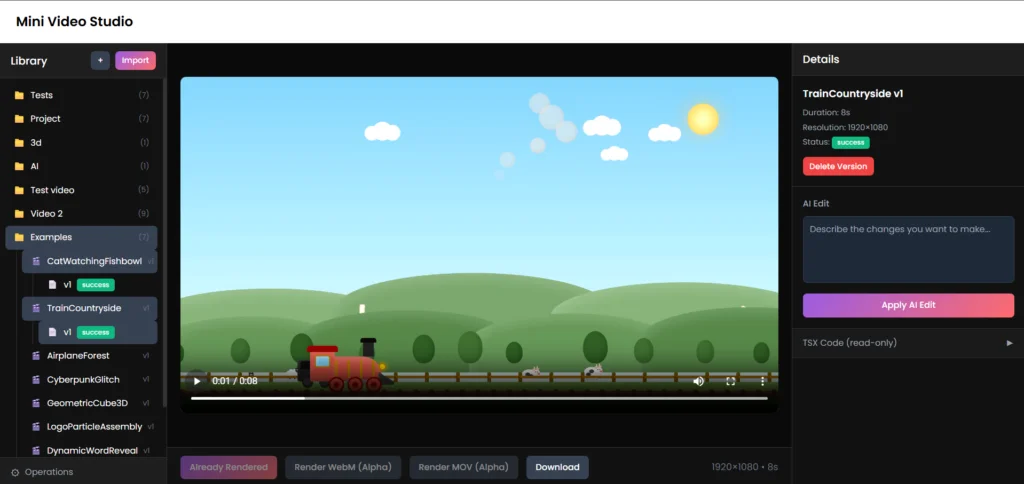
Imagine this: generate a video, then say “change the background to red” or “make the text bigger” and it just happens. That’s the direction I’m taking this.
This free toolkit you’re downloading today is the foundation. The same core technique, just with a visual interface wrapped around it.
If you want to learn how to build applications like this yourself, not just use them, but actually create them from scratch, that’s exactly what I teach at SoloBuilderSchool.com.
We go from zero to launching your own product in 14 days, using AI as your building partner. No prior coding experience needed.
Download the Free AI Motion Graphics Toolkit
Ready to try this yourself?
The free download includes:
The Secret Prompt – The exact project instructions I use (took 3 days to perfect)
Portable Renderer – Just extract and run, no installation
Watch the Full Tutorial
Want to see this in action? I recorded a complete walkthrough showing every step:
I show additional examples, troubleshooting tips, and some experimental 3D graphics I’ve been testing.
Frequently Asked Questions
Do I need to know how to code?
No coding required. You describe what you want in plain English, AI generates the code, and my renderer handles everything else. You never need to edit the code unless you want to.
Is this really 100% free?
Yes. Claude has a free tier that works for this. Remotion is open source. My renderer is free to download. The only potential cost is if you hit Claude’s free tier limits and want to upgrade.
What types of videos can I create?
Motion graphics, animated intros/outros, logo reveals, text animations, data visualizations, simple character animations, notification mockups, countdown timers, and more. If you can describe it, there’s a good chance it works.
How long does rendering take?
Most 5-10 second videos render in under 30 seconds on an average computer. Longer or more complex animations take proportionally longer.
Can I use these videos commercially?
Yes. You generate the code, you own the output. Use them for your YouTube channel, client work, products, whatever you need.
What if the AI generates code that doesn’t render?
Regenerate with a slightly modified prompt, or ask the AI to fix the error. Include the error message in your follow-up. This happens occasionally but is usually quick to resolve.
Start Creating Today
Motion graphics don’t have to be expensive or complicated. With the right prompt and a free renderer, you can go from idea to finished video in minutes.
Download the toolkit. Try the example prompts. Then experiment with your own ideas!
Hasan
Thats Hasan
Related Articles
WebJSON Prompting: Build an AI Carousel Generator with Claude
TL;DR WebJSON is a prompting technique that forces AI models like Claude to search the web for real-time data, then output structured JSON you can use in applications. I used this technique to build ...
Hasan

How to Rank in Google AI Overviews (Google AIO Free Toolkit)
TL;DR Google’s AI Overviews now answer searches directly at the top of results. If your site isn’t mentioned there, you’re invisible to a growing number of users. I built a free Google AIO Toolkit th...
Hasan

The Complete Docker Tutorial for Beginners
When you’re building apps or websites, getting them to run the same way everywhere is a constant headache. Maybe it works fine on your laptop, but it crashes on your server. One project needs Python ...
Hasan